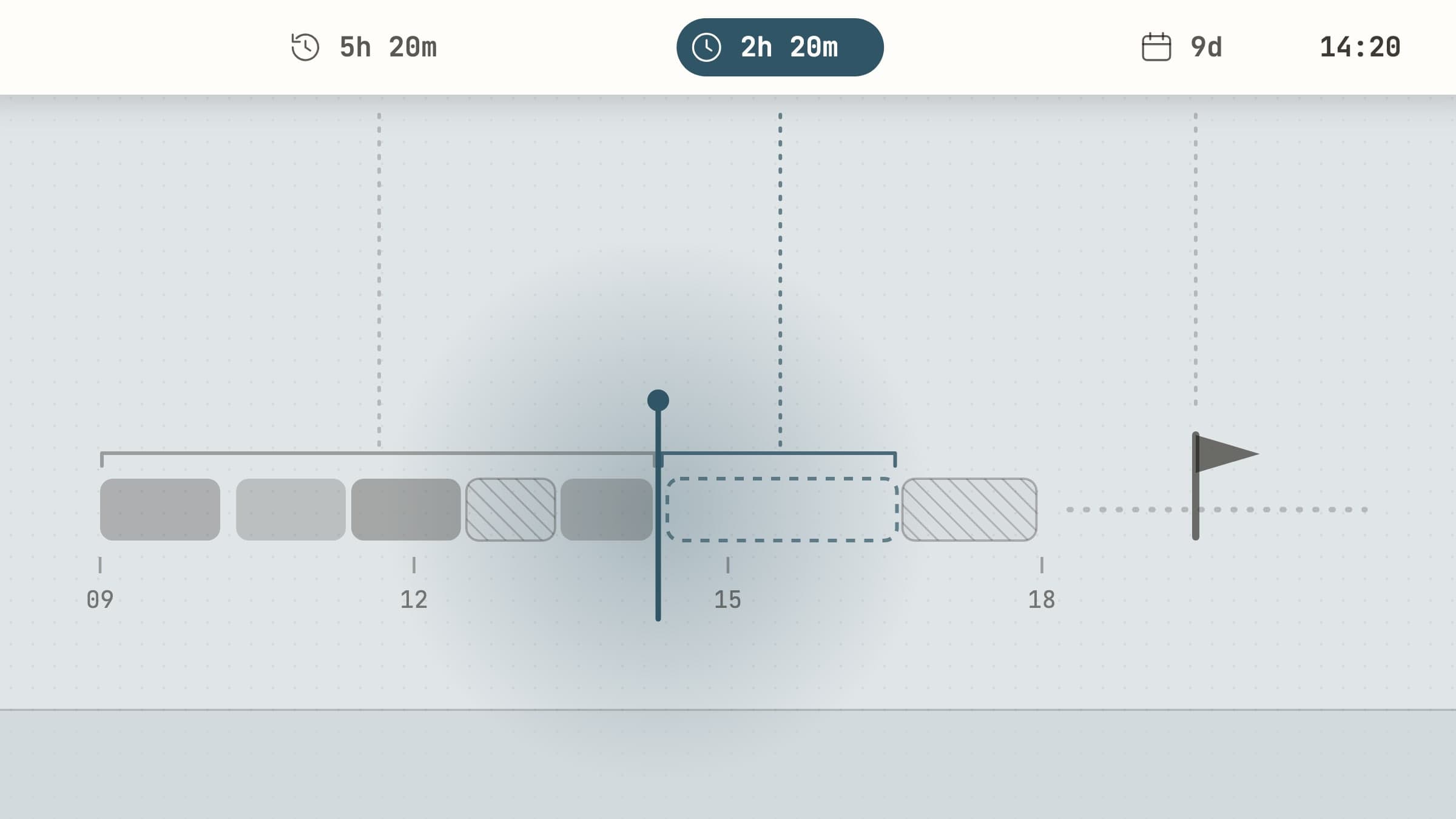
The clock tells you the time, not what it means
The menu bar already has a clock in it, and it is very good at one thing: it says 14:20. What it cannot say is what 14:20 means for you. Whether the flight is in nine days or nine hours. Whether the morning went to the report or to Slack. Whether the two hours before the 16:00 review are enough for what is still on the list. Each of those is a second sum you do in your head, and most of the time you do not do it - you notice at 17:45.
A menu bar time app does that sum for you and leaves the answer next to the clock. Not a timer you start and stop, but a reading that is always there. This post is about three of them, each answering a different question about time, and about the well-known apps that do parts of the same job better. It is one corner of a wider survey, small Mac menu bar apps worth keeping.
What a time reading in the menu bar should do
It should answer one question. The menu bar has room for a few characters per app. An app that tries to show a countdown, a total and a schedule at once shows none of them well.
It should change resolution as it matters more. "41 days" is the right answer three months out; "20 minutes" is the right answer on the day. A reading that stays at one precision is either too vague at the end or too twitchy at the start.
It should be correct without you. If it needs a timer started every morning, it will stop being correct by Thursday. The three below read your calendar, the clock and the frontmost app, and keep themselves up to date.
It should be quiet. You look at the menu bar when you want to. A reading that flashes or notifies every hour has turned back into an interruption.
Three readings: how long until, where it went, how much is left
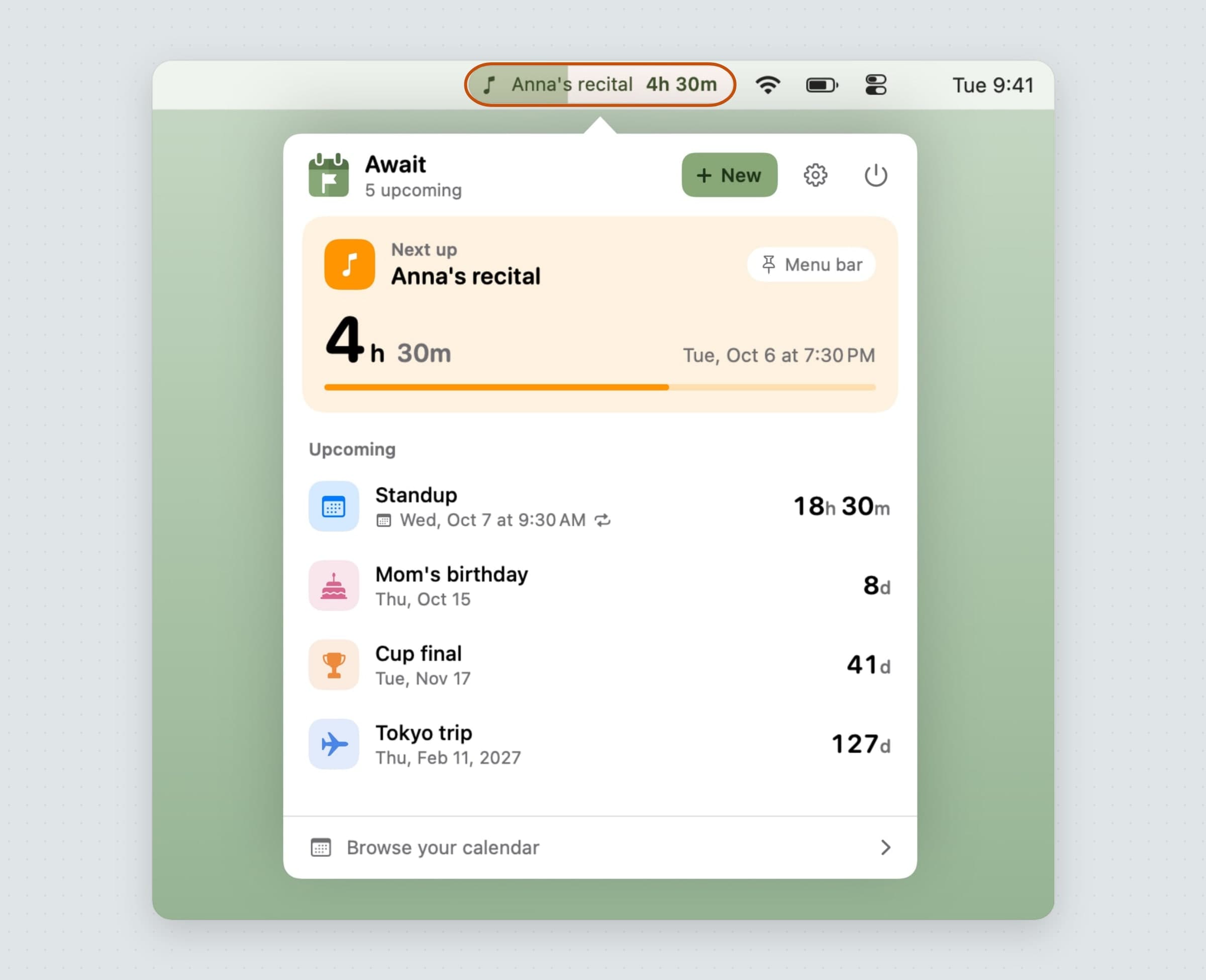
How long until: Await. Await pins one date to the menu bar -
an event you typed in or one read from your calendar - and shows its title with
the time left beside it. The number changes resolution as the date closes in: a
plain 86d beyond a week, then 1d 4h, then 4h 20m inside a day, 20m under
the hour, and seconds in the final minute. Pin nothing and the menu bar shows
whatever is next, handing over by itself. Every event counts down in its own time
zone, so a flight from Istanbul does not drift by three hours the day you travel,
and an event can also count up from a date instead. The calendar is read, never
written, and the countdowns need no network at all. The full tour is in
an event countdown timer for Mac.
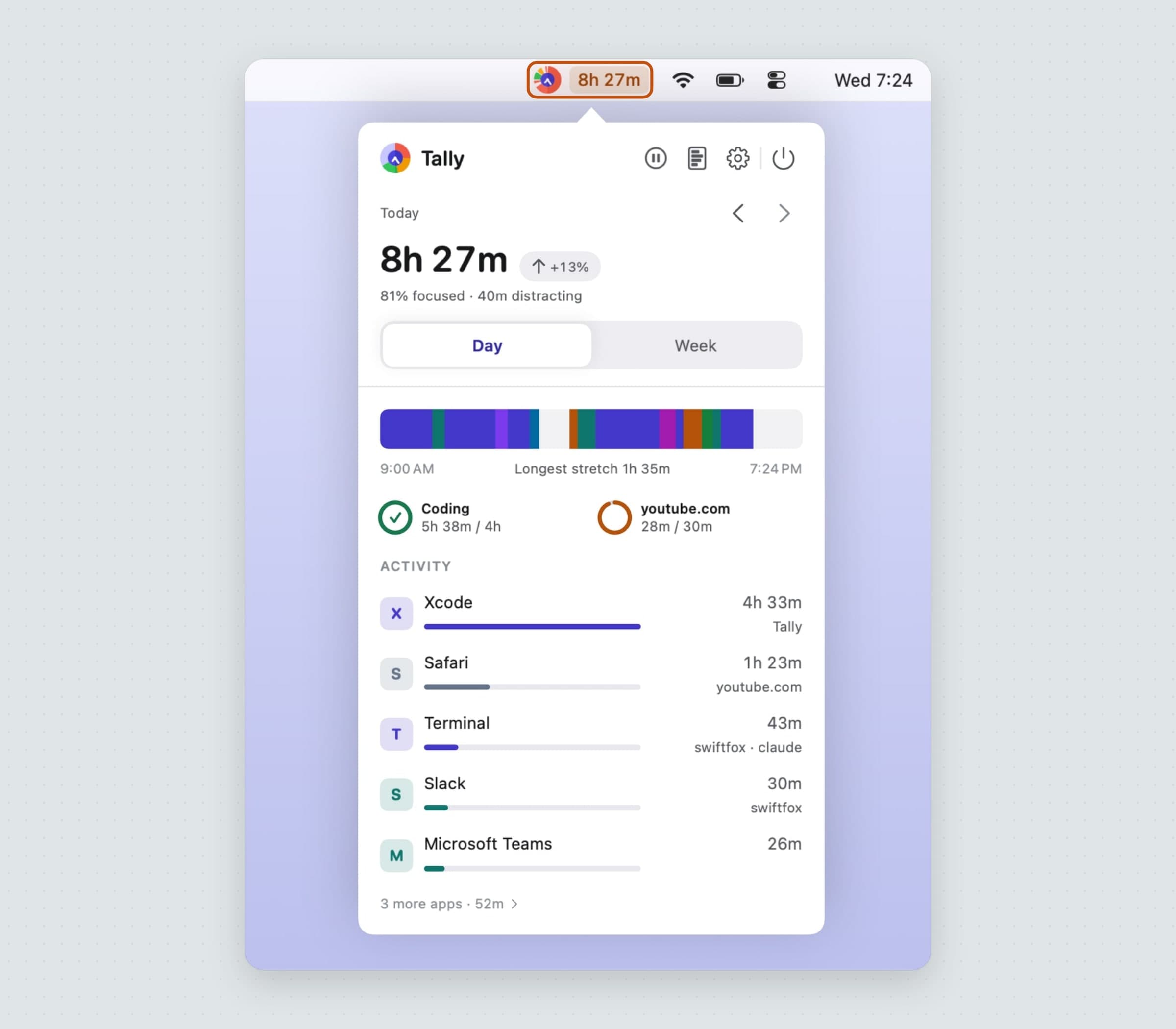
Where it went: Tally. Tally answers the question the clock leaves behind: the day is half over, so where did that half go? It records the frontmost app on its own, and the sites and documents inside it if you grant Accessibility and Automation, and it does not count idle time, sleep or the lock screen. In the menu bar it is the Tally logo, live: the ring fills with today's categories and the hands in the middle show the real time, so the badge is a clock that also says how the day was spent. Near a limit you set it picks up an amber dot, red once you are over. If you want a number up there, Settings offers four - Today's total, What is in front, Fullest limit or Focused today. Everything stays on your Mac. More in an app usage tracker for Mac.
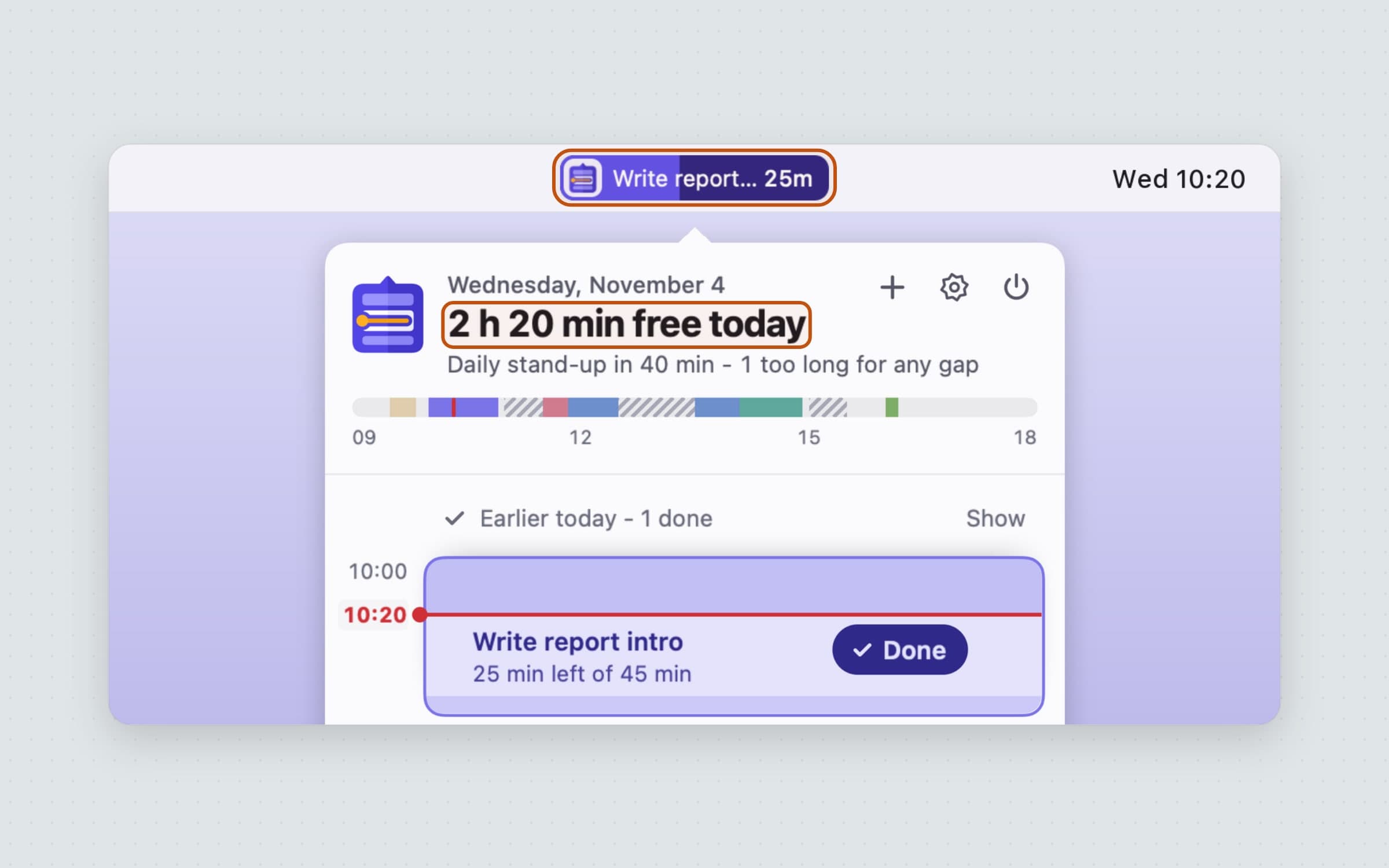
How much is left: Tideline. Tideline looks forward. It reads the meetings from your calendar, lays your tasks into the free gaps inside your working hours, and keeps the result in the menu bar: the task you are on and the minutes left, in a small pill that fills as the time runs down. With a meeting coming up it reads something like "Stand-up in 40m", and a task that runs past its estimate shows the overrun in orange, "+7m". The popover header says how much of the day is still free, and whatever does not fit is counted under Doesn't fit today at 10:00 instead of discovered at 17:45. Tideline was made with ADHD and time blindness in mind, and the menu bar reading is the part that helps most with noticing time passing. The walkthrough is in plan your day on a Mac.
If what you want counted down is the one block of work in front of you rather than the day, Anchored keeps a single task and its timer in the menu bar - it is covered with the other focus tools in menu bar focus apps.
Running more than one
The three read different things, so they do not argue with each other: Await looks weeks ahead, Tideline looks at the rest of today, and Tally looks back. On a laptop with a notch, width is the real cost. Await can drop the time and keep the title, Tally can show just its mark, and Tideline's Menu bar shows can pick the time alone or only its icon, so all three fit in roughly the space one wide label would take. One hidden behind the notch keeps working anyway.
All three are native Swift apps for macOS 14 or later, on Apple Silicon and Intel, with no account and no sync. Each is a one-time purchase after a 30-day trial that needs no card. Await and Tideline are sandboxed; Tally is not, because reading window titles needs an Accessibility permission the sandbox forbids. For the reminders that look after your body rather than your schedule, see menu bar health reminders.
Where the alternatives win
Itsycal is free and open source, and it replaces the system clock with one you can format however you like, plus a month calendar with your events one click away. If what you want in the bar is just a better clock and a calendar, start there. Dato ($18 once on the Mac App Store) does the same with extra world clocks, your upcoming event in the bar and a join button for video calls, which is the better answer if you work across time zones. Its current version needs macOS 26.
Fantastical is a full calendar rather than a reading: natural-language entry, a menu bar mini window, and apps on every platform. It has a free tier, and Premium is about $6.99 a month or $57 a year. If your calendar is the center of your day, it is the stronger tool; it just will not count down to one date or show where the hours went.
For countdowns alone, Countdowns is free for one countdown (Pro $0.99 a month or $8.99 a year, with iCloud sync), and Days - Countdown for Menu Bar is $2.99 once. Both are cheaper than Await; Countdowns was last updated in September 2022 and Days in April 2024.
For tracking, Timing ($10 a month for Professional, 30-day trial) goes much deeper on projects and billable time, and RescueTime (from $9 a month, or $84 a year, with a free Lite plan) covers Windows and phones too. Both are subscriptions: RescueTime keeps your history in its cloud, and Timing syncs it. Compared in RescueTime alternatives for Mac and the best screen time apps for Mac.
For planning, Sunsama ($17 a month billed yearly, $22 monthly) and Structured (free core, Pro $6.99 a month, $29.99 a year or $99.99 once) sync across devices and integrate with other tools, which Tideline does not. Neither keeps a live reading in the Mac menu bar. Compared in Sunsama alternatives for Mac.
Side by side
All three keep their data on your Mac and need no account or subscription.
| The question | What sits in the menu bar | Reads your calendar | Price | |
|---|---|---|---|---|
| Await | How long until a date | The event and its time left, finer as it nears | Yes, read-only | $10.99 |
| Tally | Where today went | A live logo ringed with today; optional total, app, limit or focus | No | $13.99 |
| Tideline | How much of today is left | The current task and its minutes left, or the next meeting | Yes | $11.99 |
Prices and features checked on 4 November 2026.


