Start with your hours, not with your list
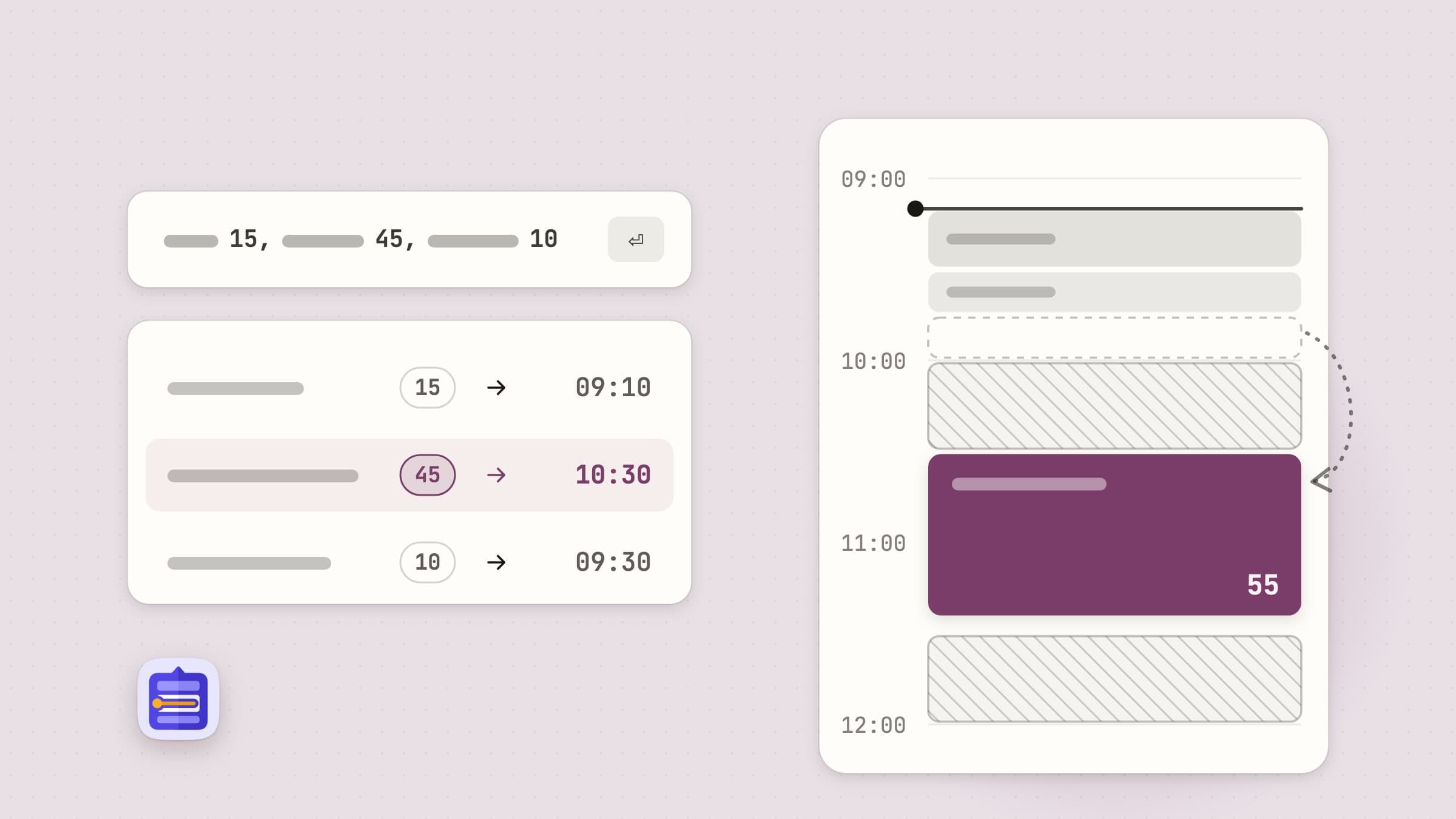
A to-do list on a meeting day tells a small lie. It says you have six things to do, and it leaves out that between the 10:00 stand-up, lunch and the 15:30 review there are about four usable hours, in pieces. With ADHD or plain time blindness, that gap between the list and the clock is where the day goes: the list looks doable at nine and impossible at four.
Tideline is a day planner in the Mac menu bar that works the other way round. You give it a queue of tasks with rough lengths, it reads the meetings from your calendar, and it lays the queue into the free gaps inside your working hours. Everything below is in the shipping version.
The first run asks when your day runs. Workday is 09:00 to 18:00 unless you change it, and nothing is ever planned outside it; weekends stay empty until you turn on Plan weekends too. Then comes the setting that does the most for a realistic day: Buffer on estimates, 25% by default. Most of us guess short, so a task you call 45 minutes takes 55 minutes of the day. A task with a fixed time gets no buffer, since a 14:00 call ends when it ends, and a task typed without a length gets 30 minutes.
Calendar access is asked for in onboarding or in Settings -> Permissions, never at launch. Tideline reads whatever the Mac's Calendar app shows - iCloud, Google, Exchange or a local calendar - and Settings -> Calendars picks which ones count. Without access it still works; it just does not know about your meetings.
Tasks wait for a gap they actually fit in
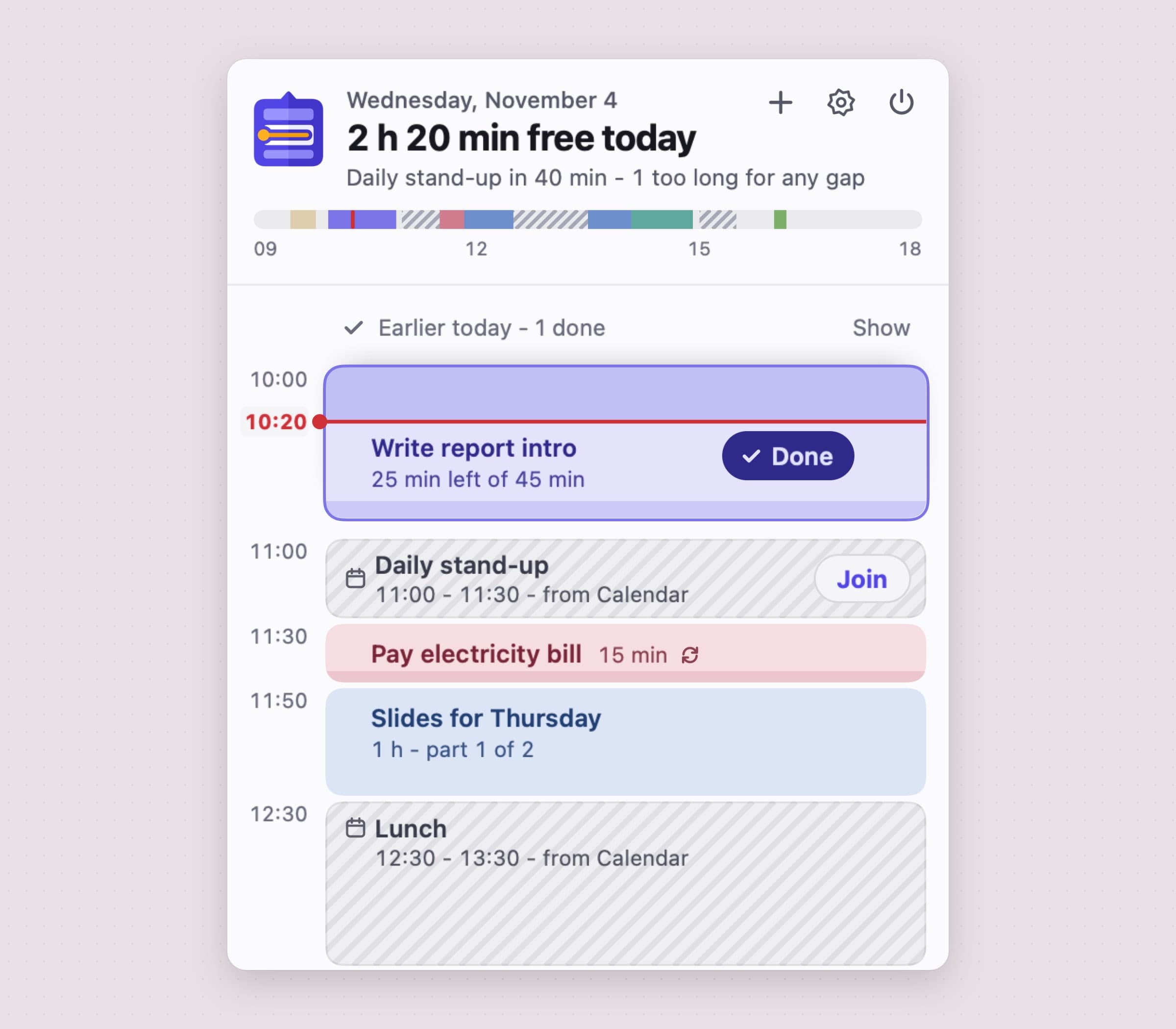
Open the popover and the day is a line of hours. Meetings sit on it as striped blocks, with a Join button when the event carries a Zoom, Google Meet, Microsoft Teams or Webex link. Your tasks are the cards in between, and a red now line runs across them. The header says how much of the day is still free.
You never drag a task onto 11:15. The order of the queue is the plan, and Tideline does the placing: each task goes into the first gap it fits in. A 45 minute report will not land in the 20 minutes before a call. It waits for the next gap that holds it, and the short tasks behind it fill those 20 minutes instead. A long task can also be split around a meeting: the card reads "part 1 of 2", and the rest picks up after the call.
An empty gap suggests a task from further down that would fit - Fit "budget sheet" here - for when you would rather choose. And when the queue is longer than the day, nothing is squeezed in: the overflow gathers under a "Doesn't fit today" line at the bottom, with Move to tomorrow beside it, and the header counts it, "2 don't fit". That line is the honest part of the plan. You find out at 10:00, not at 17:45.
Type the whole day in one line
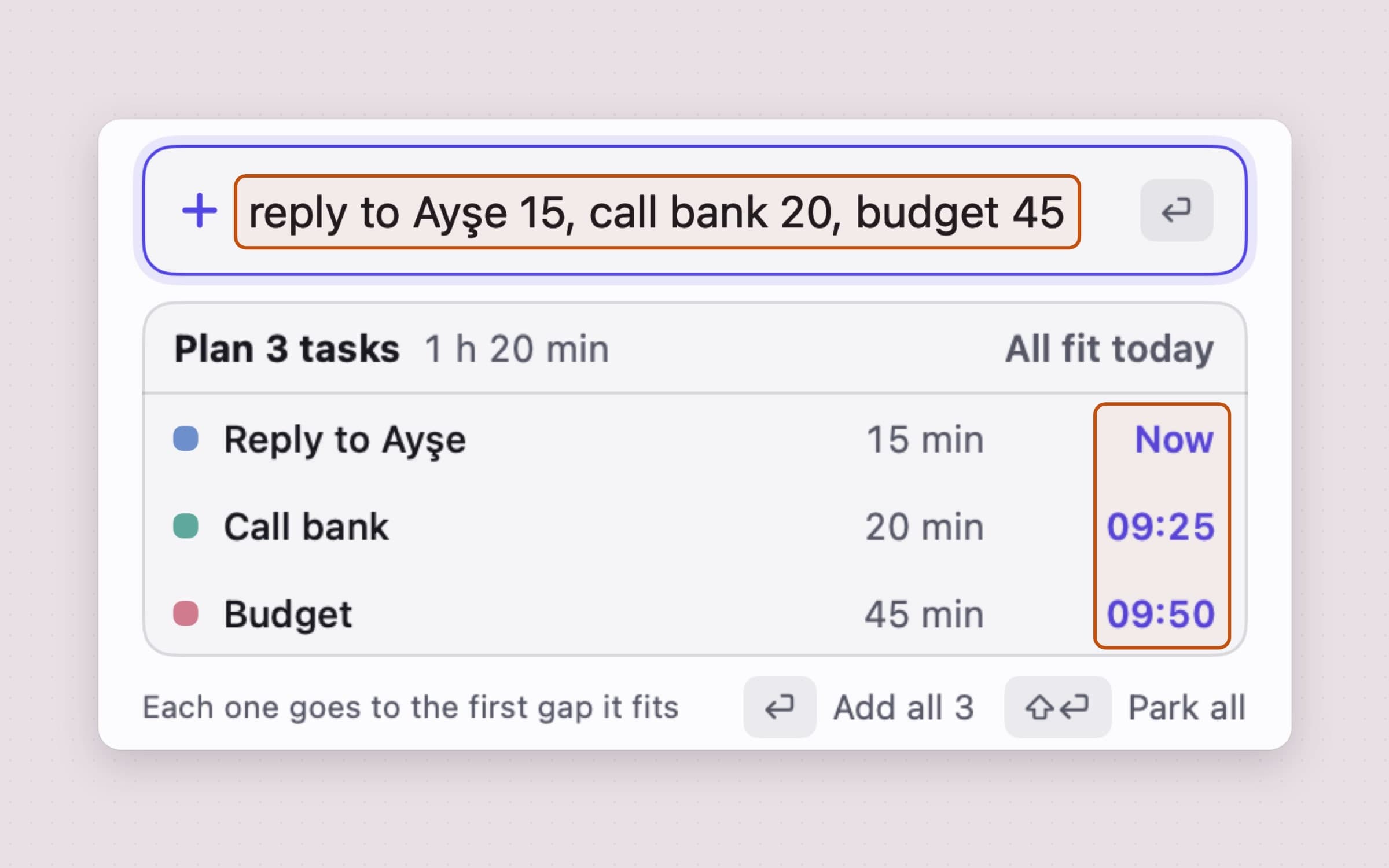
The add field at the bottom of the popover reads plain words. A title and a number is a task and its length: "report 45". A whole list works on one line - "mail 15, report 45, call the bank 10" - split by commas, new lines or "then", up to 12 tasks at a time. Before you press Return, a preview headed "Plan 3 tasks" lists each one with its length and the time it will start, and says "All fit today" when they do. Return adds them all as one step, so a single Command-Z takes the batch back; Shift-Return parks them instead.
Times and days are words too. "standup at 9:30 for 15 min" pins a task to 09:30, and "tomorrow at 3 dentist" goes to tomorrow at 15:00, because a bare 3 is read as the hour inside your workday. The field reads all five languages at once, whatever language the app is in, so "morgen um 10 Zahnarzt 30 Min" and "demain à 14h30 réunion 45 min" land where they should.
Most tasks occur to you in the middle of something else. Control-Option-T opens a small quick add field over whatever app you are in. Type, press Return for today or Shift-Return to park it, and you are back where you were.
The menu bar keeps the time where you can see it
Time blindness is less about planning than about noticing that time has passed, so Tideline keeps the answer where your eyes already go. The menu bar shows the task you are on and the minutes left, in a small pill that fills as the time runs down. With a meeting coming up it reads something like "Stand-up in 40m", and when a task runs past its estimate the overrun shows in orange, "+7m". Menu bar shows cuts it down to the time alone, or just the icon.
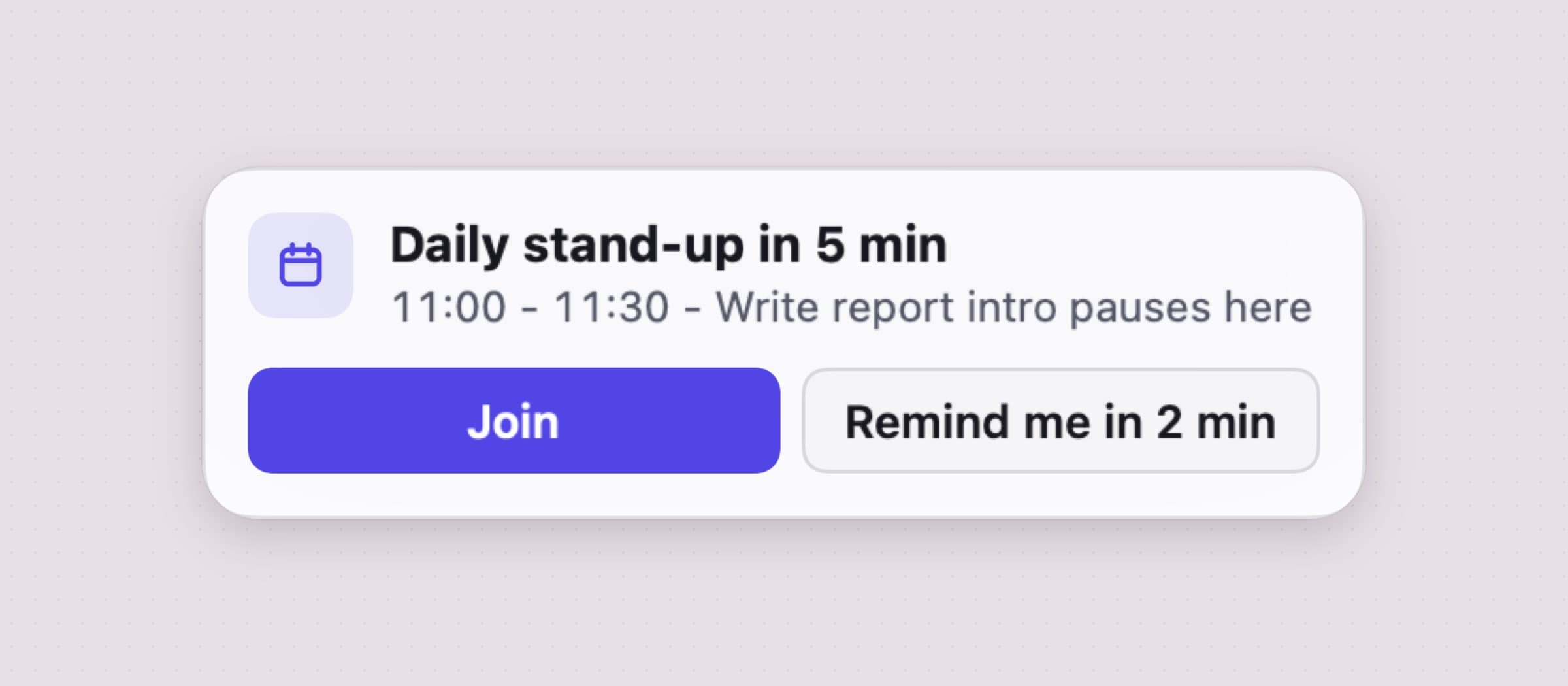
Two moments in a day deserve a tap on the shoulder, and each gets a heads-up card in the top right of the screen. It does not take focus from the window you are typing in, and it needs no notification permission. Five minutes before a meeting it says "Daily stand-up in 5 min", with Join and Remind me in 2 min. Fifteen minutes before your workday ends, "Your day ends in 14 min" lists what will not fit and offers Move to tomorrow or Keep going. Both leads can be changed, or turned off.
When the plan breaks, move it rather than fix it
No plan survives a Tuesday, and Tideline does not expect yours to. Drop a card on the middle of another to swap the two, or on an edge to slot it in between. On a trackpad, swipe a card right for done and left for tomorrow, and Command-Z goes back up to 50 steps. The card's menu has the rest - Start now, Park it, length chips to fix a bad guess - and the keyboard does it all: Space marks done, T sends to tomorrow, P parks.
Two drawers at the foot of the popover hold what is not today. Tomorrow is what you pushed on, and it comes back in the morning. Park is for tasks without a day: "Thoughts that can wait. Nothing here is due."
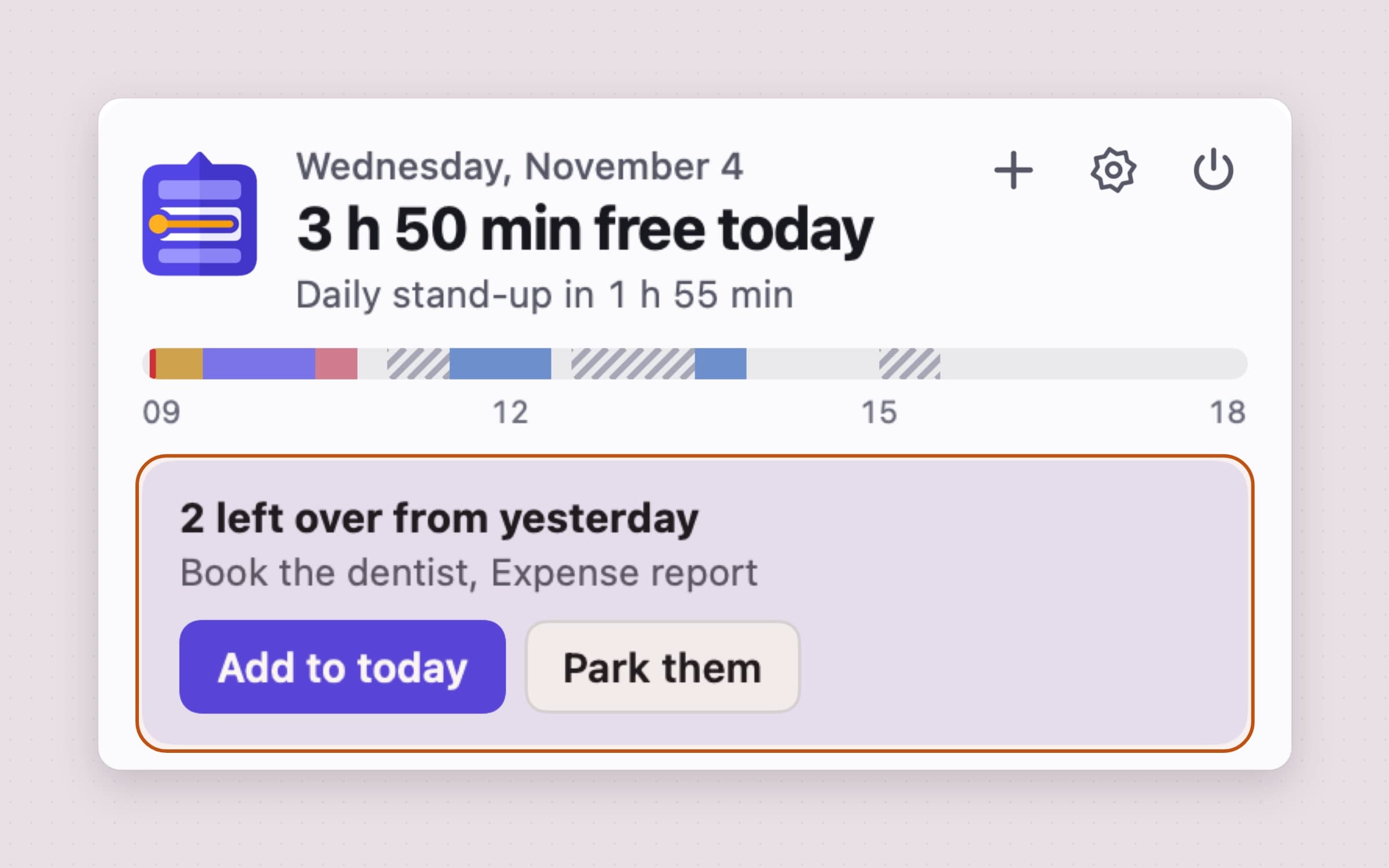
At the end of the day nothing turns red. Unfinished work moves on by itself, and the next morning starts with "2 left over from yesterday" and two buttons, Add to today or Park them. You decide what comes back before the new day fills up. The day turns over at 04:00 rather than midnight, so a late night still counts as the same day, and a closed lid at lunch is a pause, not an hour and a half over on the task you left running.
Repeating tasks that never pile up
Some tasks come back on their own: the inbox at 09:00, a timesheet every Friday, rent on the first. Type "daily", "weekdays", "every fri" or "monthly" after a task and it joins each day by itself. Settings -> Repeating lists them, lets you pause or stop each one, and decides whether they join the queue At the start of the morning or At the end.
What matters more is a missed one. If one is not done by the end of the day is set to Skip it by default, so a daily task you did not get to is not waiting twice tomorrow, and a week off does not leave seven copies. Set it to Move to tomorrow if the task really has to happen.
Put the plan in your calendar, if you want to
Calendar writing is off until you turn it on, because a shared work calendar full of your private to-dos is not everyone's idea of a good morning. Turn on Add tasks to a calendar in Settings -> Calendars and Tideline makes a calendar of its own, named Tideline, and never writes into one you share. What to add is either Fixed-time tasks or the Whole plan, and the events move when the plan does, reaching your phone the way your other calendars do. Tideline never edits or deletes your own events.
The plan itself lives on your Mac, in the app's own folder. There is no account and no sync service, and Tideline sends your tasks and events nowhere.
What it deliberately does not do
Tideline plans one day at a time on one Mac. There is no iPhone or iPad app, no web app and no sync between Macs. It has no projects, tags, priorities, subtasks or boards: it holds today, Tomorrow and Park, and a three-month project lives somewhere else.
It does not connect to Todoist, Asana, Notion, Jira or Slack, and it does not import Apple Reminders. There is no AI: the add field follows fixed rules for five languages, which is why the preview can show exactly what it understood. There is no team planning and no time tracking report. Heads-up cards are not notifications, so they appear only while the Mac is awake and Tideline is running. Apart from license checks and updates, the app sends anonymous usage counts and crash reports, never the text of a task.
What it costs, and what else to look at
Tideline runs on macOS 14 or later and takes about 15 MB. It is a one-time $11.99 purchase with a 30-day free trial that needs no card and no email. The full specification is on the Tideline page.
If you only want the one task in front of you with a timer, Anchored does that in the menu bar. For a countdown to the next event in your calendar, Await is the smaller tool, and if your list starts as a paragraph of notes, Plexus turns it into tasks on macOS 26. For the wider field, see the best Mac apps for ADHD.