Why a countdown is not a calendar entry
A calendar answers "what is happening today". A countdown answers a different question - "how long until this" - and a calendar is bad at it. The event is three months down a scroll, the widget shows the next thing rather than the thing you care about, and neither tells you the number you actually want without being opened.
An event countdown app is a much smaller idea: one date you have chosen, the remaining time, permanently visible. Await does that from the macOS menu bar and from a desktop widget - including for dates already sitting in your calendar - and everything below is in the shipping version.
The pinned countdown
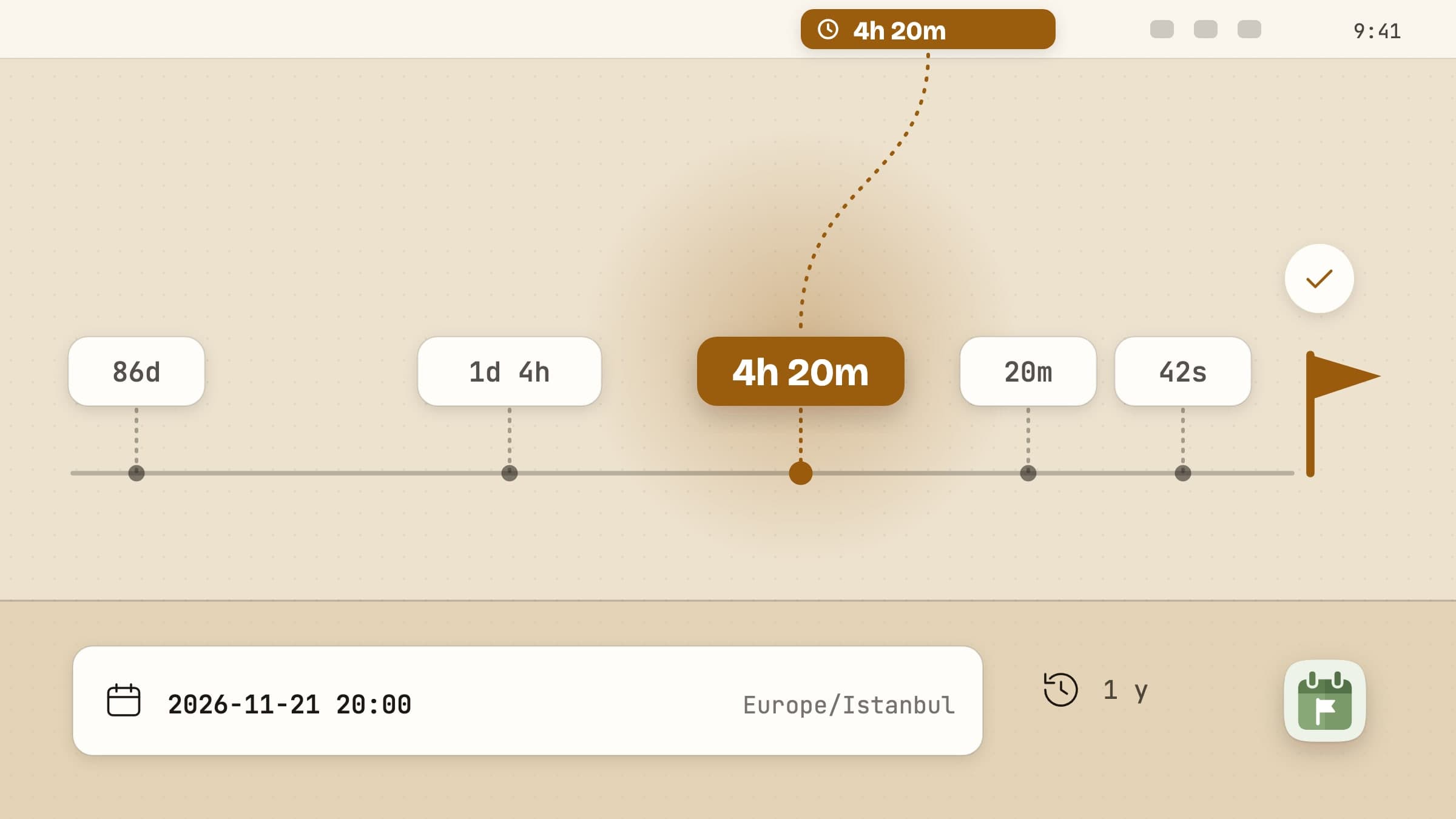
The status item carries the countdown's title and the time left beside it, and
that second half changes resolution as the date gets closer. Beyond a week it is
a plain day count - 86d. Inside a week it becomes 1d 4h, then 4h 20m
inside a day, then 20m under the hour, and in the final minute it ticks in
seconds. When the moment arrives the label becomes a checkmark.
That escalation is the whole point of putting it in the menu bar. A countdown to something three months out wants to be a single quiet number; the same countdown in its final hour wants to be precise, and you should not have to switch views to get there. If even that is more than you want in the bar, the remaining time can be switched off and the title stands on its own.
Pinning is optional. Pin nothing and the menu bar simply shows whatever is next, handing over by itself each time one passes.
The list behind it
Only one countdown holds the menu bar, but Await tracks as many as you like. Clicking the menu bar opens a 400 by 470 point popover with the full list.
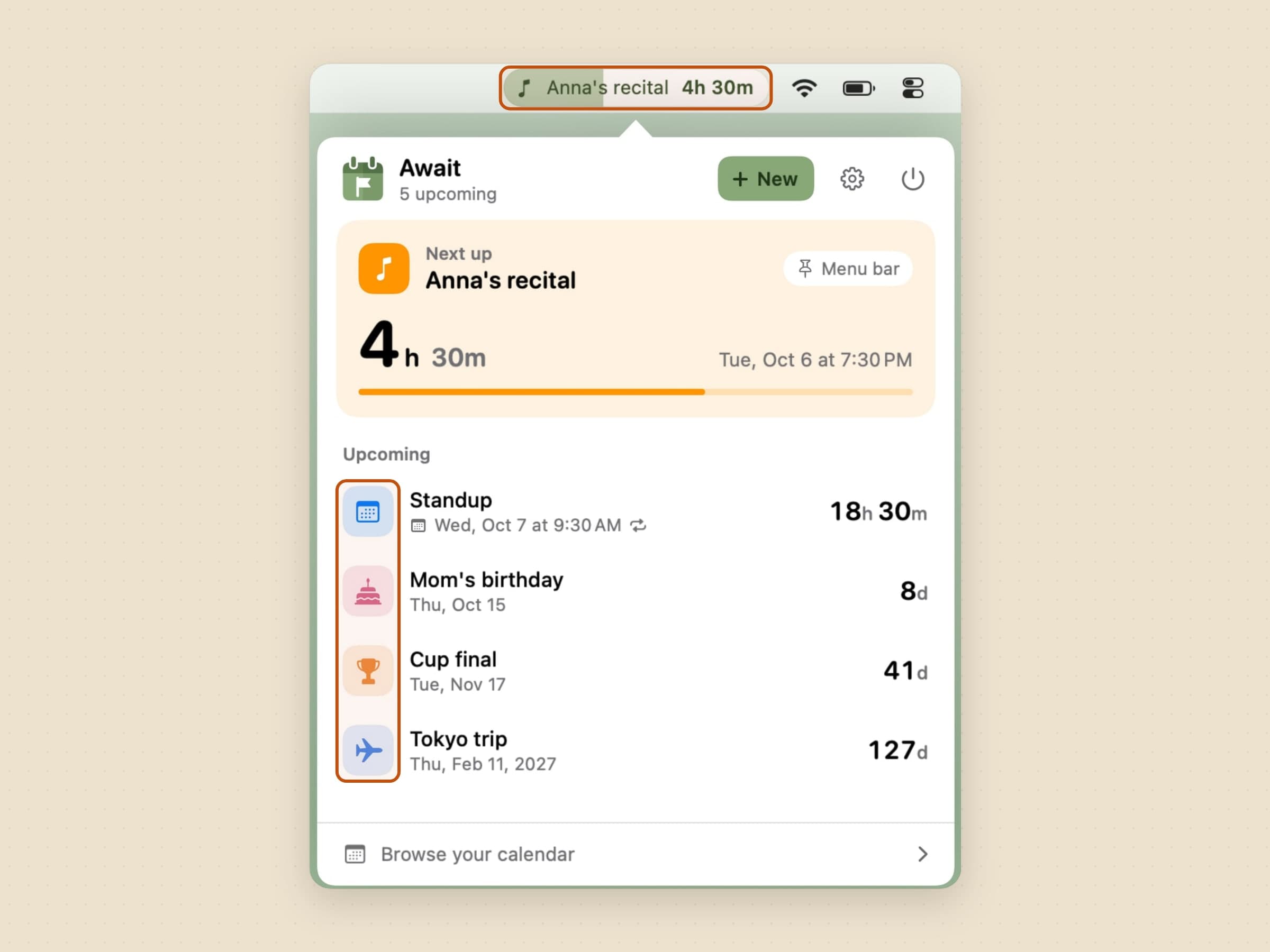
Each row carries the event's icon, its title, its date and its remaining time, and pinning a different one swaps what the menu bar displays. The one on the menu bar heads the popover on a Next up card of its own: the time in large type - days, then hours, then minutes as the date closes in - with the next unit beside it, and a bar for how much of the wait is behind you.
The calendar it can read
Await reads your calendar, and only reads it. Nothing is added, edited or deleted, and nothing is uploaded - the events are read on the machine and stay there.
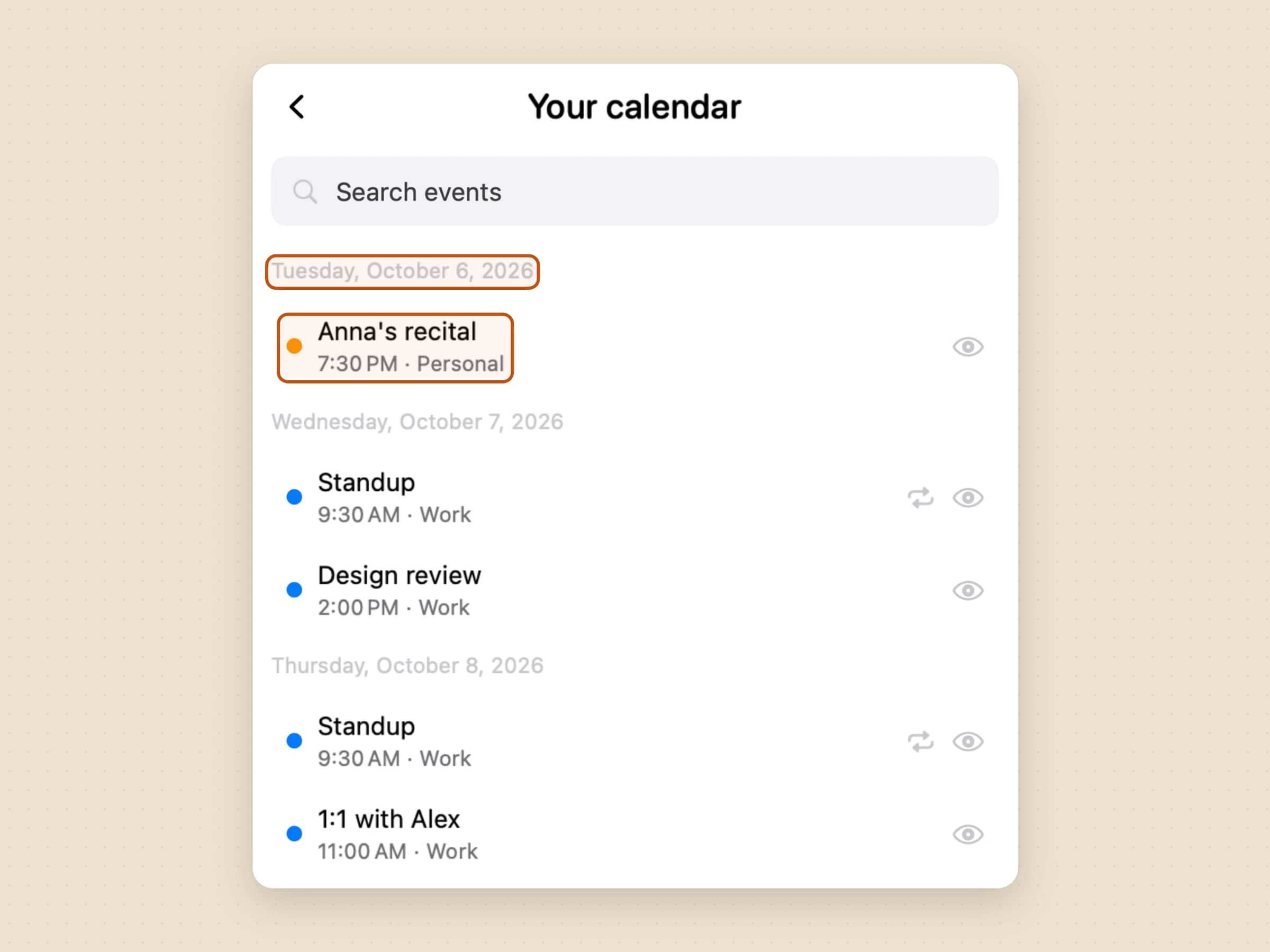
It goes through EventKit, which is macOS's own calendar layer, so whatever you added under System Settings -> Internet Accounts is already covered: Google, Outlook, Exchange and iCloud all arrive the same way. There is no sign-in inside Await and no second copy of your calendar anywhere.
Events land in the same list as the countdowns you typed in, sorted by when they happen, each on a square of its calendar's own color. Only what falls inside a horizon you choose - a day, three days, a week, a month - is carried, so a working calendar cannot bury the four dates you installed this for. Anything further out is in the picker above, which is also where you search.
Three details worth knowing. Pinning a recurring event pins the series, so next week's instance takes over by itself instead of the pin going stale. Dismissing one from the list is not a delete - Await does not own that event - and the picker is where you bring it back from. And a calendar event can wear an icon you pick, which is the one thing about it Await stores at all.
The permission prompt asks for full calendar access, which is more than Await wants. macOS 14 has no read-only tier: write-only access reads nothing at all, so reading a calendar means asking for the whole thing. If you have already granted add-events-only, Await says so and offers the upgrade rather than showing you an empty list.
The note, the link, and the meeting it finds
Every countdown can carry a note and a link, and neither is a field you have to fill in. The note is whatever you would otherwise have written on a sticky - the gate number, the door code, what to bring - and it shows as the row's tooltip rather than as a third line of text, so a list of eight countdowns stays a list of eight countdowns. The link gets a button on the row - under the pointer, and always on the Next up card - and that button is the whole point: the thing you actually do when the moment arrives is usually open something.
For a calendar event Await fills the link in itself. A meeting invite nearly always already contains the room - the trouble is that no two calendar providers agree on where it lives. Google puts a Meet link in the event's URL field; a Zoom invite pastes a wall of text into the notes; plenty of people just type the room into the location. So Await reads all three, strongest signal first: a URL field pointing at a service people meet on wins outright, then a known service found in the location or in the notes body, then the URL field pointing anywhere else - it might be the meeting, it might be the agenda doc, and the wrong-but-related link beats nothing. Failing all of that, the first plain link in the free text, which is how a self-hosted room still counts.
The text scan goes through NSDataDetector, the same thing macOS uses to make
links tappable, so the trailing punctuation, wrapped lines and stray angle
brackets that a real invite is full of are already handled.
When the meeting arrives, the notification carries a Join button, so the countdown ends where you were going anyway.
The desktop widget
The menu bar can only ever hold one countdown. The desktop widget is where the rest of them fit.
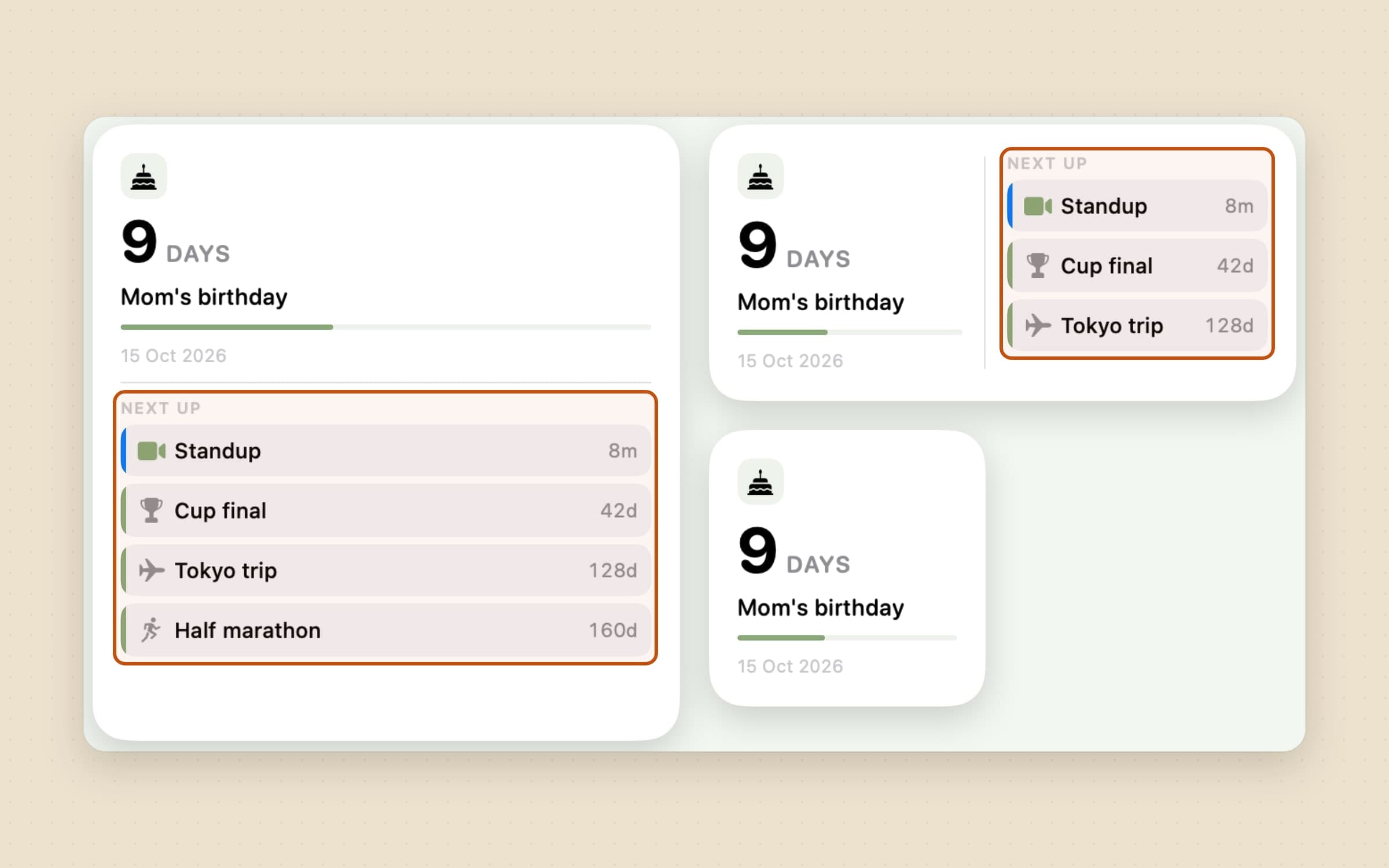
It comes in three sizes. Small is the hero alone: the number, its unit, the title, how far the countdown has come and the date it lands on. Medium keeps that on the left and puts the next three countdowns down the right, each with the calendar colour it came from - which is the one thing the menu bar structurally cannot do. Large gives the hero the full width across the top and stacks the next four underneath.
Left on automatic, the card follows the menu bar: whatever you pinned is what it shows, and if you pinned nothing it shows whatever is next, handing over by itself as each one passes. Each card can also be set to an event of its own, so one widget can hold the flight while another follows the menu bar. It also honours Await's own appearance setting rather than only the system's, so an app pinned to dark does not end up with a white card beside a dark popover.
Two details are worth knowing. Countdowns run to absolute dates, so once the app has published a snapshot the widget keeps counting correctly for days with Await closed - it only needs waking when the set of countdowns changes, not when the clock moves. And while a meeting is minutes away the card offers to join it: on medium and large as a button beside the time, on small as the whole card, because a small widget has exactly one tap target and the alternative was no way to join from the size most people use.
Time zones, minutes and icons
Adding an event by hand is a short form, and two of its fields are the reason the app exists.
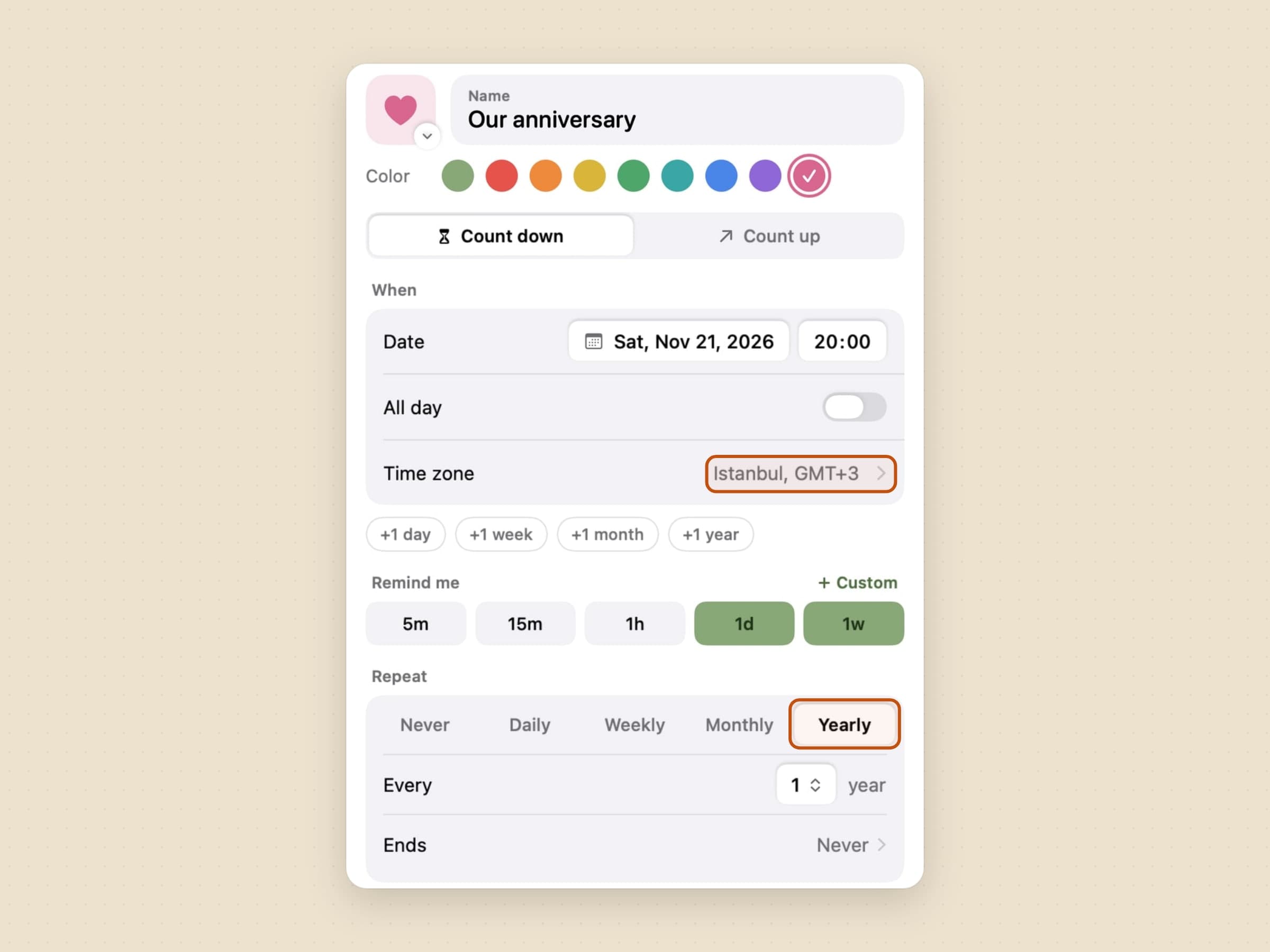
Every event carries its own time zone. A flight leaving Istanbul is counted down in Istanbul time whether you are in Berlin or not. This is the detail most countdown apps get wrong quietly: they store a moment in your current zone, and the number drifts by a few hours the day you travel, which is exactly the day you were relying on it.
Counting to the minute is optional. A birthday is a date; a launch at 14:00 is a moment. The editor has a switch, and the countdown formats itself accordingly.
Each event also takes an SF Symbol icon, which is what makes a list of eight countdowns scannable rather than eight rows of text. Calendar events can take one too.
Repeats that roll forward
An event can carry a repeat rule - daily, weekly with a chosen set of weekdays, monthly or yearly. Once a recurring countdown is reached it rolls forward to its next occurrence on its own, so a weekly standup or a monthly invoice date is entered once and then maintains itself. The rule can also skip - every two weeks, every three months - and end, on a date or after a set number of times.
The rule is deliberately a small subset of what a calendar can express. The time of day, and for monthly the day of the month or for yearly the date, come from the event's own date rather than from extra fields, so there is one date to get right instead of two places for it to disagree with itself.
What happens at zero
Three answers, and you choose per countdown rather than once for all of them.

A celebration plays a calm full-screen animation, and it plays on every connected display rather than only the one you were looking at, so a second monitor cannot swallow the moment. Confetti falls across it, and a short chime can play with it - both in Settings -> General, the confetti on by default, and Reduce Motion turns it off. It dismisses itself after a few seconds.
A notification is the quiet version - a plain local notification, no takeover. The two are independent, so both at once is allowed.
Neither is the third answer, and it is the one a new countdown starts on: the date simply arrives in the menu bar. For a deadline you are already dreading that is arguably correct.
Calendar events carry the same pair, stored against the series rather than the occurrence, so next week's instance celebrates because this week's was asked to.
Zero does not have to be the first you hear of it, either. An event can also remind you ahead of time - five minutes, fifteen minutes, an hour, a day or a week before, as many of those as you like - or at a lead time of your own, three days or two hours, each as a plain notification.
Counting up, Shortcuts and a backup
Not every date is ahead of you. Switch an event to Count up and it counts the time since a date instead - a year at a new job, days since you quit something - in a Counting up section of its own. Turn on milestones and it sends a notification on day 100, 500 and 1000 and on every anniversary.
Await also works from Shortcuts: create a countdown, ask what is next, or ask how long until one, and Siri and Spotlight offer the same actions with no setup.
Everything lives in one small file, and Settings -> Data exports it to a JSON backup and imports it back, on this Mac or a new one.
What it deliberately does not do
It does not write to your calendar. Nothing is created, moved or deleted, which is also why there is no "add this countdown to Calendar" button anywhere.
There is no sync and no iPhone app. Everything is a small file on your Mac.
The countdowns themselves need no network at all - the one to your flight runs on the plane, which is a slightly absurd thing to have to say about a countdown app and yet is not true of all of them. What the app does send goes to our own servers and never carries a countdown: license checks, updates, config, and anonymous usage and crash diagnostics. Reading your calendar does not change that either - it is read through macOS, on the machine, and no part of it goes anywhere.
What it costs, and what else to look at
Await runs on macOS 14 or later, on Apple Silicon and Intel, and takes about 10 MB. It is a one-time $3.99 purchase with a 30-day trial that needs no card and no email. The full specification is on the Await page.
Await counts down to a date. If what you want counted down is the block of work in front of you right now, that is a different tool - Anchored keeps one task and its timer in the same menu bar, covered in a menu bar task timer for Mac. There is a wider survey of the small stuff in Mac utility apps worth installing.