What Permute is actually good at
Permute, by Charlie Monroe Software, the maker of Downie, is the converter many Mac users reach for when a file is in the wrong format. You drop a file on the window, pick a preset, and it converts, with no settings to learn first. It handles video, audio, images, PDF and text, "100+ formats" by its own count, including WebM, AV1, MP3, FLAC, HEIC, AVIF and WebP.
Version 4, from June 2026, goes well beyond conversion. Permute can stitch files into one, split them by time or by an EDL or CUE file, extract tracks without re-encoding, swap audio tracks, edit metadata in batches, trim and crop with a waveform, and transcribe speech to SRT subtitles on the Mac. It can aim for a target file size and pick the quality to fit. Drop zones convert whatever lands on them with a fixed preset, an Advanced Custom preset gives direct FFmpeg access, and an AppleScript dictionary and a URL scheme let other apps, Downie among them, hand it files.
On Charlie Monroe's site Permute 4 is $14.99 once for that major version, with up to 3 activations, and the same on the Mac App Store, where the sandbox leaves out some capabilities. A bundle with Downie 4 is $26.99, and Setapp includes it, or sells it alone for $4.99 a year. Permute 4 needs macOS 26 and an Apple silicon Mac.
If your Mac is on macOS 26 with Apple silicon and you convert video in formats like WebM, AVI or AV1, or want stitching, splitting and subtitles in the same app, Permute is the obvious buy, and no Permute alternative for Mac on this page does all of that.
Why people go looking anyway
Complaints about Permute are few next to the praise - Setapp shows 98 percent positive from more than 4,000 ratings - and several of the older ones predate later fixes. The reasons that recur are these.
Version 4 leaves Intel and older macOS behind. Permute 4 needs macOS 26 and Apple silicon, and the developer has said there is no Intel version coming. A Mac on Sonoma or Sequoia, or any Intel Mac, stays on Permute 3, which covers macOS 11 to 15 and gets no more updates.
Paying again for each major version. A license covers one major version. Buyers from 2026 got version 4 free and older owners 40 percent off, but some recent Permute 3 buyers asked in the developer's blog comments why they had to pay again.
The interface. Reviews over the years have called the interface dated or confusing, and the version 4 redesign did not win everyone: one Setapp review of 4.0.2 in June 2026 called it awful and said dragging did not work.
Quality and control against free tools. Some reviewers found certain presets gave lower quality than free HandBrake, or larger files than other tools, and Setapp's own review lists the lack of fine encoding options as the main drawback. People who want that control name HandBrake, Shutter Encoder or ffWorks instead.
What macOS already does for free
macOS converts more than most people expect. Preview exports an image to JPEG, PNG, HEIC or TIFF, and its Reduce File Size filter shrinks a PDF. Finder has Quick Actions for converting images and encoding selected video files to a smaller size, and Photos exports a HEIC as JPEG. Shortcuts can convert images in bulk once you build the shortcut.
Where it stops is control and batches: Preview's PDF filter has no setting, Finder's video encoding offers a few resolutions, and none of them aims at a size, keeps the originals safe in one place or lets you take a batch back. How to send large files by email on a Mac covers the built-in routes in more depth.
Sculpt: everything converts in one window, and every run can be undone
Sculpt is a converter for images, PDFs, video and audio that works in one window: drop files or whole folders, Sculpt groups them by kind, and each group gets a preset. It is $13.99 once, with a 30-day trial that needs no card and no email, and it runs on macOS 14 or later, on Apple silicon and Intel. Conversion happens on your Mac and files are never uploaded.
Small enough for Gmail, WhatsApp or Discord, by name
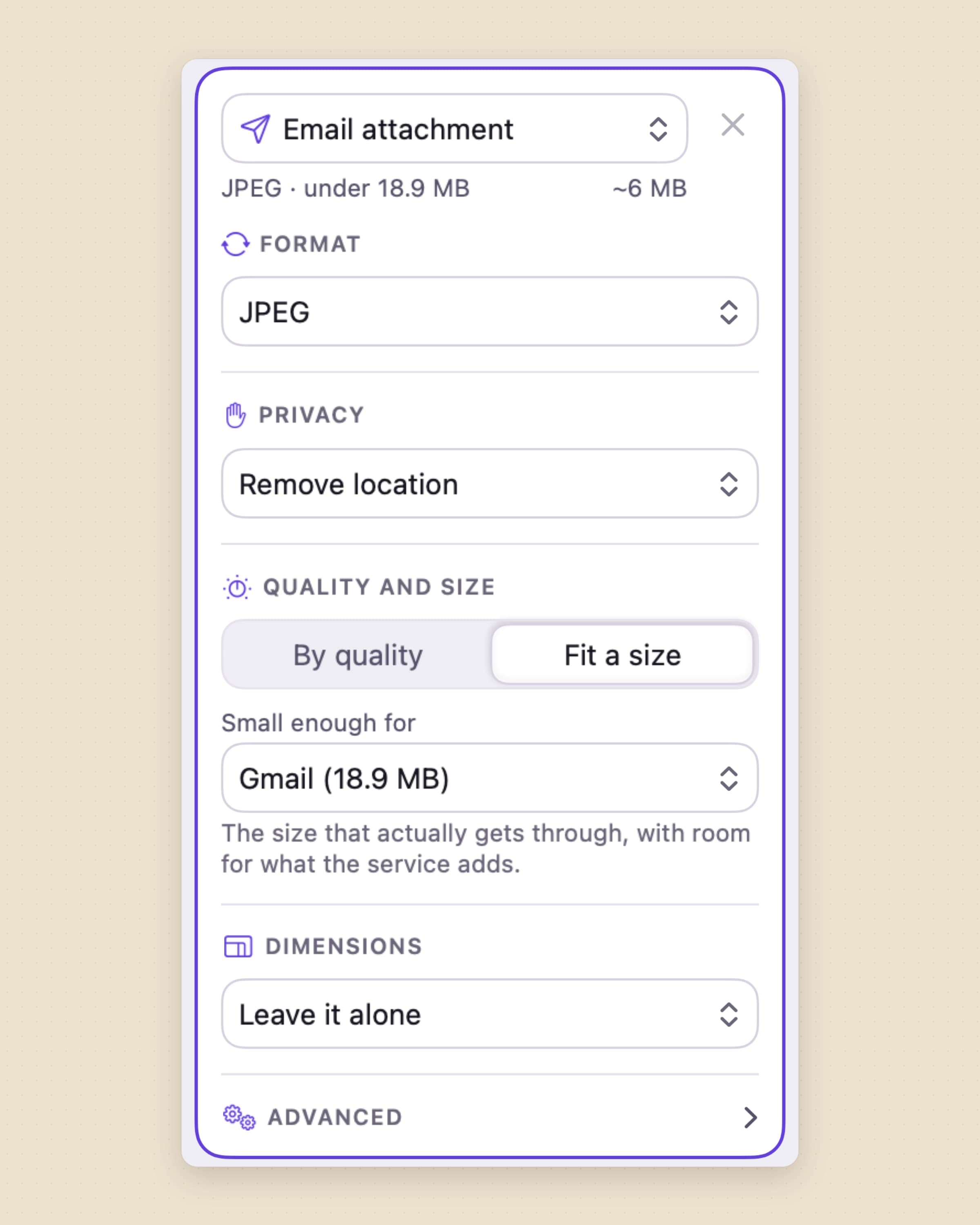
The usual reason to convert is that a file is too big to send. In Sculpt you choose Fit a size, then Small enough for WhatsApp, Gmail, Outlook and iCloud, Discord, iMessage or Slack. The email limits sit below the figure the service advertises, because email encoding inflates an attachment by about a third, so a file that Sculpt says fits Gmail actually gets through. For images the target is a total for the whole group, which is what an attachment limit means; each video gets the whole limit to itself.
For images Sculpt tries the quality first and only then the dimensions; for video it works out a bitrate. A file that would come out bigger than the original is left alone and the row says so.
The honest limit: Fit a size works for images and video, not for PDF or audio, and the service limits are Sculpt's, so they change only when Sculpt is updated. Permute's target size takes any number you type.
A whole run can be undone, and originals are kept by default
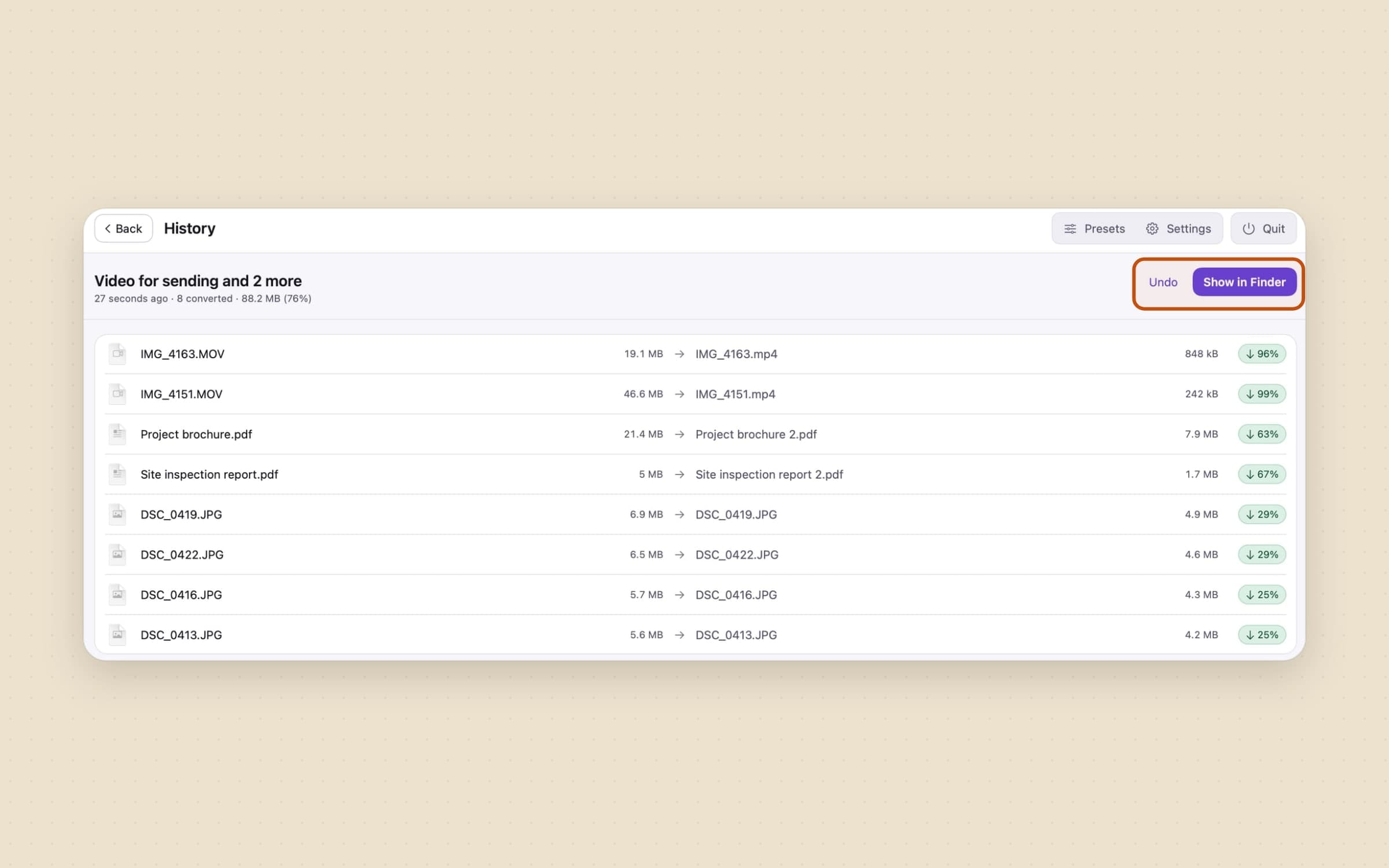
A converter writes files, and sometimes the wrong ones. Sculpt keeps a History of every run, and Undo last run (Command-Z) takes a whole batch back: the new files go and anything that was moved returns. By default The original file is set to Keep it; you can choose Move it to the Trash instead, but Sculpt never deletes an original outright.
New files go Beside the original, into a Sculpt subfolder for a folder
job, into a subfolder you name, or into A folder I choose. A name that is
taken gets " 2" added rather than replacing anything, and each file is written
to a temporary place first and moved in only when it is complete, so a run cut
short leaves no half-written files.
Shrinking a run's worth of video and PDFs is often the quickest way to free up disk space on a Mac, and Sweep keeps the Downloads folder from refilling with the originals.
The honest limit: undo is as good as the files it finds, so if you have moved or edited the results since, it restores what it can.
Location and details come off before a file leaves
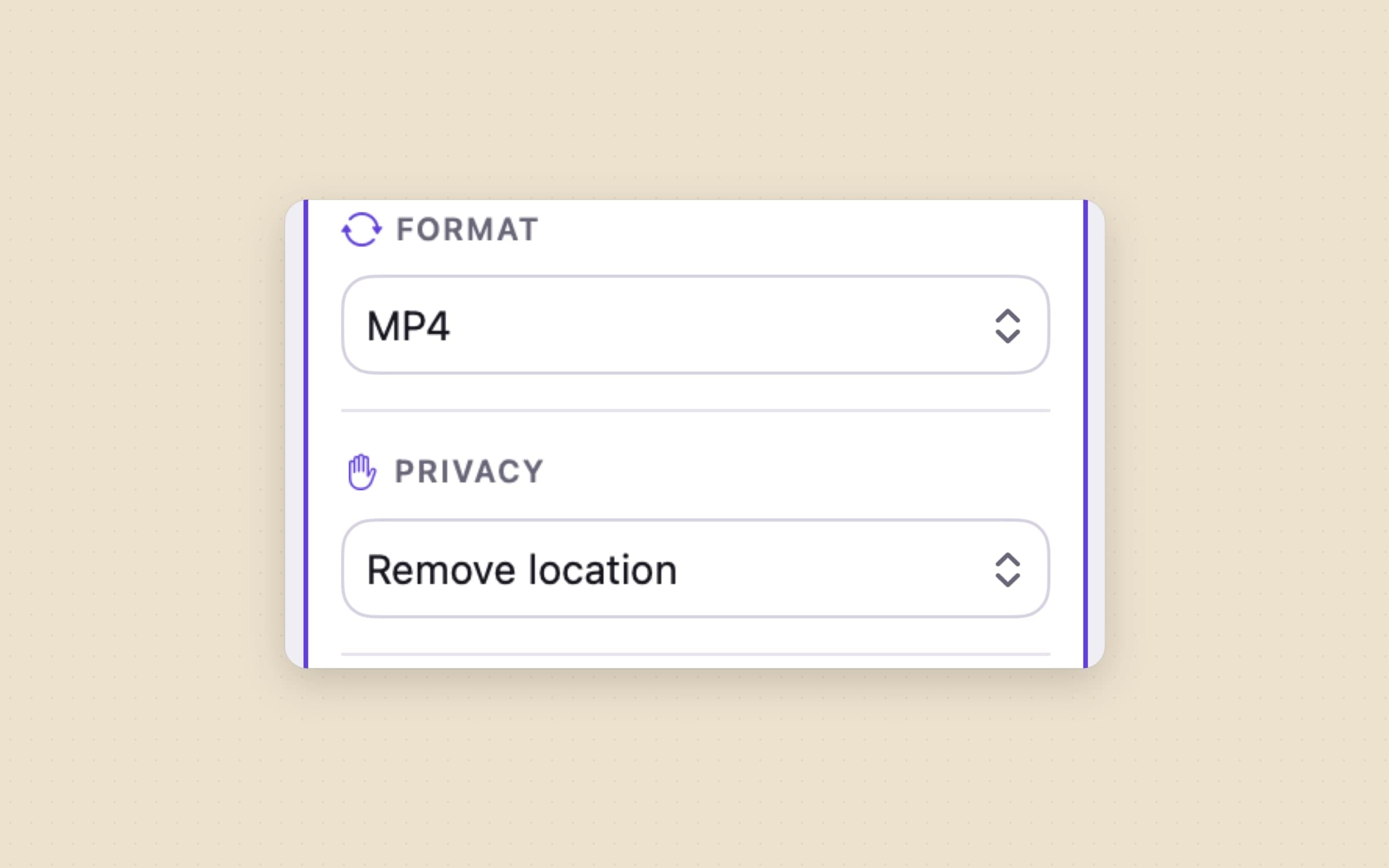
A photo or an iPhone video carries where it was taken. Image, video and PDF outputs have a Privacy setting: Keep all details, Remove location or Remove all details, and the presets start with the location removed, for video as well as photos. WebP is always written without details. Because the work happens on the Mac, the files themselves never leave it on the way.
The rest of an image output is the same kind of plain choice. Dimensions offers Long edge, Fit inside a box, a percentage or Half size (Retina), Convert to sRGB fixes colours for the web, and Deliver as one ZIP packs a batch for sending.
The honest limit: Sculpt itself still goes online for licence and update checks, its app settings, crash reports and a few anonymous usage events; that traffic carries no file and no file name.
Images, PDFs, video and audio in one window, with more than one output
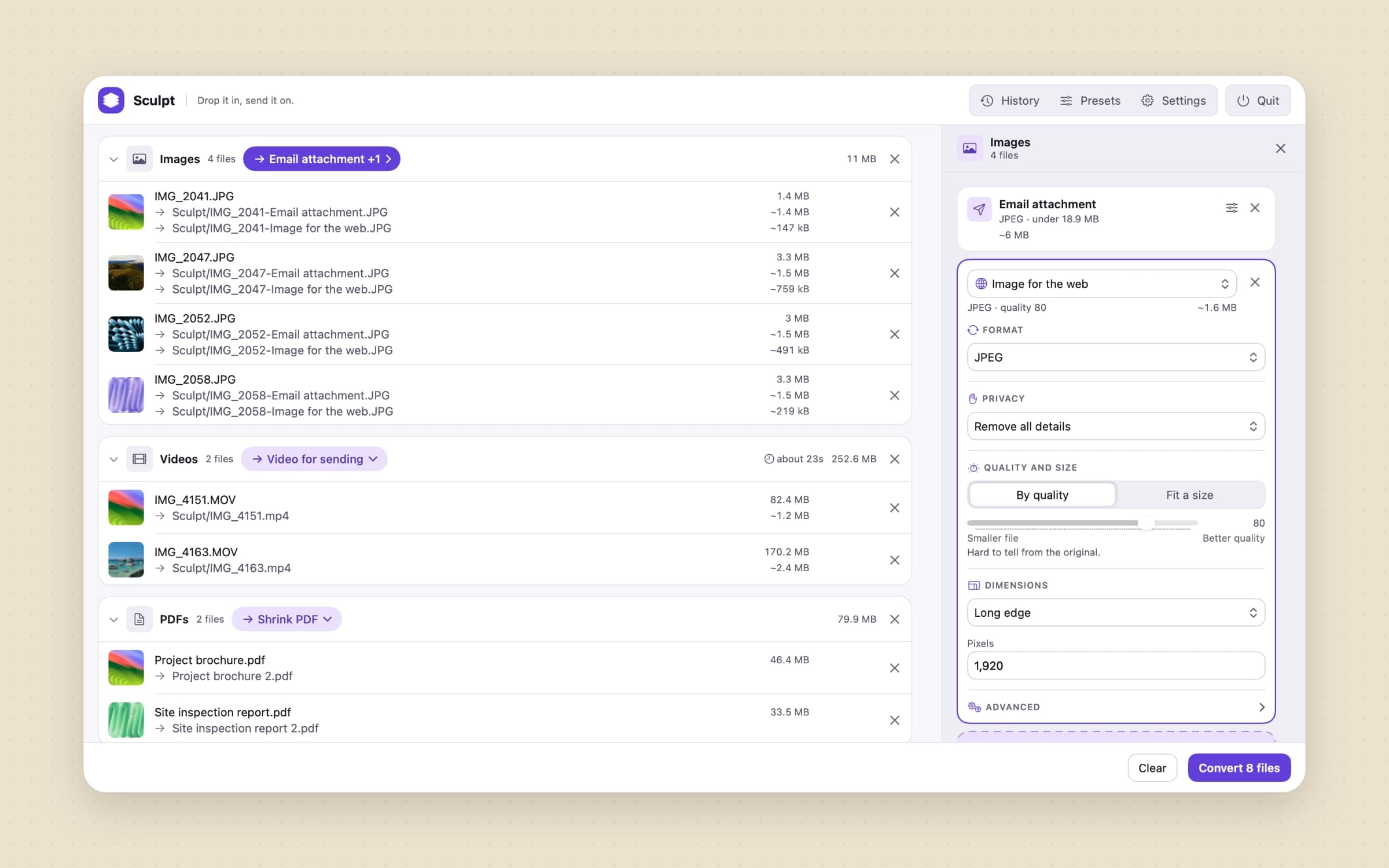
Most batches are mixed. Sculpt reads 62 image types on a current Mac, camera RAW included, and writes JPEG, PNG, WebP, HEIC, TIFF, GIF and BMP, plus AVIF where macOS can write it. Video goes to MP4 or MOV in H.264, HEVC or ProRes 422 at Small, Balanced, High or Maximum, with a frame-rate cap and the sound kept, re-encoded or removed. Change container only turns a MOV into an MP4 by copying the streams, without re-encoding, and subtitle tracks and chapters come through when the container allows. Audio goes to M4A, WAV, AIFF or FLAC.
PDFs get Shrink PDF, with Screen, Email, Print and Archive profiles; the Email one uses the values behind Preview's Reduce File Size. A PDF's pages can become images, and images and PDFs can be combined into one PDF. Add another output sends one group out twice, say as an email attachment and as an image for the web, in one run.
Fourteen presets come built in, from HEIC to JPEG and RAW to JPEG to Video to GIF and Extract the audio, and the preset editor makes your own, which export and import as files.
The honest limit: Sculpt does not read MKV, WebM or AVI, does not write WebM, MKV, MP3 or AV1, and does not trim, merge video, add subtitles or transcribe. Those are Permute's ground.
Right-click in Finder, or a Shortcuts action
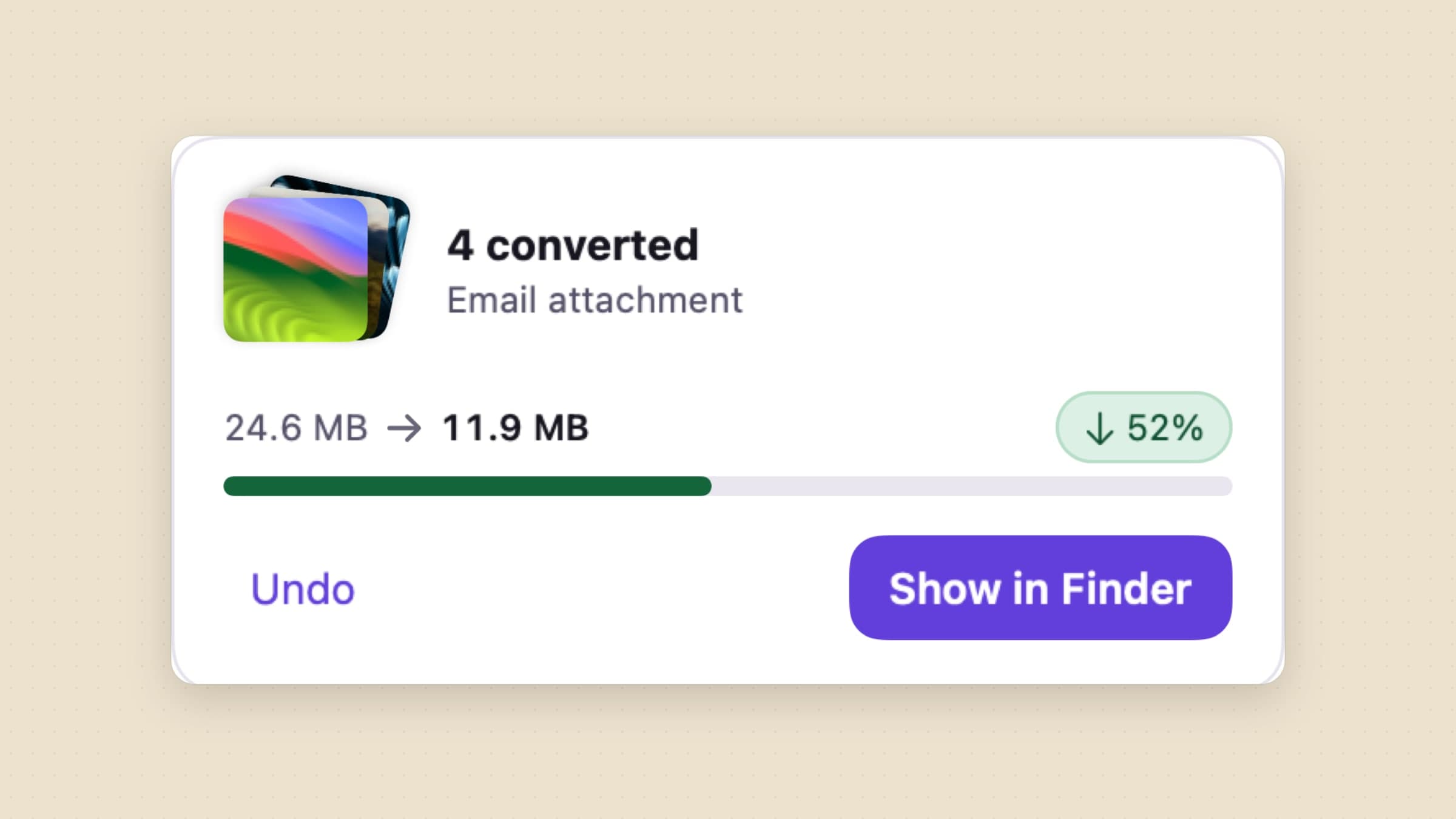
Sculpt also works without its window. A Sculpt submenu in Finder's right-click menu lists the formats and the presets you mark for it, and a Convert files action in Shortcuts takes files and a preset and returns the results without opening the app. Dropping files on the Dock icon converts them with the default preset and shows a small card when it is done. The guide to batch converting files on a Mac walks through each route.
The honest limit: the Finder menu works inside your home folder only, not on external drives, and there are no watch folders, which Permute's drop zones come closest to. Folder rules belong to tools like Hazel, compared in Hazel alternatives for Mac.
Permute vs Sculpt, feature by feature
| Permute | Sculpt | |
|---|---|---|
| Price | $14.99 per major version; Setapp $4.99 a year | $13.99 once, 30-day trial |
| macOS and Macs | macOS 26 or later, Apple silicon only | macOS 14 or later, Apple silicon and Intel |
| What it converts | Video, audio, images, PDF, text, 100+ formats | Images, PDF, video, audio |
| WebM, AVI, AV1, MP3 | Yes | No |
| Aiming at a size | Any target size you set | Named services; images share one total, each video gets its own |
| Undoing a run | Not described | Undo last run and History |
| Location and metadata | Metadata editing | Remove location or all details, location off by default |
| Pages to images, images to PDF | Shrink PDF with four profiles, pages to images, combine into one PDF | |
| Stitching, splitting, trimming | Yes | No |
| Subtitles and transcription | Subtitles, on-device transcription to SRT | Existing tracks copied through |
| Automation | AppleScript, URL scheme, drop zones | Shortcuts action, Finder menu |
Permute wins on formats, editing and automation: WebM and AV1, stitching, splitting, trimming, transcription, FFmpeg access and drop zones. Sculpt wins on running on macOS 14 and Intel Macs, sizing a file for the place it is going, taking a whole run back, and taking the location off by default.
Other alternatives worth knowing
HandBrake is free and open source, runs on Mac, Windows and Linux, and is the deep video encoder most often named next to Permute. It is the pick when you want every encoder setting.
Shutter Encoder is free with donations and built on FFmpeg, with builds for Intel and Apple silicon on macOS 10.14 or later. It covers professional codecs, LUTs, subtitle burn-in and lossless cuts.
Smart Converter Pro 3 is $14.99 on the Mac App Store, with folder monitoring and fast batch video conversion; a free Smart Converter exists too.
iMazing Converter is free for Mac and Windows and does one job simply: HEIC to JPG or PNG and HEVC to H.264. For the wider field, see the best file converter for Mac.
When Permute is still the right choice
Stay with Permute if you are on macOS 26 with Apple silicon and your files include WebM, AVI or AV1, or you need MP3 output. Stay if you stitch clips together, split by time or by a CUE file, trim before converting, or want subtitles transcribed on the Mac. Stay if you use Downie, since the two are made to work together, or if Setapp's $4.99 a year suits you better than a one-time price.
If you need full encoder control, HandBrake or Shutter Encoder will serve you better than either app here.
Switching from Permute
- List the presets you actually use. Most map to a Sculpt preset: HEIC to JPEG, Video for sending, Shrink PDF, Extract the audio.
- Check your formats. If anything you convert is MKV, WebM or AVI, keep Permute or HandBrake for those files.
- Install Sculpt and drop a test batch, a mix of photos, a video and a PDF, to see the groups and the presets it picks.
- Recreate custom presets in the preset editor, and mark the ones you want in Finder's right-click menu.
- Set where files go and what happens to the originals in each preset's Advanced section.
- Replace drop zones with the Finder menu or a Shortcuts action using Convert files.
Permute's presets and settings do not carry over, and Sculpt has no AppleScript dictionary. Expect an afternoon to rebuild a handful of presets.
Side by side
| Tool | What it converts | Best for | Platforms | Cost |
|---|---|---|---|---|
| Permute 4 | Video, audio, images, PDF, text | The most formats, plus editing | Mac, macOS 26+, Apple silicon | $14.99 per major version |
| HandBrake | Video | Fine encoder control | Mac, Windows, Linux | Free |
| Shutter Encoder | Video, professional codecs | Professional codecs | Mac 10.14+, Intel and Apple silicon | Free |
| Smart Converter Pro 3 | Video, in batches | Batches of video | Mac | $14.99 |
| iMazing Converter | HEIC images, HEVC video | iPhone photos and video | Mac, Windows | Free |
| Sculpt | Images, PDF, video, audio | Sending files at the right size | Mac, macOS 14+, Apple silicon and Intel | $13.99 once |
Pick by what fails. If the file will not open, the format decides: Permute, HandBrake or Shutter Encoder read far more than Sculpt does. If the file opens but is too big to send, an app that aims at the service's limit saves the guessing. If your Mac is not on macOS 26, Permute 4 is out, and the choice is Permute 3 without updates, the free tools, or Sculpt. For the rest of the toolbox, see Mac utility apps.
Prices and features checked on 29 October 2026.

