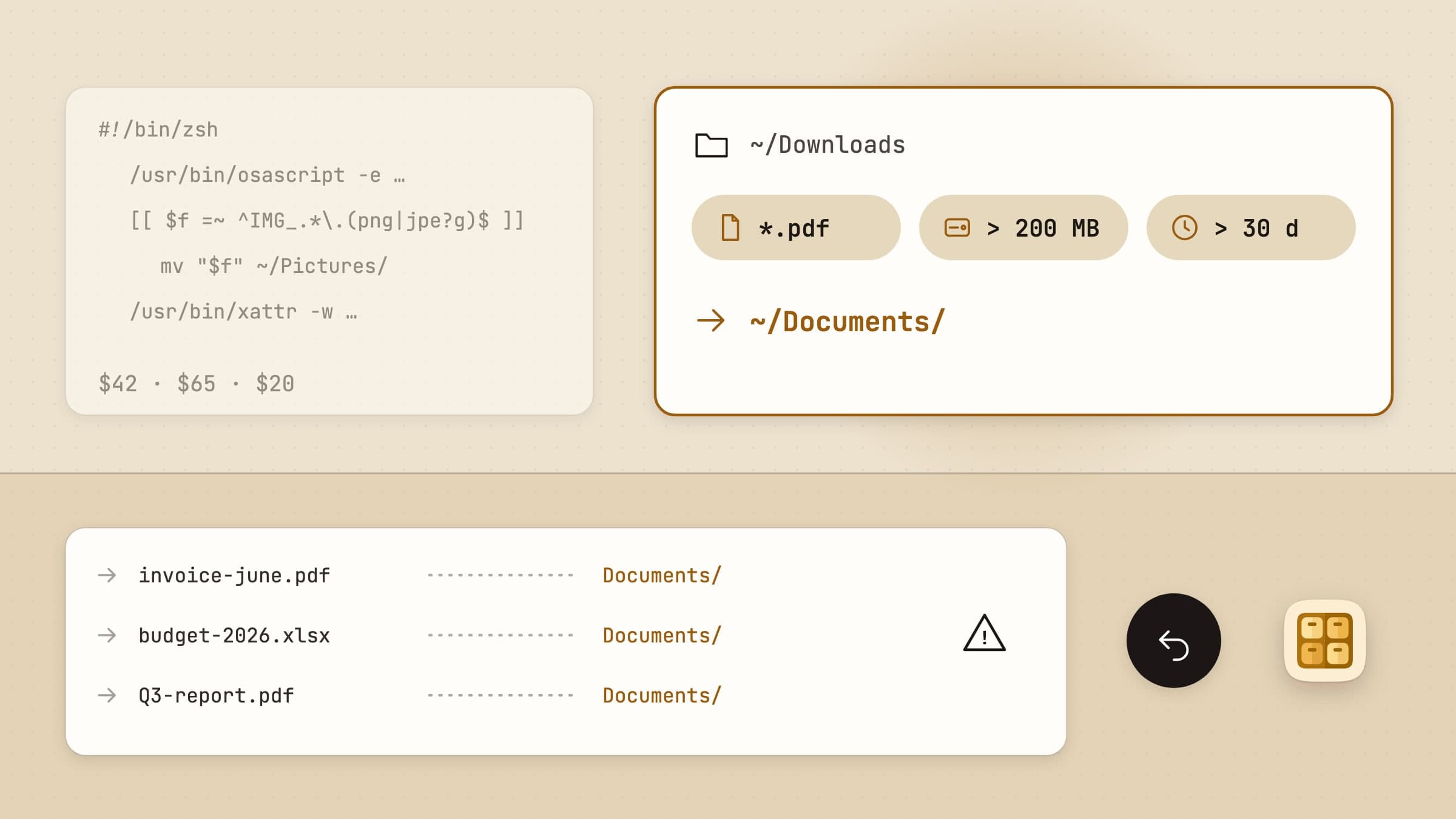
What Hazel is actually good at
Hazel, from Noodlesoft, is the Mac's folder automation app: it watches the folders you choose and files what lands in them by rules you write. It first shipped in September 2006, turned 20 this year, and the current version, 6.1.2 from February 2026, is a universal app for Intel and Apple silicon Macs running macOS 13 or later. Its home is noodlesoft.com.
Hazel's depth is hard to match. A rule can test a file's name, extension, kind, dates, size, tags, colour label, comment, the site it was downloaded from and its contents, with text recognition for images and PDFs that have no text layer. Conditions nest, custom attributes carry a value from one condition into an action, and the official reference lists 30 actions: move, copy, rename, sort into subfolders, sync, upload, tag, archive and unarchive, import into Photos or Music, and run a Shortcut, an AppleScript, a JavaScript, an Automator workflow or a shell script. Hazel also manages the Trash, deleting items after a set time or keeping it under a size, and App Sweep offers to remove an app's leftover support files when you drag the app to the Trash. Hazel 6 added Revert, which undoes a move, rename, tag or archive on a file from Finder's context menu.
Hazel is $42 for a single license that covers up to two Macs, $65 for a Family Pack of up to five people or machines in one household, and $20 to upgrade from any earlier version. It is a one-time purchase per major version, not a subscription. The trial lasts 14 days, and after it Hazel keeps working for free in a Demo mode limited to one folder and two rules.
If you already write rules that read inside PDFs or end in a script, Hazel is the tool, and you should keep it. The Hazel alternatives for Mac below are for people who want the everyday half of that job done with less to learn.
Why people go looking anyway
It costs $42, and the next version costs again. A license unlocks one major version, and the next one is a $20 upgrade. A MacUpdate reviewer called $42 too much for a small utility, and in January 2026 a user on the Scrivener forum with an out-of-date copy asked for "a better Hazel" rather than pay for the upgrade.
It takes time to learn. Even a five-star MacUpdate reviewer said Hazel takes time to learn and set up, and an AlternativeTo commenter described always having to "teach" Hazel how to behave. Power is the point of Hazel, but someone who only wants installers out of Downloads is learning a rule system built for much bigger jobs.
Rules can stop or misfire quietly. One Automators.fm user found their rules on a Google Drive folder had stopped running until Hazel's helper got Full Disk Access back, and the developer has seen deletes misbehave on Synology network shares. Hazel has Preview Rule, which checks one selected file against the conditions without running any action, and a Rule Status window, but there is no list of the moves a rule is about to make, so finding out what happened usually means reading the logs.
It is not where some people buy software. Hazel is sold only from Noodlesoft's site. It is not on the Mac App Store or Setapp, it is in English only, and there is no Windows or Linux version, which is why "Hazel alternative for Windows" is a search of its own.
What macOS already does for free
macOS covers part of this job with nothing to install. Since macOS 26 Tahoe, Shortcuts has folder automations: a personal automation fires when items are added, modified or removed in a folder, and can run at once or ask first with Run After Confirmation. The shortcut still has to filter and move the files itself, so the rule is something you build out of actions, and the confirmation is a prompt, not a list of moves. Folder Actions attach an AppleScript or an Automator workflow to a folder; the scripts Apple ships convert or rotate images, alert you to new items, close subfolders and convert PostScript, and none of them sorts files.
Two smaller helpers cover a slice. Stacks groups the files on your desktop by kind, date or tag without moving them, and Empty Trash automatically in Storage settings erases what has been in the Trash for 30 days. Neither touches Downloads.
If you are happy writing a shortcut, the built-in route is free and good enough for one or two folders. If you want rules you can read and a way back when one goes wrong, read on.
Sweep: plain rules, a preview when you want one, and an undo for every batch
Sweep is a Mac app that files your downloads by rules written in plain words, shows you the moves first when you ask it to, and keeps an undo for every batch. It is $5.99 once, with a 30-day trial that needs no card and no email, and it comes from the Mac App Store or our site; a license from our site covers up to 3 Macs. It is a sandboxed app for macOS 14 or later, it never asks for Full Disk Access, and its menus are in English, Turkish, German, Spanish and French. Sweep starts with five rules you can switch on or off: Move screenshots, Trash old installers, Move large files, Sort Downloads by type and Organize by month.
Rules you can read, for what actually lands in Downloads
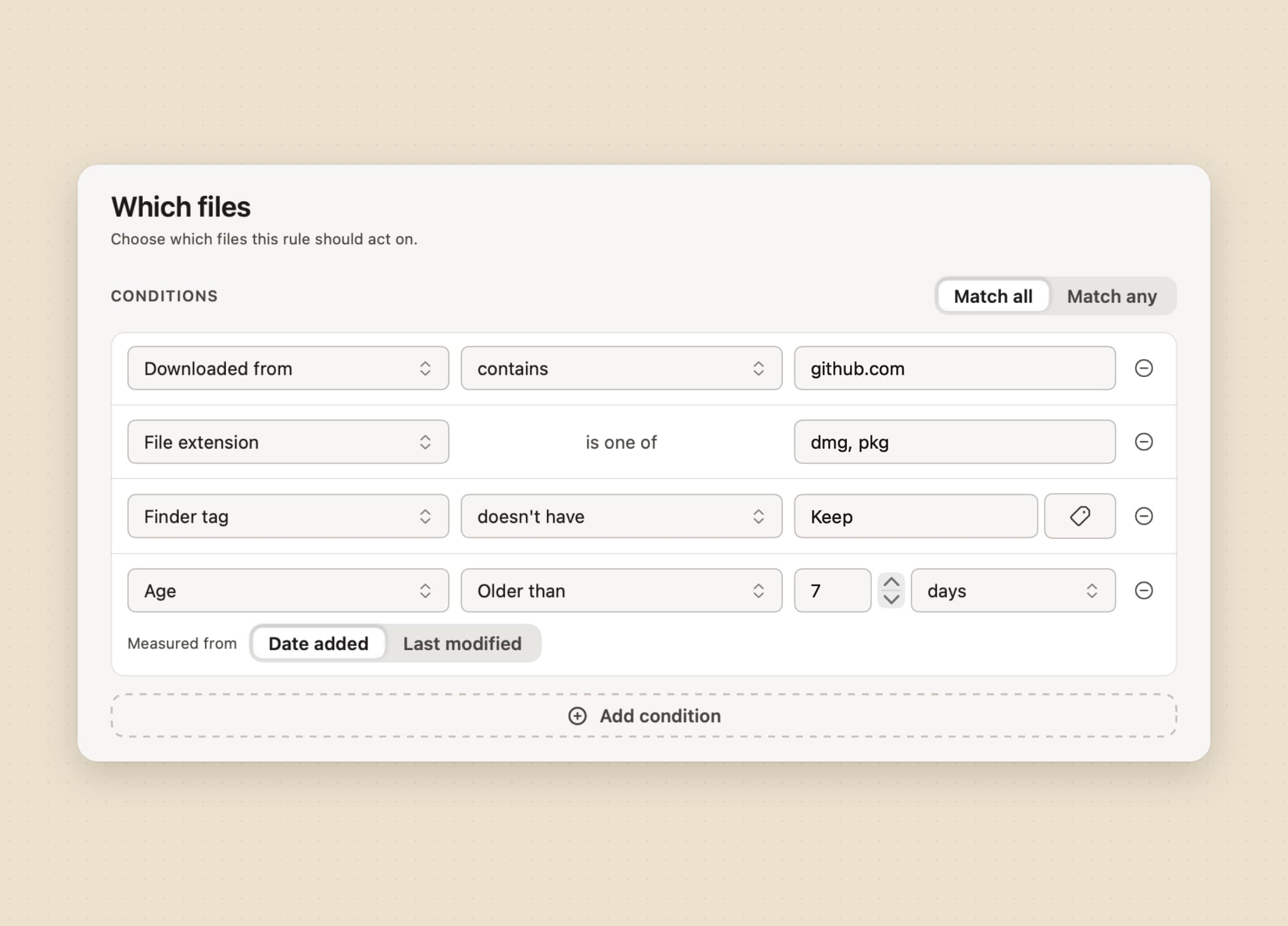
A Sweep rule is a short list of conditions you pick from menus, joined by Match all or Match any. The conditions are the ones Downloads needs: File type (images, documents, archives, installers, audio, video), Name (contains, starts with, ends with, is exactly, or doesn't contain), File extension, File size, Downloaded from, which reads the site a file came from, Screenshot, which catches screenshots and screen recordings in any language, Finder tag, and Date or Age, measured from Date added or Last modified. "Installers from github.com older than a week" is four rows, and you can read it back in six months.
Rules run in order and the first one that matches takes the file. An automatic rule reacts within a few seconds of a file landing and ignores downloads still in progress, a rule that matches on age looks again once a day, and a manual rule runs only when you ask: its run button, Sweep now, a drop on the menu bar icon, or Sweep's menu in Finder. Files that are only in iCloud or another cloud drive are skipped, never downloaded.
The honest limit: Sweep's rules are flat. There are no nested groups, no regular expressions, no custom attributes and no condition that reads inside a file, and a rule looks only at the files directly inside a watched folder, not in its subfolders.
Move, rename, unzip or tag, and nothing you have to script
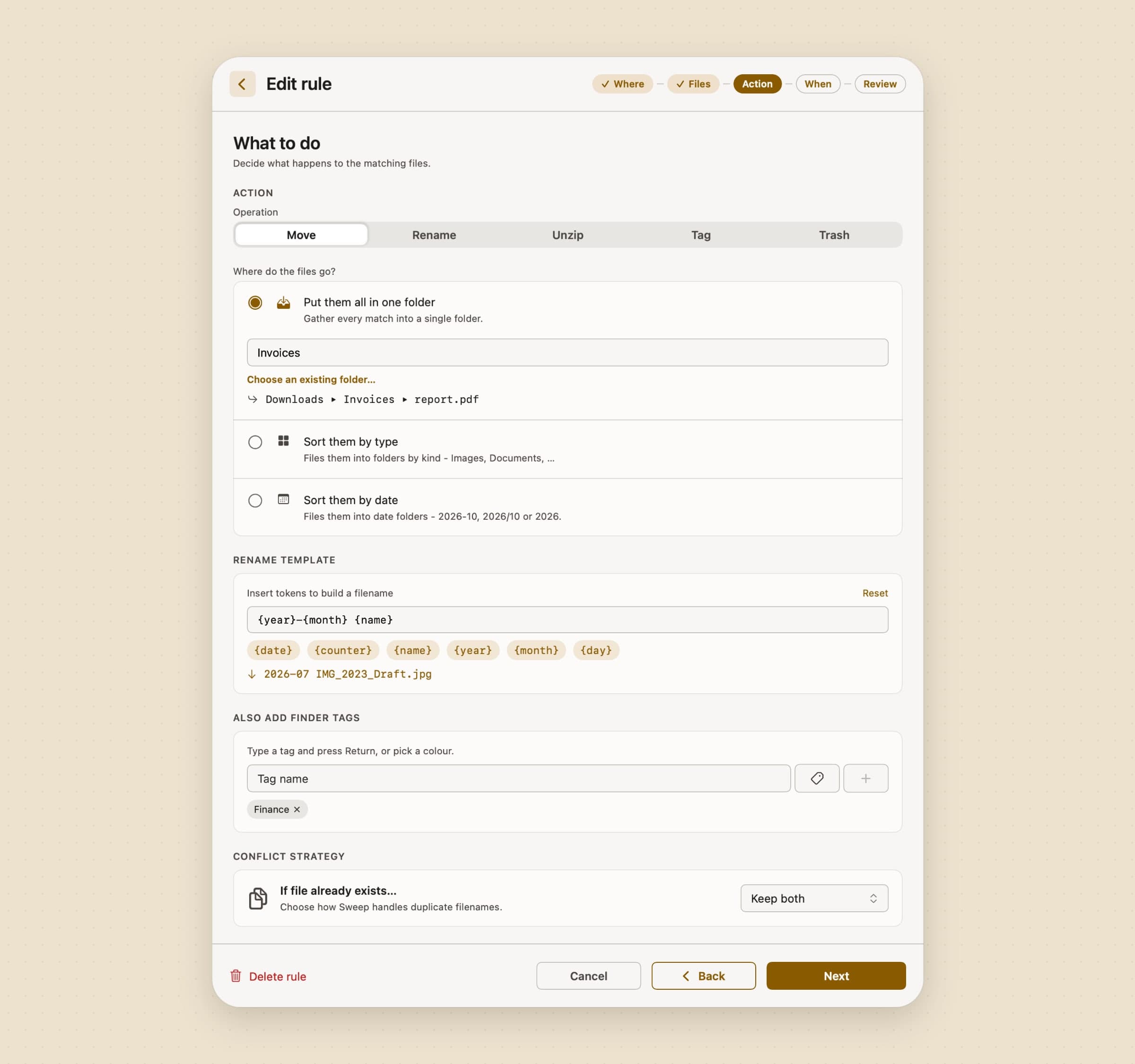
Each rule does one thing: Move, Rename, Unzip, Tag or Trash.
Move puts files into one folder, sorts them by type, or into date folders by
month, year and month, or year, and can rename on the way with a template built
from tokens such as {year}, {month}, {name} and {counter}. Unzip opens
zip, tar and 7z archives and, by default, moves the archive to the Trash
afterwards, and Tag adds Finder tags and leaves the file where it is. When a
file with the same name already exists, you choose Keep both, skip it, or
overwrite, and an overwritten file goes to the Trash, not into the void.
The honest limit, and it is the big one next to Hazel: Sweep has no scripts, no Shortcuts, AppleScript or shell actions, no copy, no upload, no import into Photos or Music, and one action per rule. Unzip does not open RAR archives. If a rule of yours ends in a script, Sweep cannot run it.
See the moves before they happen, and undo a whole batch
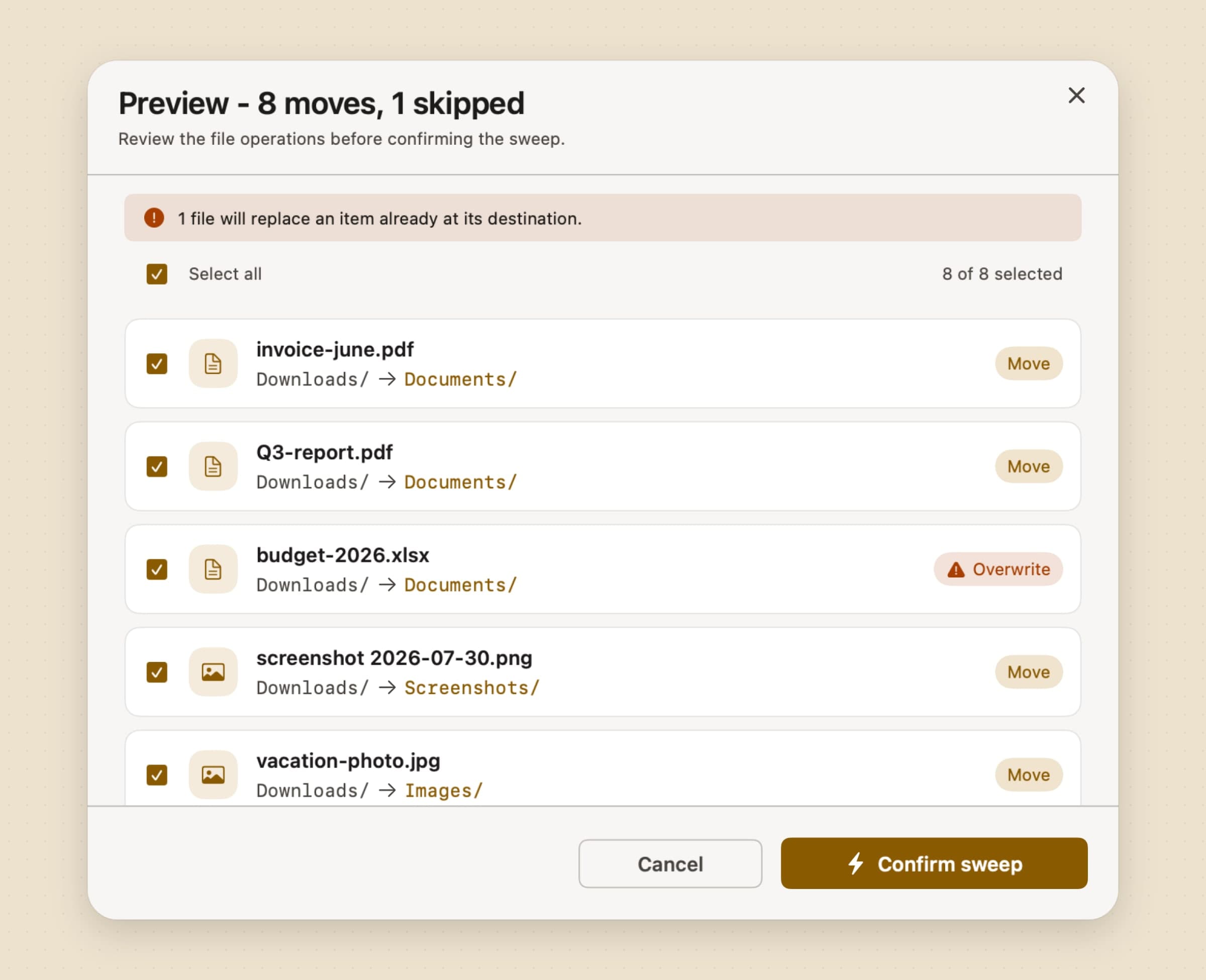
Each rule has a Confirm or Silent setting. A Confirm rule never moves a thing until you have seen the plan: the preview lists every file, where it would go and what would be skipped, flags a move that would overwrite an existing file, and lets you untick any row before Confirm sweep. Sweep also previews on its own in the cases where a surprise would hurt: the first sweep of a newly added folder, a sweep of a paused folder, and the daily pass of a rule that trashes files.
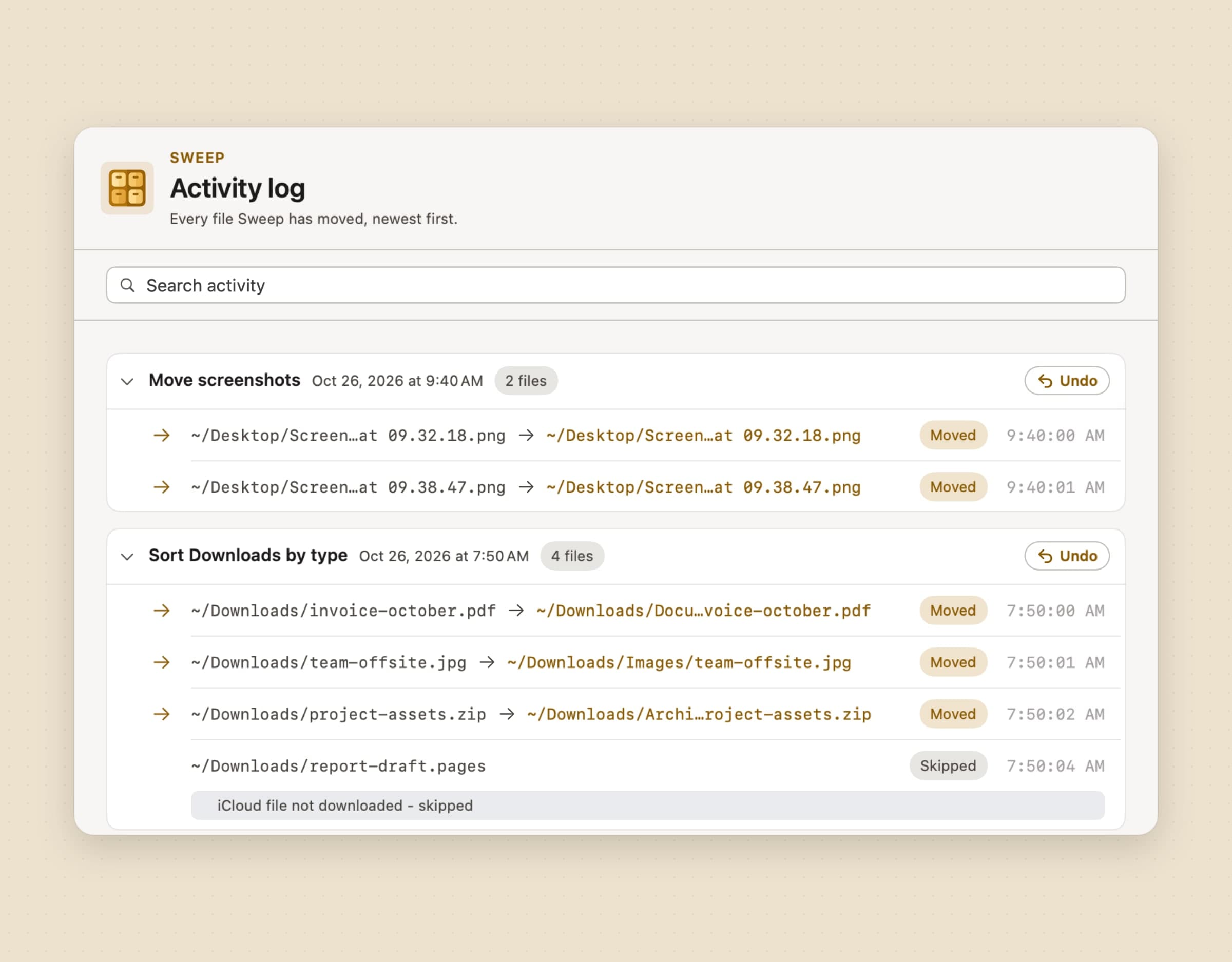
Whatever ran, the Activity log keeps it, and Undo reverses a whole batch in one click, even after a relaunch: moves go back, trashed files come out of the Trash, an unzipped archive is restored, and added tags come off. If you switch on Notify after automatic sweeps, a note says how many files Sweep filed on its own, with Undo right on it.
The honest limit: Silent is the default for new rules, so a rule you never set to Confirm files things without asking, and the safety net is the log and its Undo, not a preview.
A timer for downloads you only need for a while
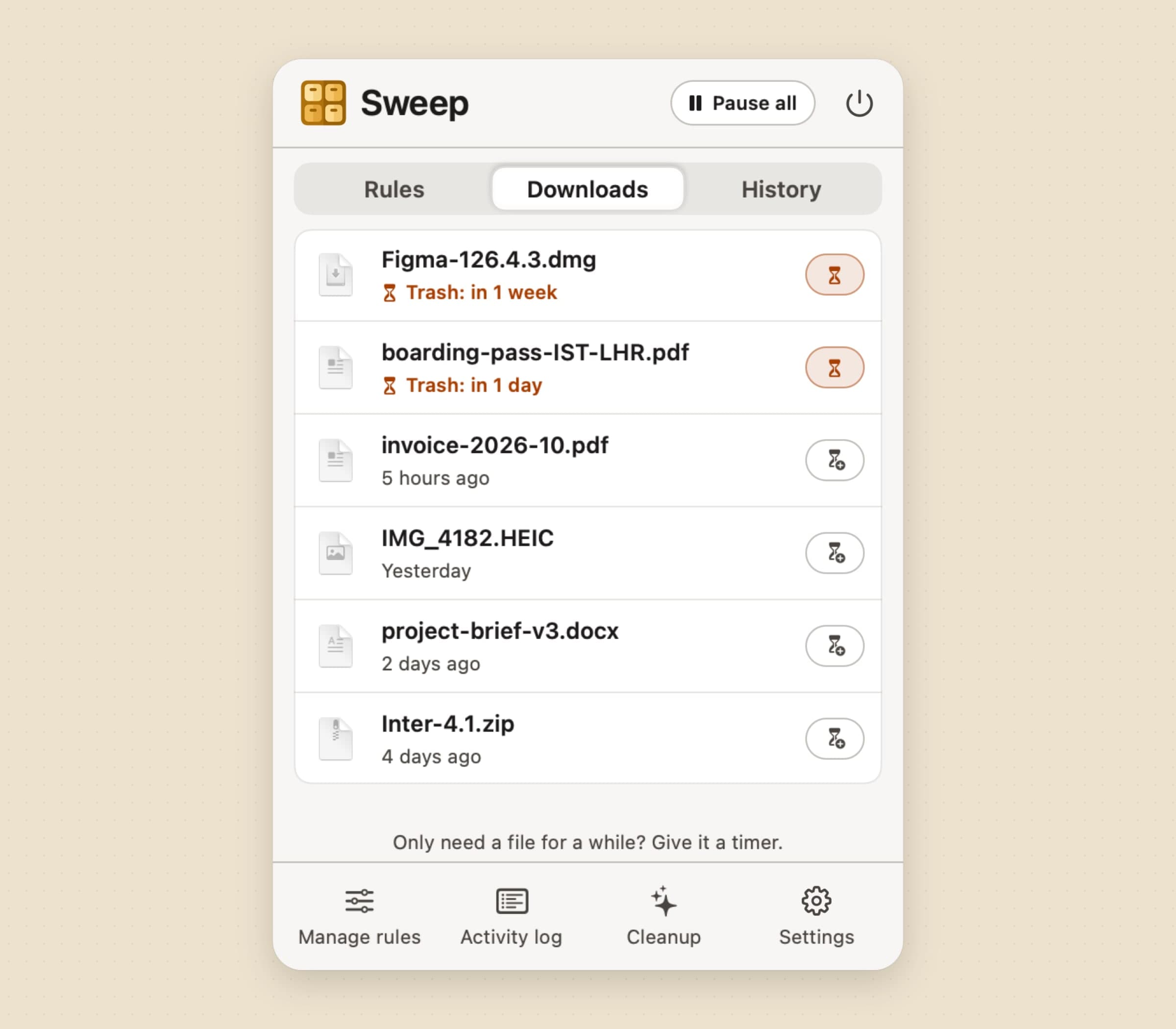
Some files are only useful for a while: a boarding pass, an installer, a PDF you read once. Sweep's Downloads tab lists your 20 newest downloads, and the hourglass button on each row gives a file a timer of 1, 7 or 30 days, after which it goes to the Trash in a batch you can undo. The same Trash in… timer is in Sweep's menu when you right-click files in a watched folder in Finder, and if a Sweep rule moves or renames the file, the timer follows it.
Beside the rules sits Cleanup, a separate pass that lists what you probably no longer need: duplicate files, archives you have already unpacked, stalled downloads, old installers, files Sweep filed months ago that you have not opened since, large and old files, and empty folders. Nothing is ticked for you, and nothing moves until you say so. A Never touch list in Settings keeps files with a word in their name or a Finder tag away from rules, Cleanup and drops alike.
The honest limit: Sweep does not manage the Trash itself. It never empties it, never deletes anything for good, and has nothing like App Sweep; for uninstalling apps cleanly, that is Unroot's job, compared in AppCleaner alternatives for Mac.
Hazel vs Sweep, feature by feature
| Hazel | Sweep | |
|---|---|---|
| Price | $42 single (2 Macs), $65 Family Pack, $20 per major upgrade | $5.99 once; a license from our site covers up to 3 Macs |
| Trial | 14 days, then a free Demo mode with one folder and two rules | 30 days, no card or email |
| Where to get it | Noodlesoft's site only | Mac App Store or our site |
| Languages | English | English, Turkish, German, Spanish, French |
| Conditions | Dozens, nested, with custom attributes and file contents | Nine kinds in one all-or-any list |
| Actions | 30, including copy, sync, upload, imports and scripts | Move, Rename, Unzip, Tag, Trash |
| Scripts and Shortcuts | AppleScript, JavaScript, shell, Automator, Shortcuts | None |
| Preview | Preview Rule checks one file against the conditions | A list of every planned move, for Confirm rules and first sweeps |
| Undo | Revert per file from Finder, for some actions | Undo a whole batch from the Activity log |
| Trash management | Delete by age or size, App Sweep | None |
| Temporary downloads | Not described | A 1, 7 or 30 day timer per file |
| Permissions | Full Disk Access for the Trash features | No Full Disk Access; folders you choose |
Hazel wins on power: scripts, contents, nested logic, the Trash and App Sweep, and a 20-year track record. Sweep wins on the everyday job: rules in plain words, a preview before a Confirm rule moves anything, a one-click undo for the whole batch, a seventh of the price, and the Mac App Store.
Other alternatives worth knowing
Keyboard Maestro from Stairways Software is $36 once, with a $25 upgrade. It is a general macro engine, and its folder triggers can replace Hazel for simple "a file was added, do this" cases, though users on its forum note it tracks less about a file than Hazel does, with no date-modified style conditions.
Dropzone 5 from Aptonic is $35 for Pro, with a 14-day trial, on its own site, the Mac App Store and Setapp. It is manual by design: you drag files onto destinations in the menu bar instead of writing rules, which suits people who want control over every move.
Maid and organize are free and open source for people who are happy in a terminal. Maid writes rules in Ruby and is described on AlternativeTo as Hazel for hackers; organize writes them in YAML, runs from the command line, and works on Mac, Windows and Linux, which makes it the answer to "Hazel for Windows" as well.
If you need a whole copy of the Mac rather than a tidy Downloads folder, Retrace and Time Machine alternatives for Mac are the place to look, and the best Mac utility apps put Sweep beside our other tools.
When Hazel is still the right choice
Stay with Hazel if your rules read inside documents, such as invoices sorted by the vendor name in the PDF, or receipts recognised from a photo. Stay if a rule ends in a script, a Shortcut or an upload, if you rely on nested conditions or custom attributes, or if Hazel empties the Trash and sweeps up after uninstalled apps for you. Stay if you have years of rules that work, because nothing imports them. And if you own Hazel 6 already, the money is spent and the upgrade is yours to skip.
Switching from Hazel
- Take stock of your rules in Hazel's settings, folder by folder, and write down what each one matches and where it sends files. Nothing imports; Sweep starts with its five starter rules.
- Take the shared folders out of Hazel (or turn their rules off) before Sweep watches them, so the two do not race for the same file. Keep Hazel running for its Trash settings if you rely on them.
- Install Sweep from the Mac App Store or our site. Downloads is watched from the start; add any other folder with Add folder….
- Rebuild each rule in Manage rules: conditions on the Files step, one action on the Action step, and set it to Confirm while you are testing.
- Run each rule once and read the preview before you confirm it, then switch the ones you trust to Silent.
- Turn on Notify after automatic sweeps in Settings if you want to see what Sweep files while you get used to it.
Scripts, content matching, nested conditions, App Sweep and Trash management do not carry over. Rebuilding five everyday rules takes about fifteen minutes. How to auto-sort files on a Mac walks through every Sweep setting, and how to free up disk space on a Mac covers the clean-up side.
Side by side
| Tool | Shape | Rules | Platforms | Cost |
|---|---|---|---|---|
| Hazel | Folder automation with scripts | Nested, contents, 30 actions | Mac | $42 single, $65 family, $20 upgrade |
| Shortcuts folder automations | Built-in automations | Built from actions | Mac (macOS 26+) | Free |
| Keyboard Maestro | Macro engine with folder triggers | Macros | Mac | $36 once |
| Dropzone 5 | Drag-and-drop destinations | Manual | Mac | $35 Pro |
| Folder Actions | Built-in scripts on a folder | AppleScript or Automator | Mac | Free |
| Maid, organize | Command-line rules | Ruby, YAML | Mac, Linux (organize also Windows) | Free |
| Sweep | Plain rules with preview and undo | Nine conditions, five actions | Mac (macOS 14+) | $5.99 once |
Pick by what fails. If a rule needs to read a PDF or run a script, it is Hazel, and nothing else here comes close. If you want to drag rather than automate, it is Dropzone. And if what fails is a Downloads folder full of installers and screenshots, and the fear of a rule moving the wrong file, plain rules with a preview and an undo are usually all the automation you need.
Prices and features checked on 30 October 2026.


