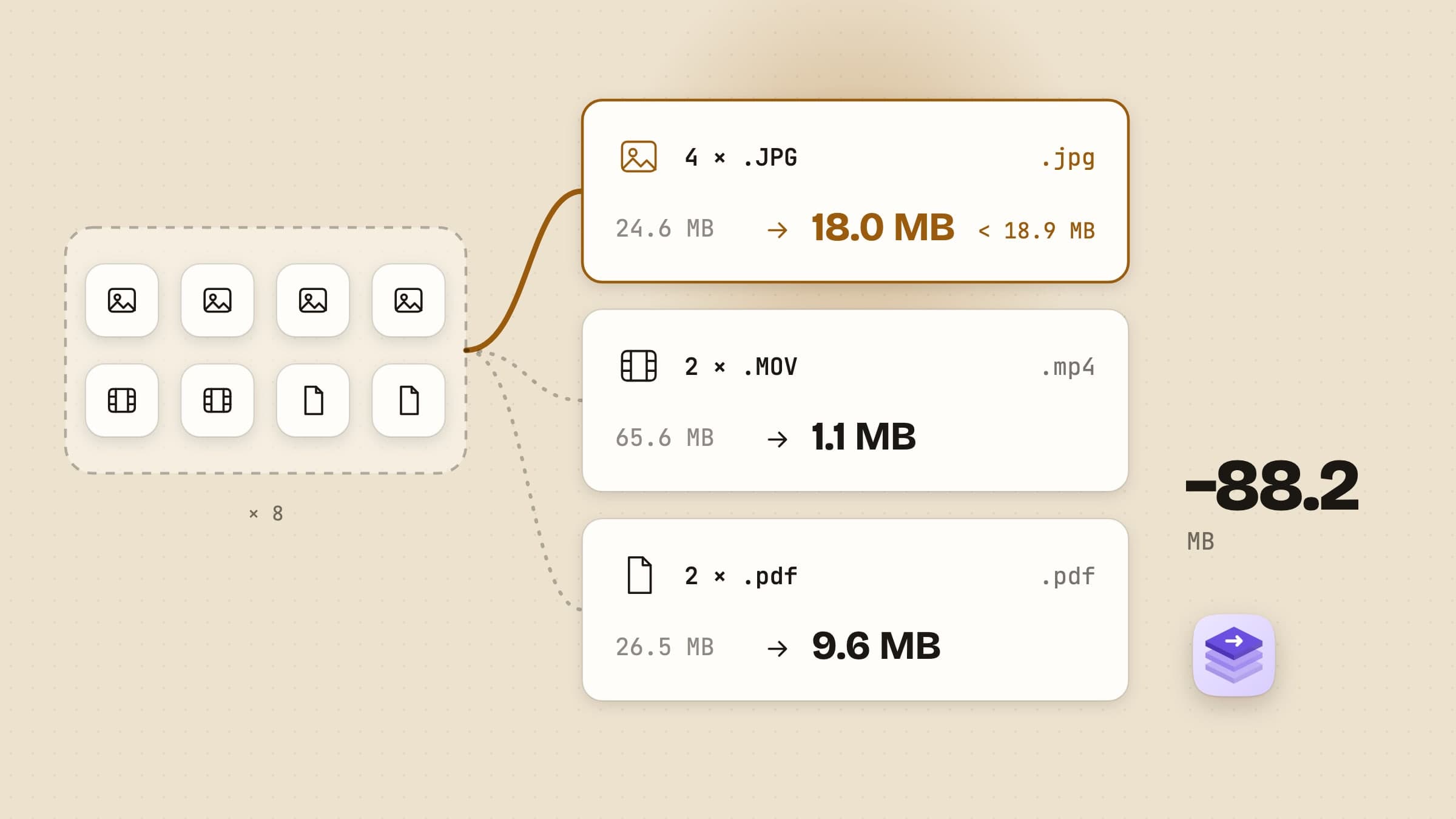
A mixed drop sorts itself into groups, one output each
macOS can batch convert, one kind at a time. Convert Image handles a stack of photos, Encode Selected Video Files handles clips, and Preview shrinks a PDF. A real batch is rarely one kind: the photos of a flat, a walkthrough video and the signed lease, all going to the same person. The free tools and the other converters are compared in the best file converter for Mac; this page is about how Sculpt handles a batch like that. Everything below is in the shipping version.
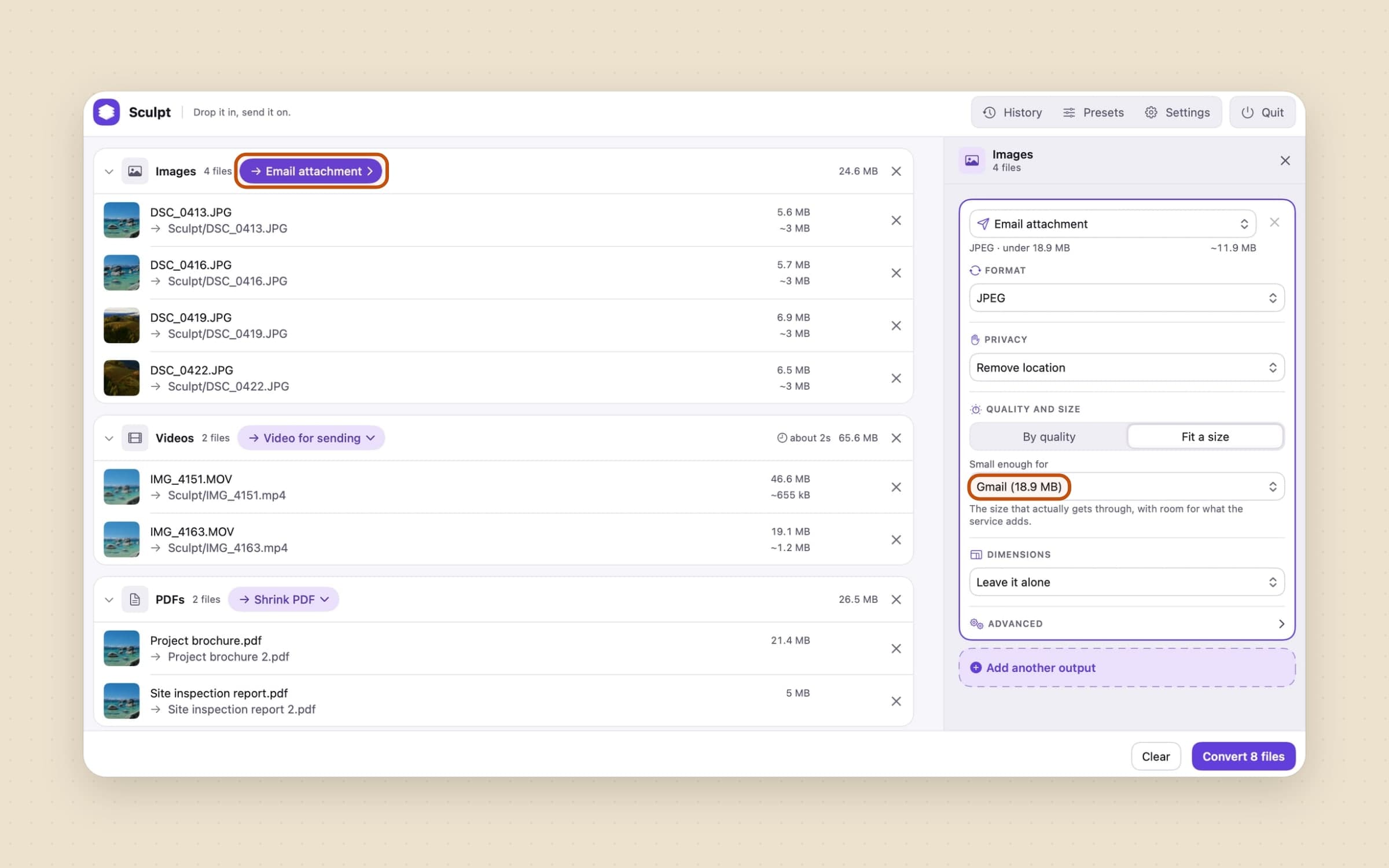
Drop the lot on the window, a folder included, and the queue splits it into groups by kind: Images, PDFs, Videos and Audio. Each group gets its own output, because one setting cannot be right for a photo and a scan at once. Every row shows the file's size and an estimate of what it will become before anything runs. A file Sculpt cannot convert lands in a Skipped group at the bottom, with the reason on the row.
Folders get one more switch, Include subfolders. A folder's results go into a
Sculpt subfolder inside it rather than between the originals, and a second
run over the same folder skips every file whose converted copy is already there
and current. Only the new files convert.
The size target is what the email can carry, not what it advertises
A group's output button opens a drawer on the right. At the top is the starting point: one of 14 ready presets, such as Email attachment, Image for the web or Shrink PDF, or one you made. Under it sit the settings that preset chose, and you can change any of them. The Format menu offers the plain formats too, so "make these PNG" needs no preset at all.
The setting worth knowing is Fit a size. Mail encodes an attachment as base64 before it leaves, which adds about a third, so Gmail's 25 MB fits about 18 MB of files. The size menu has that arithmetic done already: Gmail reads 18.9 MB and Outlook and iCloud 14.7 MB, in the decimal megabytes Finder uses. The budget belongs to the whole group, not to each photo, since one email has one limit. Drop twelve photos and the 18.9 MB is shared between them by size. If a file cannot get there, the row says what it settled for. If the new file would be bigger than the original, nothing is written and the row reads "Already small enough".
The rest of the drawer is short. Privacy keeps all details, removes the location or removes everything. Dimensions leaves the picture alone, or sets a long edge, a box, a percentage or half size for Retina screenshots. Write to puts the copy beside the original, into a subfolder or into a folder you choose, and can keep the file's dates so the copy sorts where the original did. The original itself is kept by default; an output can move it to the Trash instead, where Undo can bring it back.
One drop can make two files from every original
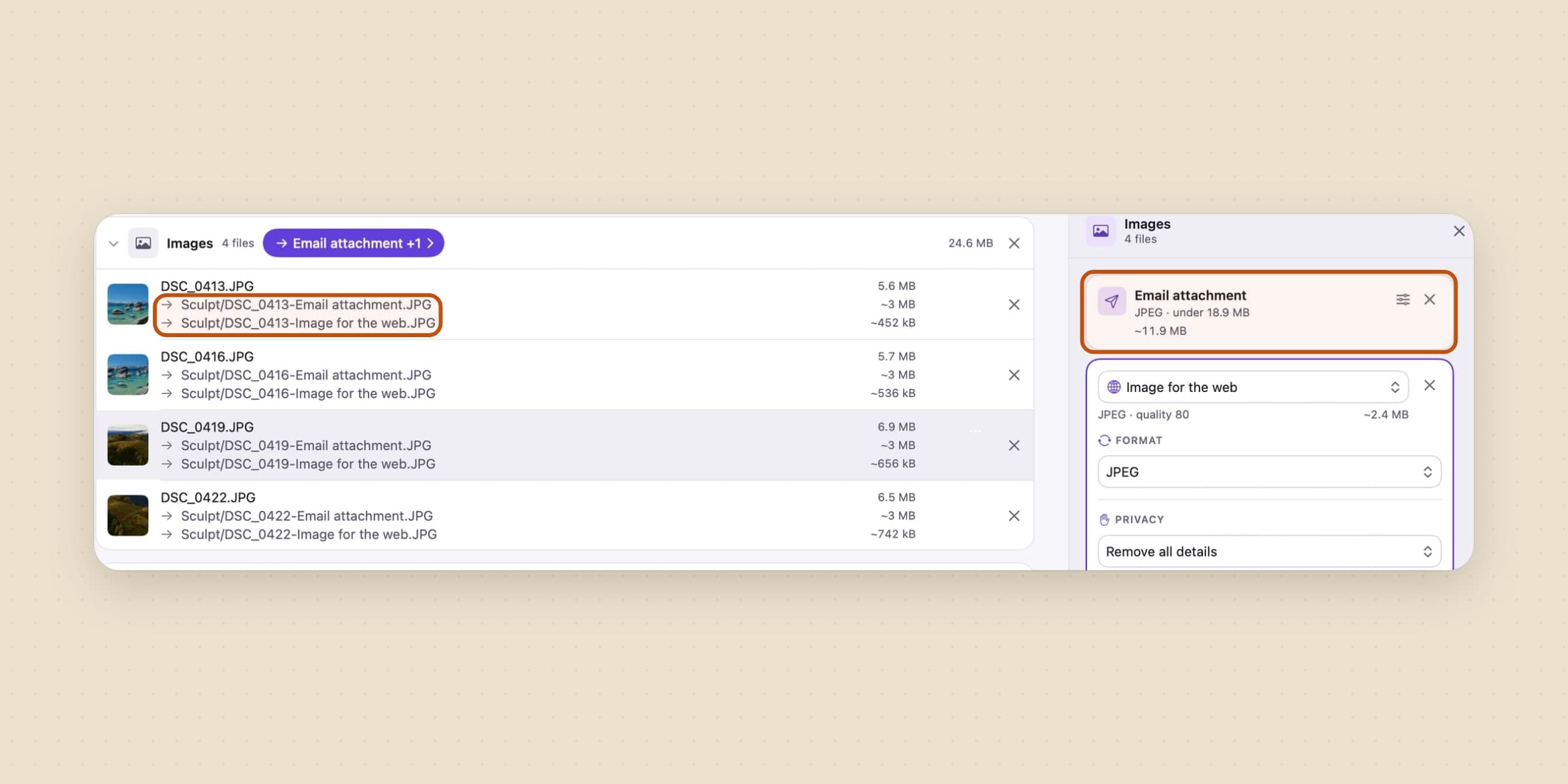
Under the outputs in the drawer is Add another output. Each output is a card, and every row then shows one result per output. A common pair: a JPEG under the email limit for today and an Image for the web copy for the website. A file made more than one way always keeps its original, whatever an output says about the Trash, and the drawer tells you so.
A single file can also leave its group. The row's menu sets a different output for that file alone, and the group header counts how many rows do that, so the exception is never hidden. The same menu has Compare, which puts the original and the result side by side once it has converted.
PDFs shrink with their text intact, merge with pictures, or split into pages
Shrink PDF works the way Preview's Reduce File Size does: it redraws each page through a Quartz filter, so the pictures inside get smaller and the text stays text. It stays selectable and searchable, and links, annotations and bookmarks are carried across. There are four strengths: Screen, Email, Print and Archive. Email is the default and matches Apple's own filter.
Combine into one PDF takes pictures and PDFs together, in the order they were added, and makes one document. A merge reaches across the drop: choose it for the photos and the PDFs dropped with them join the same file, which is how a scanned form, its cover letter and a photo of an ID card become one attachment. Going the other way, a PDF's pages can come out as pictures: JPEG, PNG, HEIC or WebP, one per page at 150 dpi, on white rather than transparent. A one-page PDF becomes one image and a longer one becomes a folder of them.
Two kinds of PDF are left alone on purpose. A signed PDF is skipped, because a new copy would void the signature, and so is one with files attached inside it. A PDF locked with a password is skipped too, and Sculpt never asks for it.
Video converts one clip at a time, and often without re-encoding
Video for sending makes an H.264 MP4 at most 1280 pixels on the long edge and 30 frames a second, under 14.7 MB. Unlike photos, every clip gets the whole limit, because videos go one per message. A budget split ten ways would leave each clip too blurred to watch. The location an iPhone writes into a movie is removed, and HDR is turned into ordinary colour, which is what H.264 needs.
When a form only takes MP4, Change container only copies the video and sound into a new container without re-encoding, so nothing is lost and it takes seconds. If the source cannot go into MP4 as it is, Sculpt re-encodes it and the row says so. The Format menu also offers MOV, HEVC and ProRes 422, a GIF of the first 10 seconds, and a single JPEG frame.
Sound has its own presets. Extract the audio pulls the sound out of a recording as M4A. Audio files convert to M4A, WAV, AIFF or FLAC. Videos encode one at a time even in a mixed batch, because a Mac has one or two hardware video encoders and parallel exports only slow each other down.
Finder, the Dock and ⌘V convert without opening the window
Once the Finder extension is switched on, right-clicking files in your home folder shows a Sculpt submenu. Formats come first, then the presets you picked, then Open in Sculpt. One click runs one operation, with no window. Right-click the empty space in a folder and the whole folder converts.
Dropping files on the Dock icon does the same with each kind's default. A small card appears in the corner of the screen with what was made, an Undo button and Show in Finder, and goes after five seconds. If you would rather check first, Settings has a switch that opens the window after every drop instead.
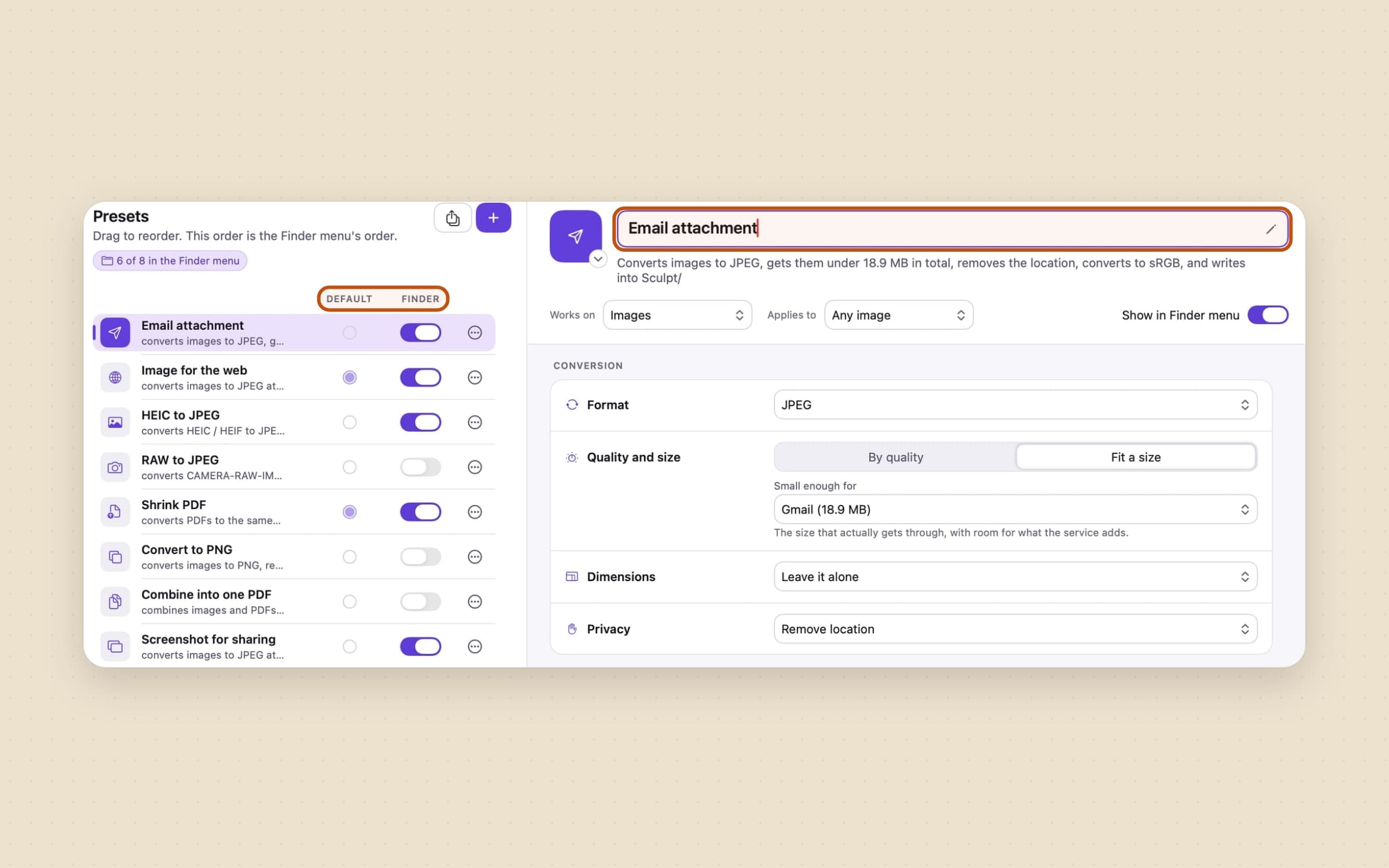
Which presets those doors use is set in the Presets window (⇧⌘P). The Default column picks what each kind of file starts on; out of the box that is Image for the web, Shrink PDF, Video for sending and Audio for sharing. The Finder column picks which presets appear in the right-click menu, up to eight, and the list's order is the menu's order. Change anything in the drawer and Save as preset keeps it; presets also export to a file for another Mac.
⌘V in the window adds whatever you copied. Files copied in Finder go in as files. A copied picture with no file behind it, such as a screenshot taken straight to the clipboard, is added too, and its result goes to Downloads.
Every run can be put back, from the window or from History
When a run ends, each row shows the new size and how much it saved, and the bar at the bottom adds them up. If an output is set to Deliver as one ZIP, its files are packed into a single archive ready to attach.
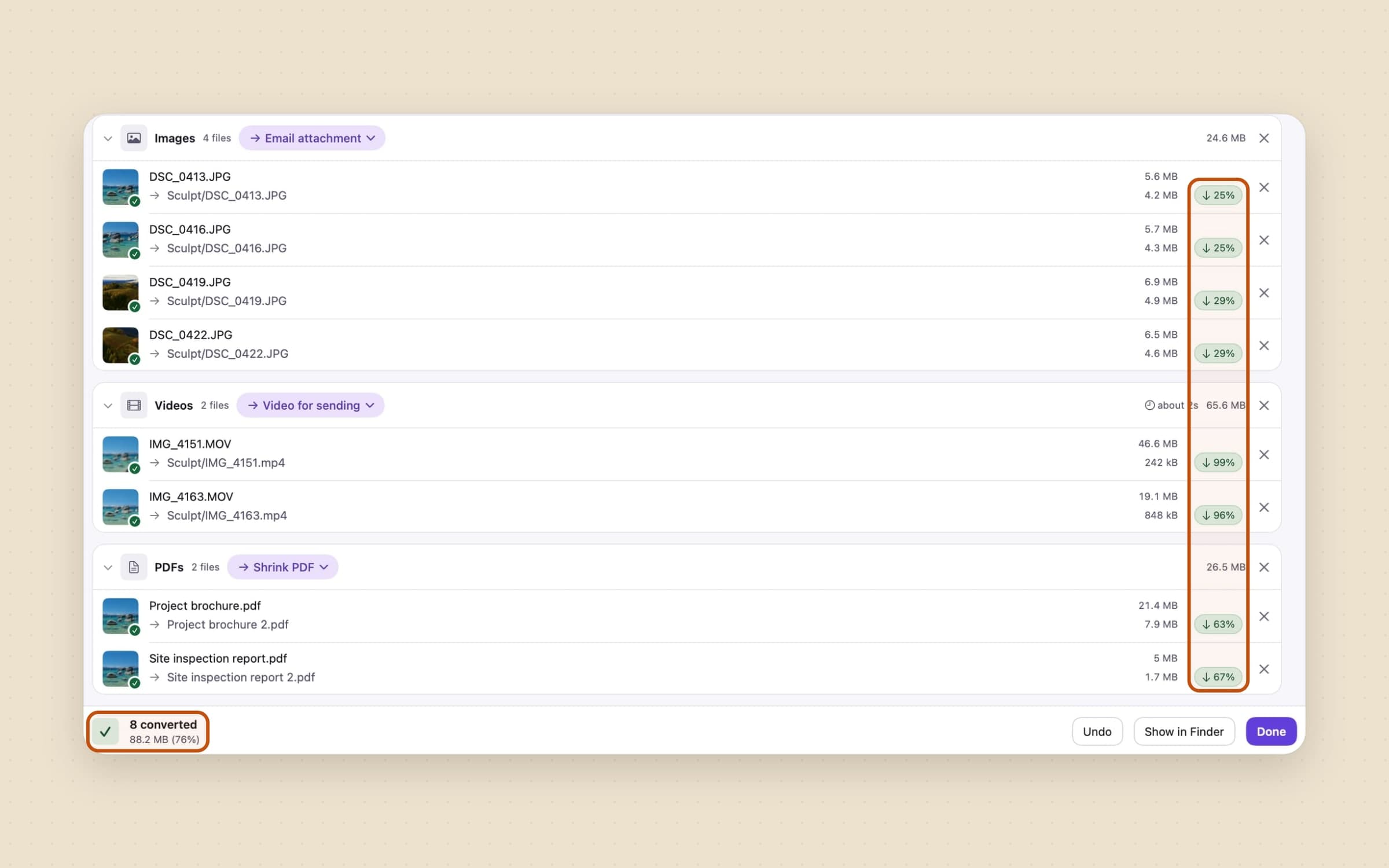
Undo moves the files it made to the Trash and, if an output had sent the originals there, brings them back. ⌘Z undoes the latest run of this session. Older runs live in History (⌘Y), which keeps the last 200 with every file they made and every file they skipped and why, each one still undoable. A run is written down file by file as it goes, so quitting halfway still leaves a record to undo from.
What it deliberately does not do
It refuses MKV, WebM and AVI. Sculpt takes only the video containers macOS reads itself - MOV, MP4, M4V, 3GP, MPEG and AVCHD - so it is not offered for the rest. HandBrake is the answer for those.
It is not an editor. There is no trimming, cropping, watermarking or speed change. It reads MP3 but does not write it.
It does not send or upload anything. Every conversion runs on your Mac, and when a video is too long to fit in an email at a watchable quality, a share link is the better answer, as sending large files by email on a Mac explains.
The Finder menu works inside your home folder, needs the extension switched on in System Settings, and needs you to grant Sculpt access to that folder once. Dropping on the window or the Dock does not need the extension.
It does not watch folders. Nothing converts until you drop, paste or right-click.
What it costs, and what else to look at
Sculpt needs macOS 14 or later, runs on Apple Silicon and Intel, and takes about 20 MB. It is a one-time $13.99 purchase with a 30-day free trial. The full specification is on the Sculpt page.
Converted files have a way of piling up in Downloads. Sweep files what lands there by rules you write, covered feature by feature in sorting files automatically on a Mac.