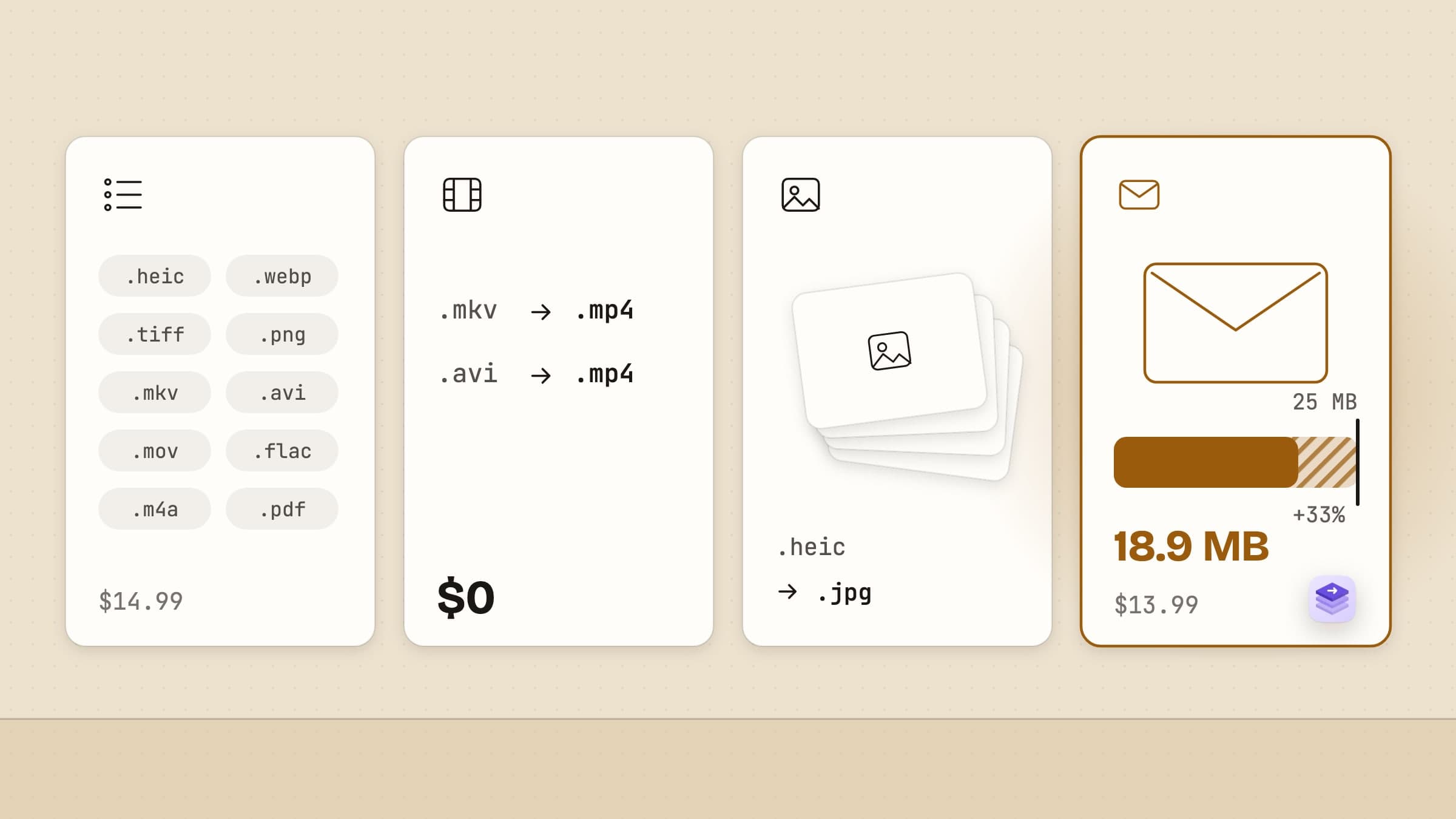
Six ways to convert a file on a Mac, side by side
| Tool | What it converts | Price | Runs on | Where it wins |
|---|---|---|---|---|
| Preview and Finder | Images, PDFs, some video | Free, built in | Every Mac | Already installed; fine for a one-off |
| Permute | Video, audio, images, PDF pages, text | $14.99 once, or Setapp | Permute 4: macOS 26, Apple Silicon | The widest format list here |
| Smart Converter | Video and audio | Free; Pro 3 is $14.99 | macOS 10.15+ | Free, and reads MKV and AVI |
| Squash | Images | $29.99 a year or $2.99 a month | macOS 12+ (App Store) | Watermarks, filters, renaming in one batch |
| HandBrake | Video | Free, open source | Mac, Windows, Linux | Fine control over a video encode |
| Sculpt | Images, PDFs, video, audio | $13.99 once, 30-day trial | macOS 14+, Apple Silicon or Intel | Files sized to send, smaller PDFs, undo |
There is no single best file converter for a Mac, because "convert" covers three different jobs: change a format, make a file smaller, or make it fit somewhere. Each tool above is the right answer to one of them. The rest of this page is about which one.
Most conversions are about sending a file, not about formats
Look at the last few files you converted. The usual story is an iPhone photo in HEIC that a form will not take, a scanned PDF that is too big to e-mail, or a screen recording a chat app refuses. The format was rarely the goal. The goal was that the file arrives.
That changes what to look for. A long format list matters less than three smaller things: does the tool know the size limit you are aiming at, does it keep what the file needs (the text in a PDF, the right way up in a photo), and can you put things back when a batch went wrong.
macOS already converts more than people think
Start here. It costs nothing and it is already on your Mac.
Convert Image is a Finder Quick Action: right-click one or more pictures, Quick Actions, Convert Image. It writes JPEG, PNG or HEIF at small, medium, large or actual size, next to the original, with a Preserve Metadata checkbox. For "turn these HEIC photos into JPEGs" it is the whole job.
Encode Selected Video Files sits in the same right-click menu for video. It offers a few presets by resolution, plus Audio Only, and it is enough to make a phone clip smaller for a one-off.
Preview exports any picture it can open to another format, and its Quartz filter Reduce File Size shrinks a PDF. You can also drag pages between two PDFs in the sidebar to combine them.
Where it stops: no size targets, one strength for PDFs (and it is a heavy one), no batch history and no undo. If you convert something once a month, that is fine. If you do it every week, the missing parts start to cost time.
Permute converts more formats than anything else here
Permute, from Charlie Monroe, is the broad converter. It claims over 100 formats across video, audio, images, PDF and text. It writes WebM and ProRes as well as MP4 and HEVC, trims, crops, rotates, adds subtitles and changes speed, and transcribes audio to text or SRT on the Mac. It also exports PDF pages as images.
It is $14.99 once with a free trial, on the Mac App Store at the same price (with some features limited by the sandbox), or part of Setapp. One thing to check first: Permute 4 needs macOS 26 and Apple Silicon. An older or Intel Mac gets Permute 3.
If your files come in every format under the sun, and especially if you need to edit a video while you convert it, buy Permute.
Smart Converter is the free pick for video and audio
Smart Converter, from ShedWorx, is free on the Mac App Store and does one thing: video and audio. It reads hundreds of file types, MKV and AVI included, and its "smart conversion" only re-encodes the parts of a file that need it, so a simple container change is fast. There are presets for iPhone, Apple TV and game consoles.
Smart Converter Pro 3 is $14.99 and adds folder watching, subtitles and lookup of movie and TV artwork. Both versions were last updated in February 2025. For a free video converter that just works, it is the one to install first.
Squash is the image specialist, and a subscription
Squash, from Realmac Software, is for photos only and goes deeper on them than any other tool here. One batch can convert, resize, compress, rename, watermark, filter and strip location data, and a preset saves the whole chain for next time. It works with Shortcuts.
On the Mac App Store it is a free download with a $2.99 monthly or $29.99 yearly plan; the direct version is also sold as a yearly subscription. If you process photos for a website or a shop every week, the watermarks and filters alone justify it.
HandBrake is the free answer for MKV and WebM
HandBrake is free, open source and runs on Mac, Windows and Linux. It takes nearly any video in and gives you full control over the encode: codec, quality, frame rate, audio tracks, subtitles. It does video only, and its window shows every setting, which is the point for some people and too much for others.
Sculpt is built around the file you have to send
Sculpt is ours. It converts images, PDFs, video and audio, offline, from a window, from a right-click in Finder or by dropping files on its Dock icon. ⌘V adds whatever you copied, a screenshot included.
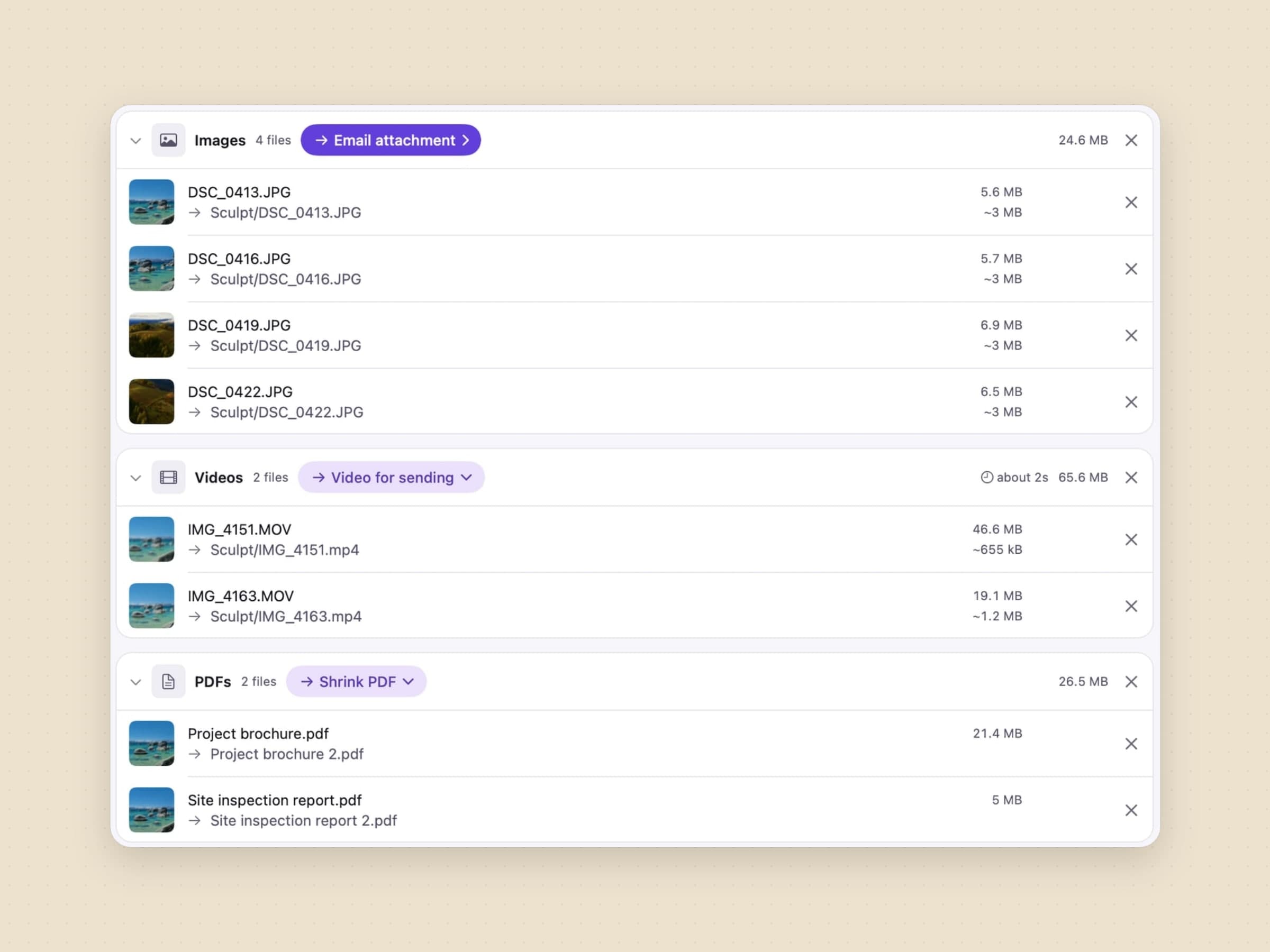
The difference is that it starts from where the file is going. Email attachment aims at the size that actually arrives, not the one the mail service advertises. An attachment is base64-encoded on the way out, which adds about a third, so Gmail's 25 MB is really 18 MB of file. Sculpt targets the smaller number. The same goes for a clip sent to a chat.
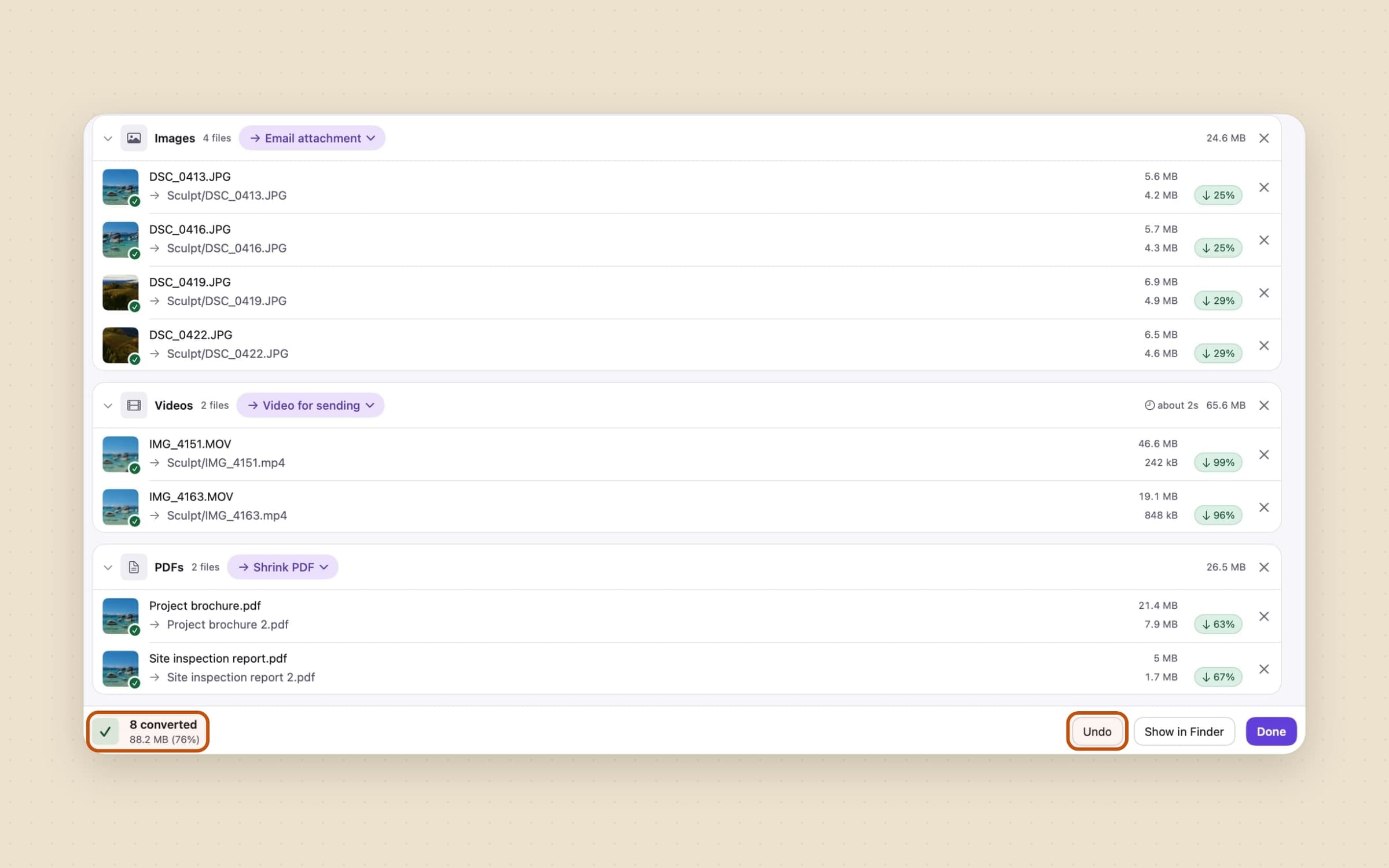
Shrink PDF recompresses the pictures inside a PDF and keeps the text selectable, the links and the bookmarks, at four strengths from screen to archive. A PDF can also become one picture per page, and pictures and PDFs dropped together can become one PDF. Pictures can be written as WebP. A video can move from MOV to MP4 without being re-encoded. Location is removed from photos and videos before they are sent.
One drop can produce several outputs, say a JPEG for e-mail and a PNG for the archive. An output can be delivered as one ZIP. Every batch goes into History, and Undo puts it back, originals included.
The mechanics are covered step by step in batch converting files on a Mac.
What Sculpt deliberately does not do
It refuses MKV, WebM and AVI. Sculpt only takes video that macOS itself can decode, so it does not even appear in the Finder menu for those files. Smart Converter or HandBrake are the answer there.
It is not an editor. There is no trimming, no cropping, no subtitles and no speed change; that is Permute. It writes M4A, WAV, AIFF and FLAC, but not MP3. It does not watermark or filter photos; that is Squash. And it will not rewrite a signed PDF or one with files attached, because the copy would lose the signature or the attachment. The row says so instead.
How to pick
- A few files a month: Preview and Finder. Do not buy anything yet.
- Every format, plus video editing: Permute.
- Video and audio, for free: Smart Converter, or HandBrake for control.
- Photos for the web, with watermarks: Squash.
- Files that have to fit an e-mail or a chat, PDFs that have to shrink, and a way back: Sculpt, $13.99 once, with a 30-day free trial.
Converted files have a habit of piling up in Downloads next to their originals. If that folder is already a mess, Sweep can file them by kind and age once they land.
Prices and features checked on 26 October 2026.

