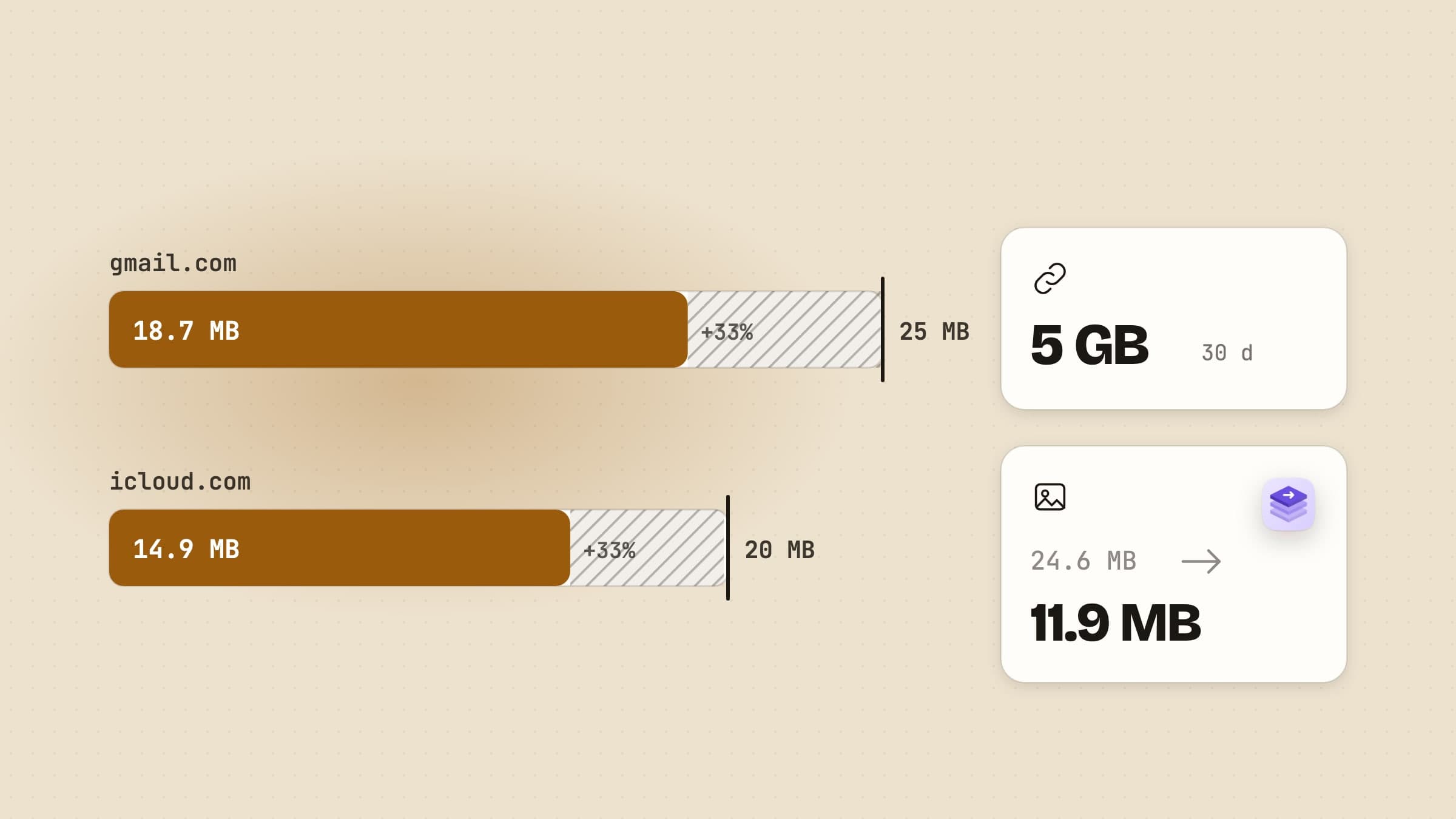
The real limit is about a quarter below the advertised one
Every mail service publishes a size limit, and every one of them is measured on the message as it travels, not on the file you see in Finder. That difference is the reason a 22 MB attachment bounces off a 25 MB limit.
Email was built to carry text. To send a photo or a PDF, the mail app first rewrites it as base64, a text encoding that turns every 3 bytes into 4 characters. That alone makes an attachment about 33% larger, and the line breaks added every 76 characters, the headers and the message itself take a little more. Divide the limit by roughly 1.37 and you have what actually fits.
| Service | Advertised limit | Files that fit | Above the limit |
|---|---|---|---|
| Gmail | 25 MB | about 18 MB | Gmail swaps the file for a Google Drive link |
| Outlook.com | 25 MB | about 18 MB | OneDrive links up to 2 GB do not count |
| Classic Outlook, IMAP or POP account | 20 MB by default | about 14 MB | Outlook refuses the attachment |
| Microsoft 365 work account | Set by your admin | Ask, then take a quarter off | Depends on the organisation |
| iCloud Mail | 20 MB | about 14 MB | Mail Drop, up to 5 GB |
| Yahoo Mail | 25 MB, all attachments combined | about 18 MB | Send a cloud link |
One more catch: the limit that counts is the smaller of yours and the recipient's. A 17 MB attachment leaves Gmail fine and bounces off a company server set to 10 MB, and there is no way to know that from your side.
Five ways round it, side by side
| Option | Best for | Size | What the recipient gets | The catch |
|---|---|---|---|---|
| Mail Drop | Anything up to 5 GB, from Apple Mail | 5 GB | A download link | Expires after 30 days |
| Cloud share link | Big files, files that must stay available | Your storage | A link to your Drive, OneDrive or iCloud Drive | Uses your storage, needs a click and sometimes a sign-in |
| WeTransfer and similar | A one-off large file to anyone | 3 GB per 30 days free | A download link | Free links last 3 days |
| ZIP | Many files as one attachment | Barely smaller for photos, video, PDF | One archive | Rarely gets you under the limit |
| Smaller files | Photos, PDFs, short clips | Under the real limit | Real attachments | Video loses detail when squeezed hard |
The first three stop sending the file and start sending a link. That is the right trade for a 2 GB video and the wrong one for six photos of a flat, a signed contract or a form that has to arrive as an attachment, where a link is one more thing to click, expire or get blocked by a company mail filter.
Mail Drop wins if you already use Apple Mail
Mail Drop is built into Mail on the Mac. When a message is over the limit, Mail uploads the attachments to iCloud and sends a link instead, up to 5 GB per message. The link expires after 30 days, and the files do not count against your iCloud storage.
It is not only for iCloud addresses. From a Gmail, Outlook or work account, Mail asks whether to use Mail Drop when a message is too big, as long as you are signed in to your Apple Account. You can turn it on per account in Mail, Settings, Accounts, under "Send large attachments with Mail Drop". The person receiving it can use any mail app.
Where it loses: the files vanish after 30 days, so it is wrong for anything the recipient needs to keep, and it does nothing if you write mail in a browser or in Outlook.
A share link wins when the file is huge or has to stay put
Put the file in Google Drive, OneDrive or iCloud Drive and send the link. Gmail does this for you above 25 MB: it takes the file out and inserts a Drive link. Outlook.com does the same with OneDrive, for files up to 2 GB.
This is the right answer for a long video, a folder of raw photos or a document you will keep updating, because the link stays alive for as long as you leave the file shared. The costs are real but small: it counts against your storage (the free tiers are 15 GB at Google, 5 GB at Microsoft and 5 GB at iCloud), the recipient may have to sign in or request access, and some company filters strip cloud links from incoming mail.
WeTransfer wins for a one-off to a stranger
Services like WeTransfer upload the file to their servers and email a link. Nobody needs an account, which is the whole appeal when you send a large file once to someone you do not share a cloud with.
The free plan is now tighter than its reputation: 10 transfers or 3 GB in any 30-day window, and each link lasts 3 days. Fine for a one-off, poor for a recipient who opens their email on Monday about a link you sent on Thursday. The files also sit on a third party's server for those days, which matters for contracts and medical records.
Zipping bundles files, but rarely shrinks them
Select the files in Finder, right-click and choose Compress. You get one archive, which is the real benefit: one attachment instead of forty, folders kept intact, nothing lost on the way.
What it does not do is make most attachments smaller. ZIP removes repetition, and JPEG, HEIC, PNG, MP4, MOV and most PDFs have already had their repetition removed by their own compression. A ZIP of holiday photos usually comes out within a few percent of the originals. It does shrink text, spreadsheets, uncompressed TIFF and WAV, sometimes by half or more. So zip to tidy a batch, not to get under a limit.
Smaller files are the only way the attachment stays an attachment
If the recipient should get the files themselves, with nothing to download and nothing that expires, the files have to be smaller. Your Mac already does some of this for free:
- Mail's image size menu. Add photos to a message in Mail and a size menu appears in the header: Small, Medium, Large or Actual Size. Quick, but it only does photos and you are guessing at the total.
- Preview. File, Export, then Quartz Filter, Reduce File Size. It shrinks a PDF hard, often too hard: scanned pages can turn blurry enough to be unreadable.
- QuickTime Player. File, Export As, and a lower resolution such as 720p. It gets a clip smaller, but you cannot ask for a size, so you try until it fits.
None of the three knows the limit you are aiming at. That is the gap Sculpt was built for.
What Sculpt does with the email limit
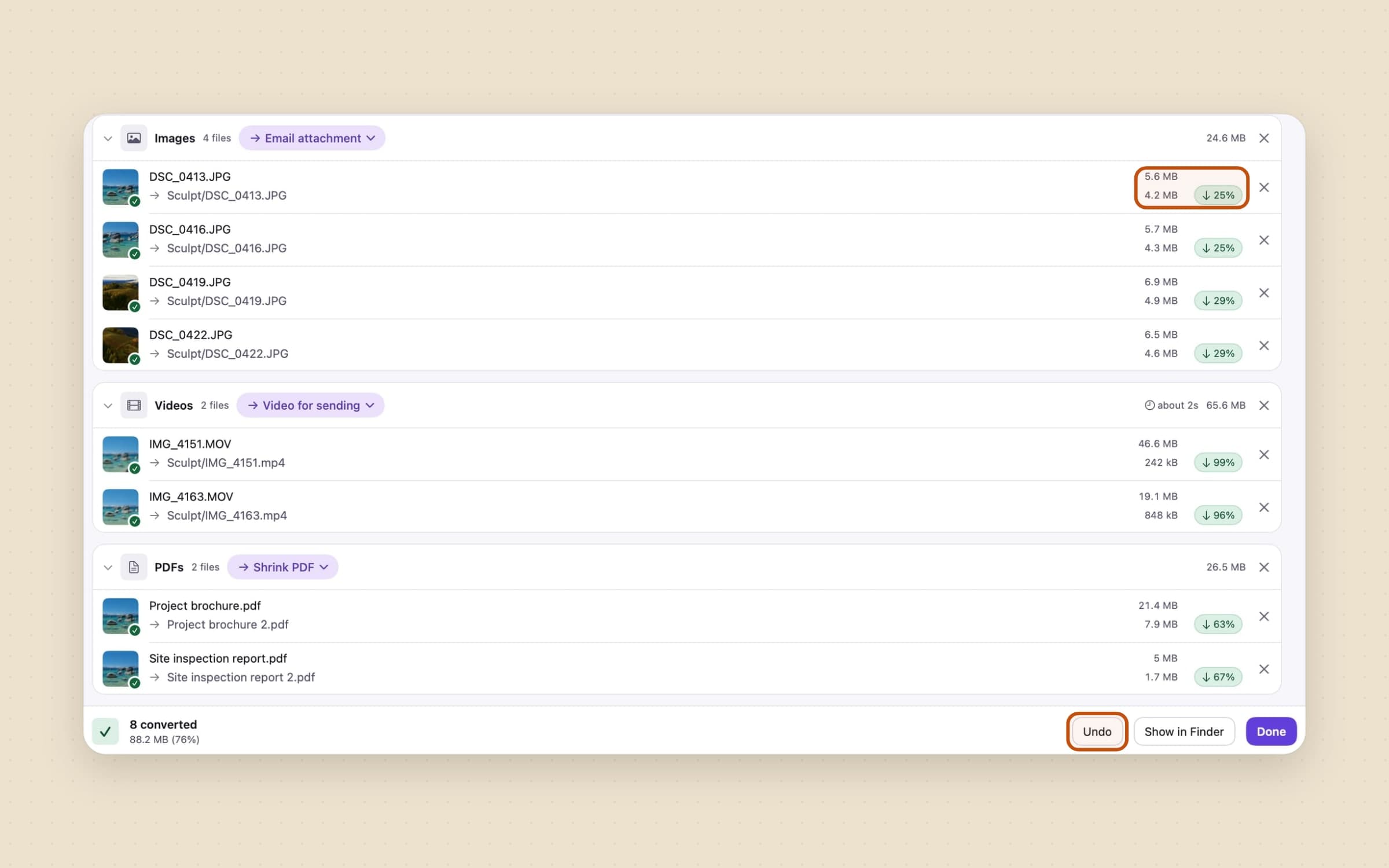
Sculpt is our offline file converter for images, PDFs, video and audio. You drop files on its window or its Dock icon, paste them with ⌘V, or right-click them in Finder, and nothing is uploaded anywhere. Three of its built-in presets are about getting files into an email.
Email attachment turns photos into JPEGs that fit Gmail's real limit together. The target is 18 MB for the whole batch, not per photo, because an email has one limit and not one per attachment: drop twelve photos and Sculpt splits the 18 MB between them by size. Location data is removed on the way.
Video for sending brings each clip to 14 MB, at most 1280 pixels on the long edge and 30 frames a second, as an H.264 MP4. Here each clip gets the whole target, because videos go one per message; splitting it between ten clips would leave each too blurred to watch. 14 MB is the tightest of the limits the app knows, so the same file also fits iCloud Mail and WhatsApp.
Shrink PDF recompresses the pictures inside a PDF and keeps the text selectable, the links and the bookmarks, with four strengths from Screen to Archive.
The targets are already net of base64. The size picker offers Gmail at 18 MB and Outlook and iCloud at 14 MB; on screen they read 18.9 MB and 14.7 MB, because Sculpt counts megabytes the way Finder does. The 14 MB choice is built for 20 MB services like iCloud and classic Outlook. Outlook.com on the web now takes 25 MB, so Gmail's 18 MB fits there too.

Any output can also be set to deliver as one ZIP, which packs its files into a single archive ready to attach. That is the useful half of zipping, the one attachment, on top of files that are already small enough. Originals are kept, and every batch can be undone in one click.
Where Sculpt does not win: it cannot make a 2 GB video fit in an email at a quality worth watching, and it does not send anything itself. For those, use a share link or Mail Drop. Sculpt is $13.99 once, with a 30-day free trial, on macOS 14 or later. If you want a step-by-step guide to converting many files at once, see batch converting files on a Mac.
Which one to use
- A few photos or a PDF for someone who should just get the files: shrink them, then attach.
- One large video: a share link, or Mail Drop if you write in Apple Mail.
- A big folder for a stranger, once: WeTransfer, before the 3 days run out.
- Forty small files: ZIP them, for the tidiness, not the size.
The big files you send and receive tend to stay on the disk long after the email has gone. Sweep can file what lands in Downloads and list the large files nobody has opened in months, and freeing up disk space on a Mac covers the rest.
Prices and features checked on 26 October 2026.

