Why the Downloads folder wins
Nobody decides to accumulate two thousand files in Downloads. It happens because filing something takes ten seconds and finding it later takes three, and that trade is correct every single time you make it. The folder is not a symptom of disorganization; it is the rational outcome of a thousand individually correct decisions.
Which is why "just be tidier" does not work and automation does. Something has to make the filing decision at the moment the file lands, when the context is still obvious and the cost is zero.
Sweep is a menu bar app that does that on macOS. Everything below is in the shipping version.
Rules, without a rule language
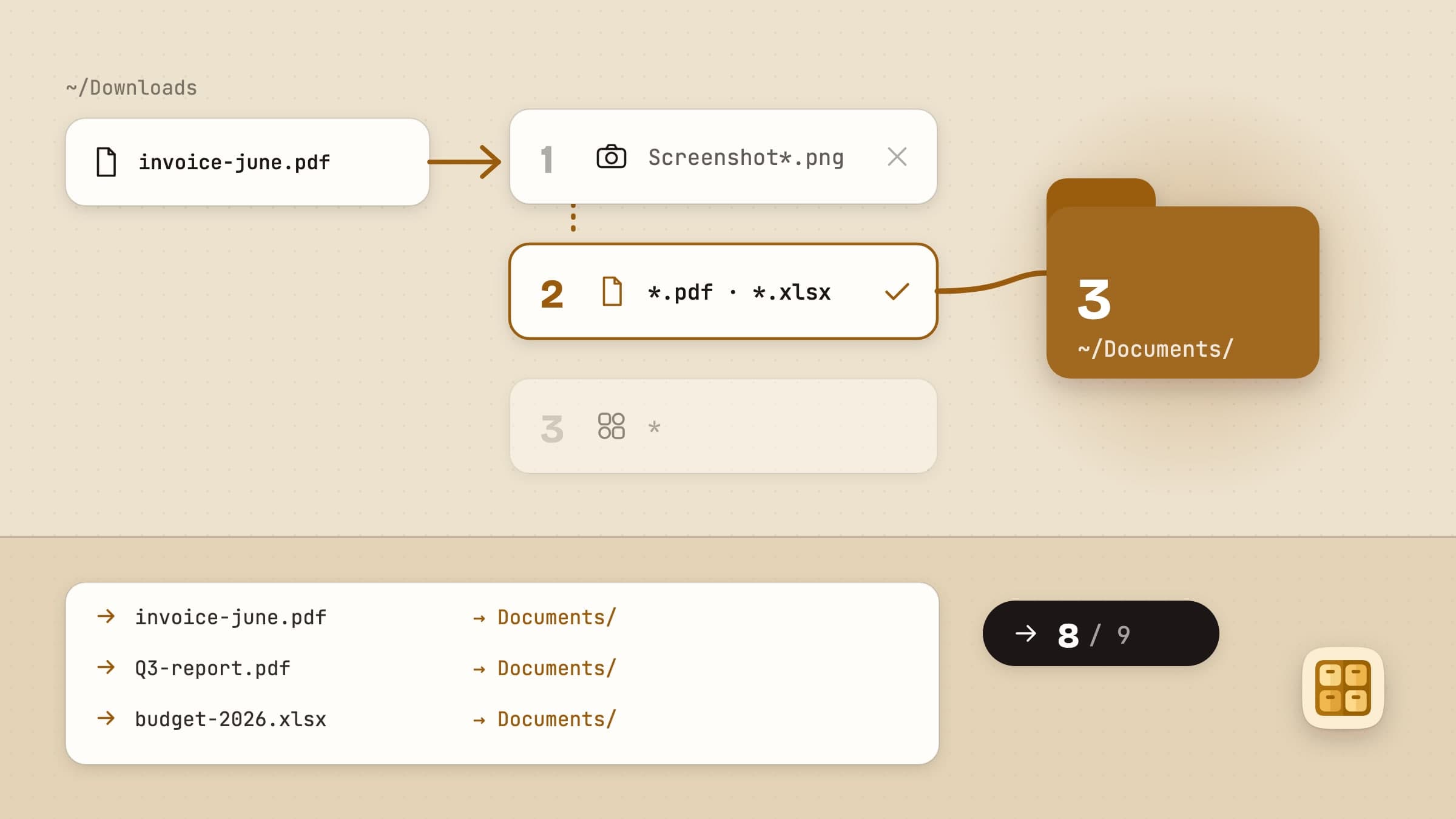
A rule is a set of plain conditions and one action. Conditions are file type,
extension, name (contains, doesn't contain, starts with, ends with or is exactly),
size, age - by date modified or date added - Finder tags,
screenshot, and where it came from, the site a download was saved from.
Actions are move, rename, tag, unzip and send to Trash.
There is no expression syntax and no regular expressions to get wrong. Extension takes a comma-separated list - sketch, fig, heic - and is
the one to reach for when "name contains .sketch" would also claim
notes.sketch.txt.
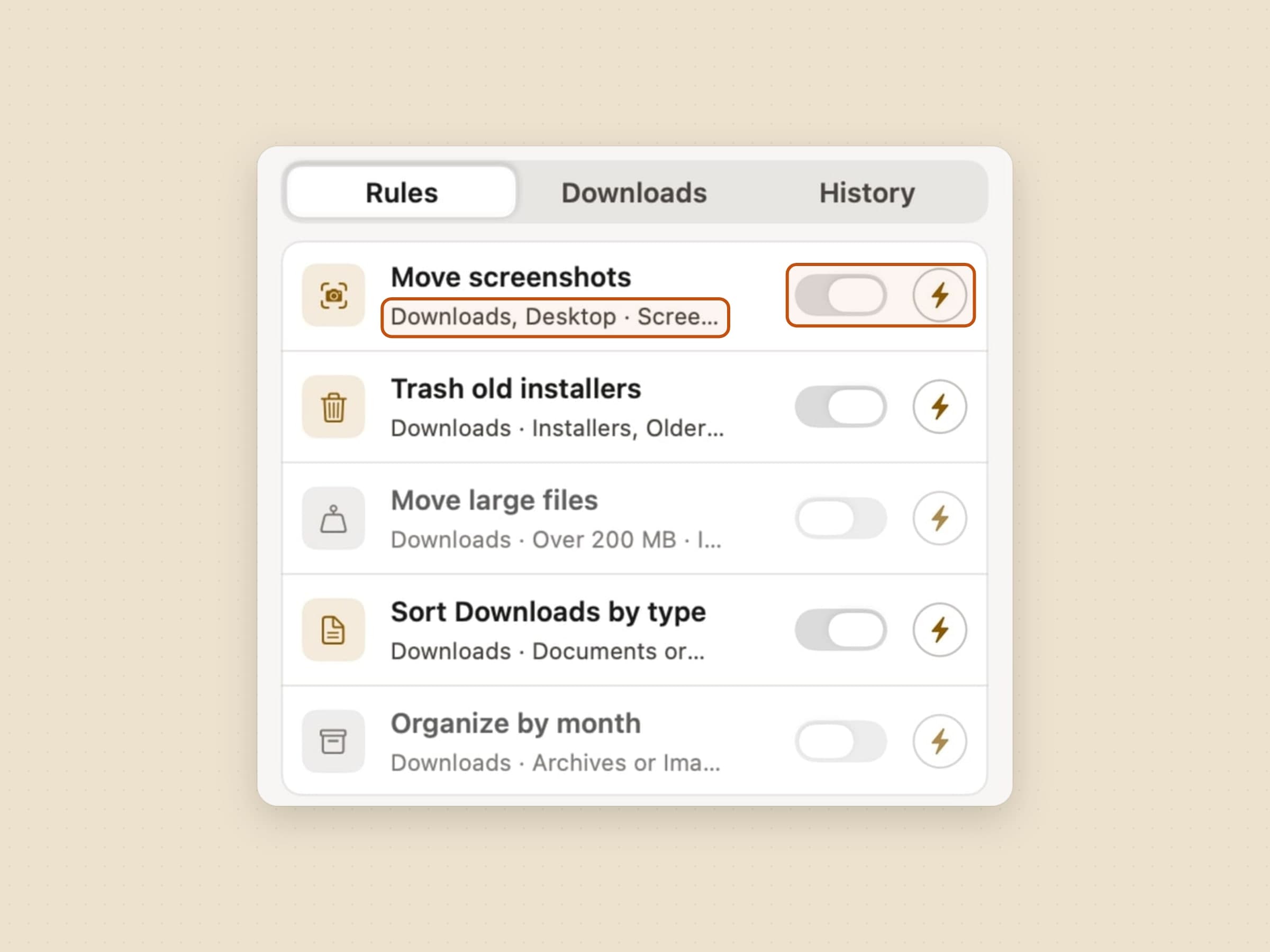
Five ship, three of them already on, and the useful thing is that each one is a worked example you can edit rather than a black box:
- Move screenshots - name contains "Screenshot" → a Screenshots folder
- Trash old installers - installers older than 30 days → Trash
- Move large files - anything over 200 MB → a Large Files folder
- Sort Downloads by type - the broad catch-all, filed by kind
- Organize by month - dated subfolders instead
The two that arrive off are the two that would surprise you. Move large files acts on size alone, and Organize by month is an alternative to Sort Downloads by type rather than an addition: switch both on and by-type matches first, so by-month never fires.
Order matters, and Sweep is explicit about it: rules match top-down and the first match wins, which is why the specific ones sit above the catch-all. Without that, a screenshot would be filed as an image and never reach its own rule.
Each rule also carries a trigger. Auto rules run as files land in the watched folder, and any rule that matches on age also re-checks once a day - a file turning 30 days old produces no filesystem event, so without that daily pass "older than 30 days" would be a rule that never fires. Manual rules wait until you press Run.
The seeded Trash rule runs automatically and always asks. That is the rule for anything destructive on the daily pass: whatever a Trash rule's usual setting says, a run that starts on a timer shows you the plan first, because it is exactly the run nobody is watching.
A second axis decides how much it asks. A rule set to confirm shows the preview and waits; one set to silent sorts matching files immediately without asking. The two combine, and the combination worth thinking about is auto plus silent: files move as they land and nothing appears. That is the setting the whole app is built to earn, and it is also the one to leave until a rule has run correctly a few times under confirm.
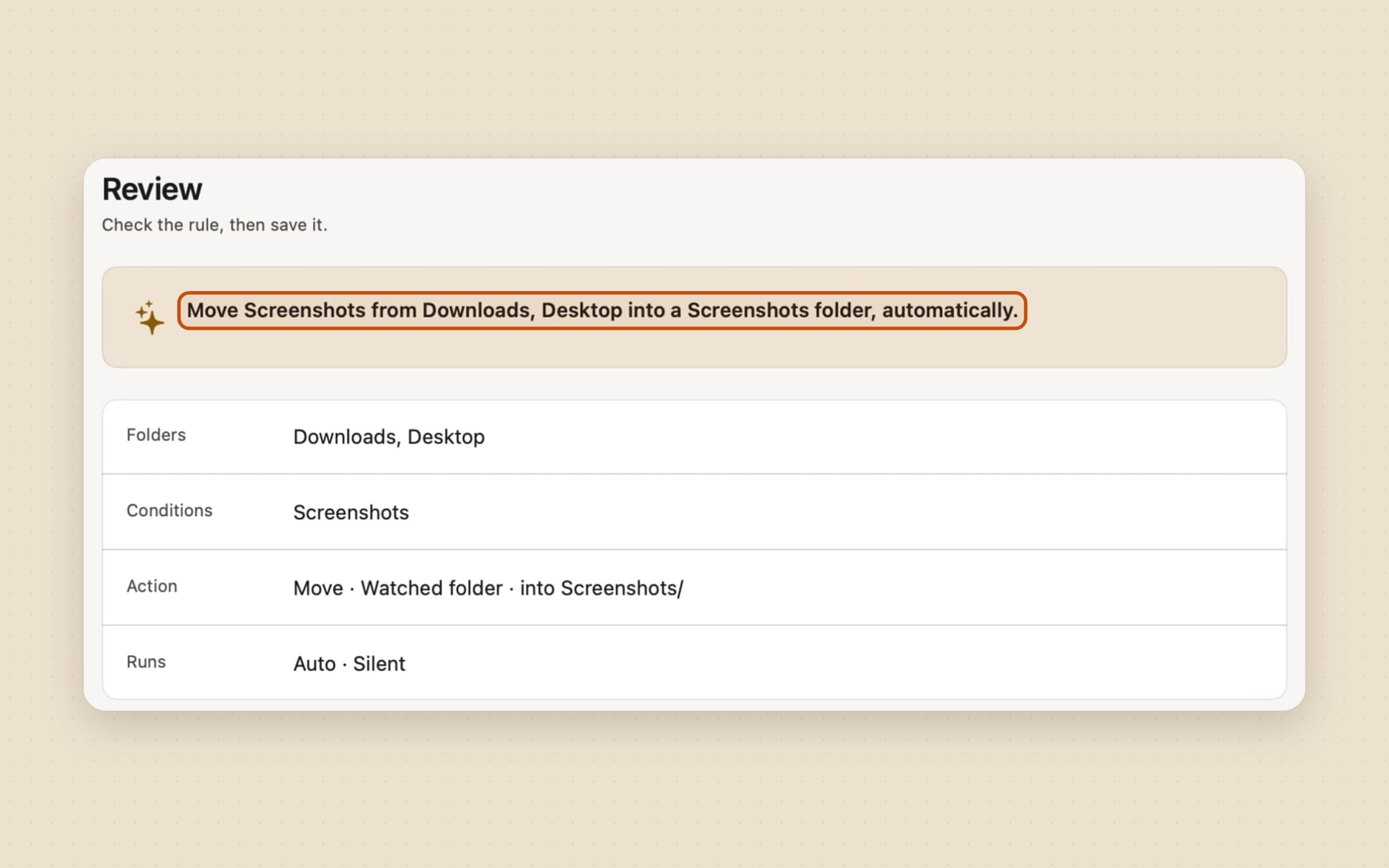
Folders are yours to choose: Downloads, the Desktop, or anything you add.
Under the list sits one quiet line - This week 47 · All time 1,204 · 3.2 GB cleared. No badge, no colour. It is there because the promise is that the app works while nobody is watching, and that is also how someone reaches the end of a trial having never seen it do anything.
The preview, which is the actual product
Every batch can be shown before it runs, and the preview is where the trust comes from.

The header states the plan in one line - 8 moves, 1 skipped - and every row below it names the file, where it is now and where it would go. Rows that would replace something at the destination are flagged Overwrite with a warning above the list. Every row has its own checkbox, so a file you want left where it is can be unticked and the rest still go. Then Cancel or Confirm sweep.
Two guarantees sit underneath.
Nothing is ever deleted. The destructive action is "move to Trash", which is reversible with the Finder you already know.
Online-only cloud files are skipped, not half-moved. Sweep detects iCloud placeholders and the dataless files OneDrive and Dropbox leave behind, and leaves them alone rather than triggering a multi-gigabyte download or moving a stub away from the service that manages it. That is the 1 skipped in the header.
Where the files actually go
A move action has two halves: the destination folder you pick, and how files are distributed once they arrive. That second half is the part that decides whether you end up with one tidy folder or a second mess inside it.
Four options. Everything lands in the destination root. Everything is grouped
by type, into Images, Documents and the rest. Everything is grouped by
date, into dated subfolders - 2026-07/, 2026/07/ or just 2026/. Or everything goes into one
named subfolder, which is what the screenshots rule does with its Screenshots
folder.
A move can also rename as it files, which is useful for the downloads that arrive
as document(3).pdf and stay that way forever - and rename works on its own too,
leaving the file where it is.
The important part is that all of this is still one rule with one preview and one undo entry. Routing changes where things land, not how reversible the batch is.
Undo, including after a relaunch
Every applied batch is recorded in the Activity Log and can be reversed with one click, and the log survives quitting the app.
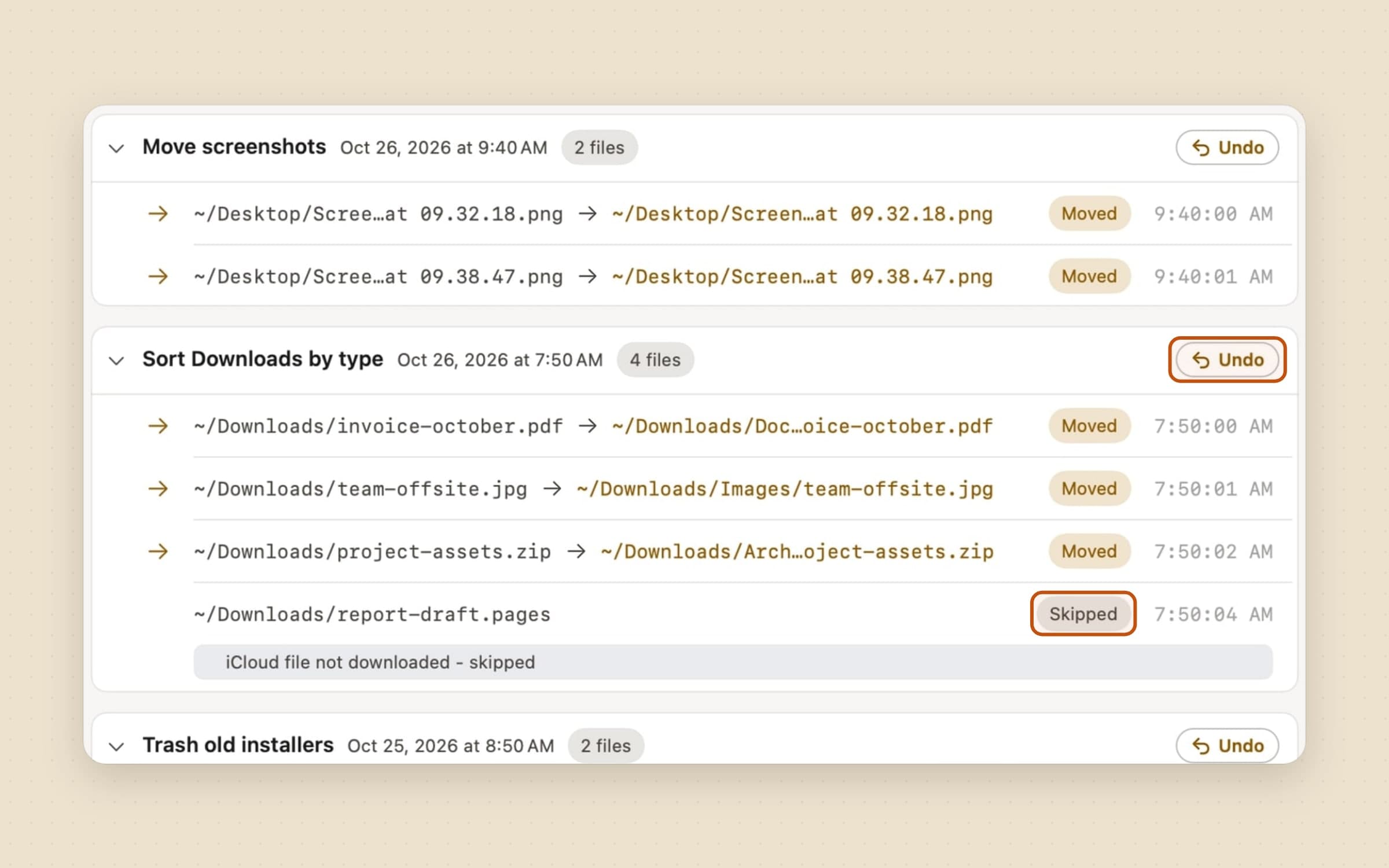
If you would rather hear about it, Sweep can post a short notification after it files something on its own, with Undo right on the note. It is off until you turn it on in Settings.
That is the feature the rest of the design is arranged around. Automation that touches your files is only worth having if reversing it is as cheap as running it - otherwise the honest response to any rule you are not completely sure about is to not turn it on, and an organizer you are afraid of organizes nothing.
Downloads you only need for a while
The popover's Downloads tab lists your newest downloads, and any of them can take a timer: 1, 7 or 30 days. When it runs out the file goes to the Trash in one batch, logged and undoable like the rest. The same timer is in Finder's right-click menu under Sweep → Trash in…, and Pause all leaves it running, because a timer is a decision you already made.
Files can come in the other way too. Drop them on the menu bar icon and your rules file them; anything no rule matches asks which folder it should go to.
From Finder, without opening the app
A Finder extension puts Sweep in the right-click menu of any folder.
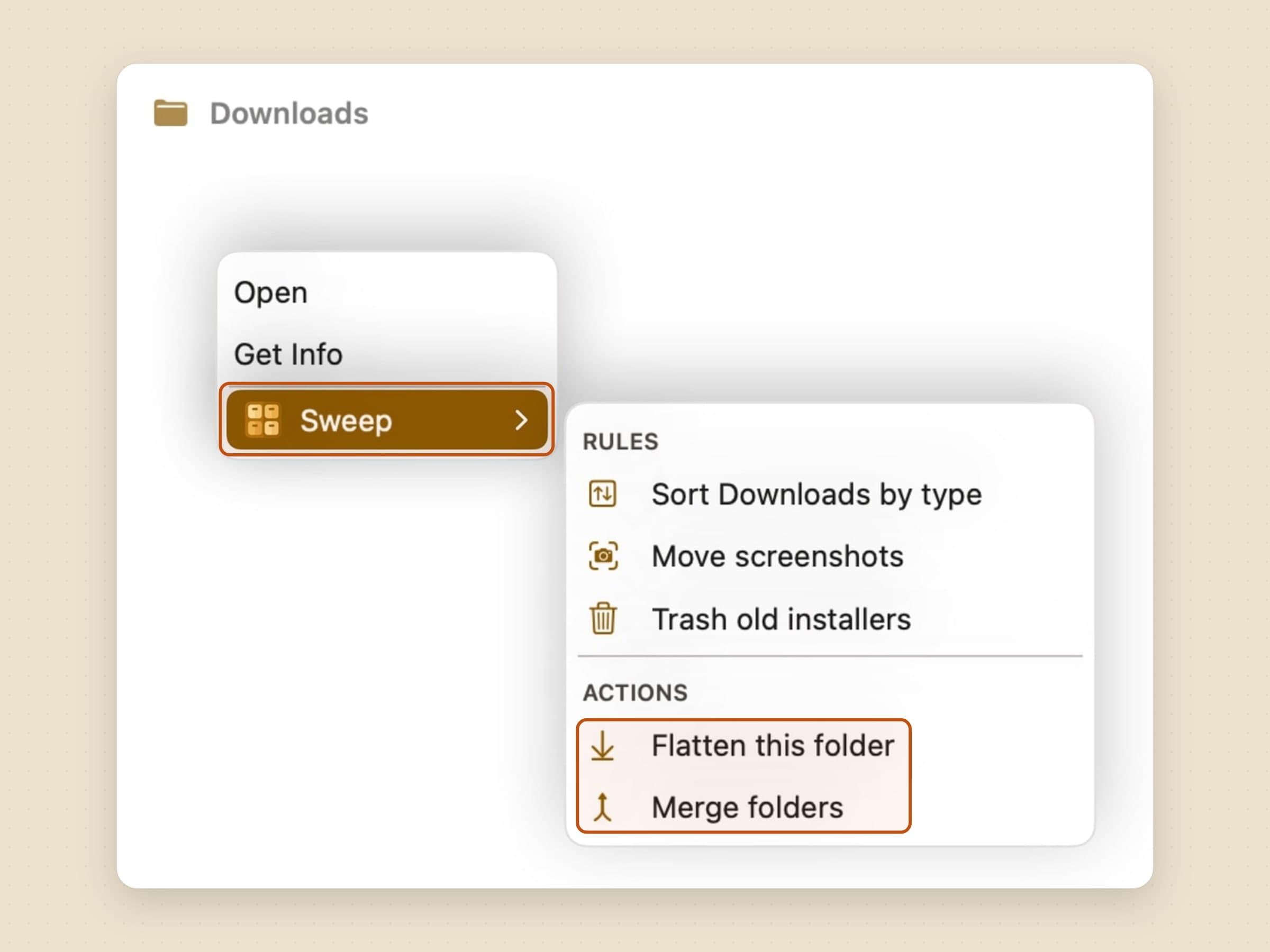
The submenu lists your active rules so you can run one against the folder you are looking at, plus two one-off actions: Flatten this folder, which pulls everything out of nested subfolders, and Merge folders, for the four directories that are all the same project under different names. On a file in a watched folder it also offers Trash in…, the download timer from above.
Under the hood the extension does no file work at all - it hands every action to the app, which owns the folder permissions and the undo log. That is a sandbox requirement, and it is also why a Finder-initiated batch is as undoable as any other.
Cleanup, without the cleanup marketing
There is a Cleanup screen, and it is worth describing precisely because the genre it lives in has a bad reputation. Cleanup looks only through the folders Sweep already watches and groups what it finds there: byte-identical duplicates, archives sitting beside their unpacked copies, downloads that stopped part-way and never resumed, installers long past their use, large files nobody has opened in months, empty folders, and files Sweep filed months ago that nobody has opened since. For duplicates you choose whether the oldest or the newest copy stays. Nothing arrives ticked. You pick, and the selection goes to the Trash through the same log and undo as any other batch.
That third group is the one with a line to walk. A .crdownload sitting in
Downloads is either several gigabytes of nothing or a download still in flight,
and offering to trash the second would be the worst thing this feature could do.
So the line is a week: a partial that has not moved in seven days is the
browser's leftovers, and one paused overnight or over a weekend is never
offered at all.
The rest of the genre is deliberately missing: no "you can free 40 GB" scan of the whole disk, no system junk claims, no cache sweeper. Sweep suggests what it can show evidence for, in folders you told it about, and nothing else.
The one place a model is involved
Every app in this category now sells an AI that organizes your files. Sweep's argument is the opposite one - it does the same thing every time, and you can undo it - so handing a model the files would trade away the only thing worth buying.
So the model writes a rule, and the rule is what runs. On macOS 26 with Apple Intelligence, Sweep reads the names of files nothing has filed yet, finds a word they share, and drafts an ordinary recipe: a "name contains" condition and a folder to put them in. It arrives switched off, in the builder, for you to read and save - the same flow the pile-up card has always used. Nothing in it moves a file.
Filenames only: no contents, no paths, and the pattern the model claims is checked against the names it was drafted from before it ever reaches you. On a Mac without Apple Intelligence the feature is not greyed out with an upsell - it is simply not there.
What it deliberately does not do
It never deletes anything. The most destructive thing a rule can do is move a file to the Trash, and the Trash is a place you already know how to open. There is no secure-erase, no bypass, and no setting that turns one on.
A rule never reads a file to decide what to do with it. Rules match on name, extension, kind, size, age, tags and where a download came from - things macOS already records about the file - and nothing opens what is inside. The one exception is the unzip action, which by definition opens the archive you pointed it at. (Cleanup is the other place contents count: it compares two files byte for byte, on the Mac, before it calls them duplicates.) That is why a rule runs instantly on a 4 GB video, and it is also why the app has nothing interesting to send anywhere even if it wanted to.
And a Never touch list in Settings - names containing a word, or a Finder tag - keeps files out of every rule, Cleanup and anything dropped on the menu bar icon.
There is no cloud and no account. Rules and history are local, and the only network traffic goes to our own servers - license validation, updates, config, and anonymous usage and crash diagnostics, none of which carries a file name.
There is no schedule to set, apart from a timer you put on one download. Rules fire when a file lands in a watched folder, when you press Run, or - for the ones that match on age - on a daily check that exists only because nothing else would ever look at that file again. There is no "every night at two" to configure, and nothing goes to the Trash on that daily pass without showing you the plan first.
And the Finder extension does no file work of its own, which is worth knowing because it explains a real failure mode: macOS runs it read-only, so every action it offers is handed to the app. If Sweep is not running, the menu is there and does nothing.
What it costs, and what else to look at
Sweep runs on macOS 14 or later, on Apple Silicon and Intel, and takes about 20 MB. It is a one-time $5.99 purchase rather than a subscription, with a 30-day trial that needs no card and no email. The full specification is on the Sweep page.
Sweep decides where a file goes. Two neighbors pick up where that stops. If
what you need back is a version of a file you already have, that is
Retrace, covered in
recovering an overwritten file.
And if the folder you are actually trying to clear is ~/Library rather than
Downloads, an app's leftovers are Unroot's job, in
uninstalling apps completely; its
Installers screen also picks up the disk images in Downloads whose app is
already installed, the same pile as the old-installer rule above. There is
a survey of the whole shelf in
Mac utility apps worth installing.