The three ways to uninstall a Mac app, and what each leaves behind
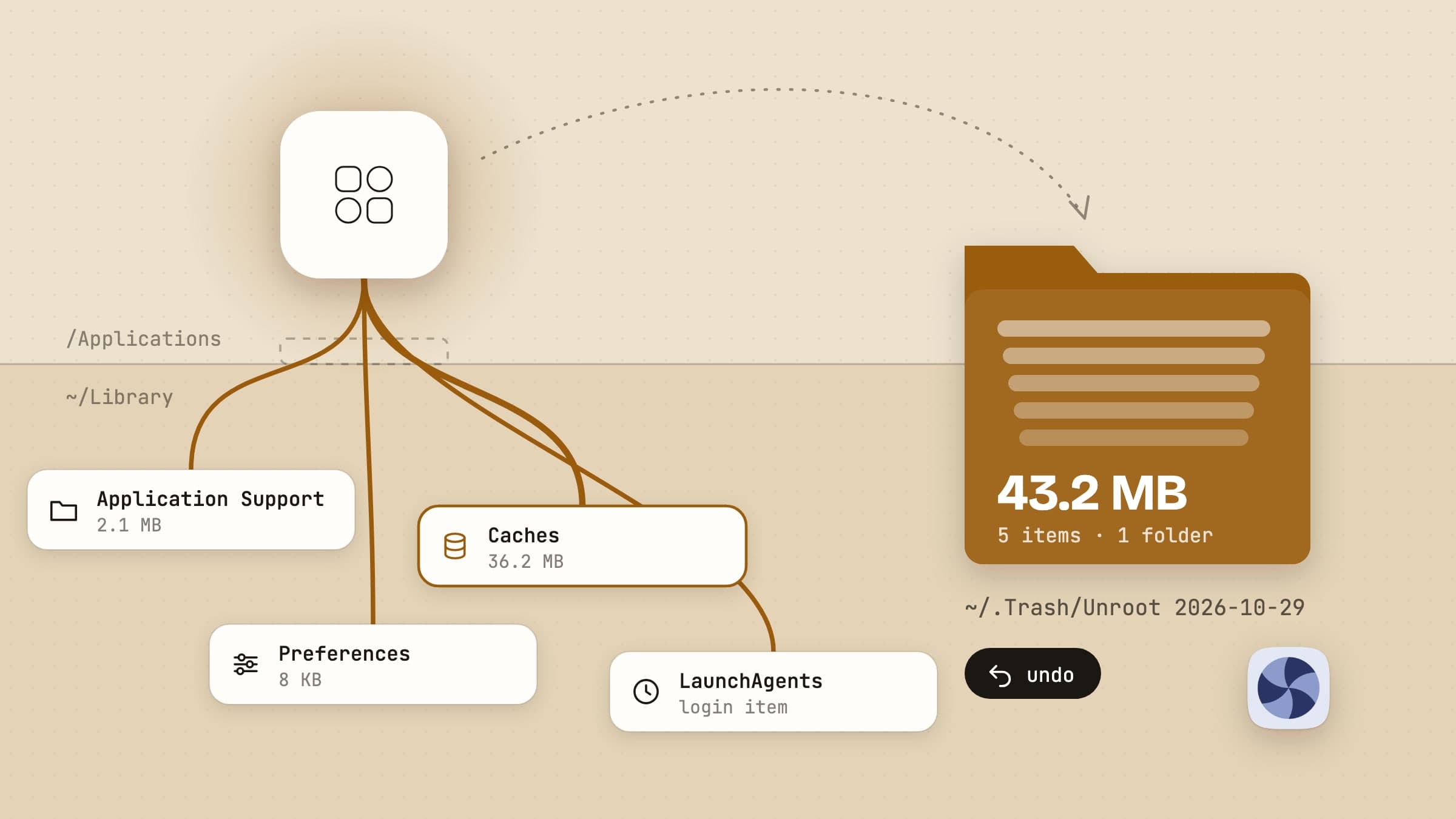
Drag it to the Trash. Built in, free, and it removes the bundle. It removes
nothing the app wrote outside itself: preferences, caches, containers, saved
state, launch agents, installer receipts, and the entries under Privacy &
Security in System Settings. Those last ones macOS gives you no button for.
tccutil, the tool that clears them, resolves an app through LaunchServices, so
it needs the bundle on disk. While the app sits in the Trash that still works;
once the Trash is emptied it answers "No such bundle identifier" and the grants
stay in the permissions database forever. That is why apps you deleted last
year are still listed under Accessibility.
The vendor's own uninstaller. When one ships - Adobe, Microsoft, most VPN clients - it is the right answer, because the vendor knows where it put things. Most apps ship none.
A dedicated uninstaller. AppCleaner has done this for free for years and
is enough if what you want is the bundle plus the obvious ~/Library folders;
Pearcleaner is the open-source take. Unroot is built around
a narrower question: not what can we find, but what can we prove, and what can
we put back. Everything below is in the shipping version.
Where it looks, and why every row says why
A scan reads 58 locations - the ones you would guess (Application Support,
Preferences, Caches, Containers, Saved Application State) and the ones you would
not (HTTPStorages, WebKit, Cookies, the per-user trees under /var/folders, the
audio plug-in roots, QuickLook generators), plus /Library/LaunchDaemons,
/Library/PrivilegedHelperTools, /var/db/receipts and /Users/Shared outside
your home folder. Two are read specially: Application Support one level deeper,
because the nested folder is what should be proposed rather than the vendor
folder that would take every sibling product with it, and launch item plists on
their Label and ProgramArguments, because vendors name the file after the
daemon.
Then the matching, where an uninstaller either earns trust or destroys data. An
exact bundle identifier is certain, and so is that identifier as a whole
dot-delimited run, an app group the app declared in its own code signature, or a
path in an installer receipt pkgutil can prove installed this bundle. A name
match is merely possible, and is graded as such.
What is missing from that list is the point. Rules for the vendor prefix and for the signing team both existed and were both deleted: between them they matched 45 times across two live scans, every one another app's data, and never once a real leftover. Same developer is not same app. The strongest rule fires last - a file filed under another installed app's identifier belongs to that app - and every row shows the reason it matched, which is the difference between a list you trust and a list you take on faith.
Three tiers, and what starts ticked

Findings are graded safe to remove, worth a look, or sensitive, and the grading answers one question: how careful do you need to be about this row. Safe is reversible, inside your home folder, and certainly the app's. Worth a look is matched by name only, or shared with an app you still have. Sensitive is keychain entries, privileged helpers, system extensions and anything outside your home folder - the only tier that can produce the failure everyone is afraid of.
The counter-intuitive part is what arrives ticked, because it is not the safe tier. A row is ticked when the match is certain, not when it is reversible. Conflating those made the product dishonest: an app's license lives in the keychain, so leaving those rows unticked meant the default removal quietly left the app activated. A sensitive keychain row is ticked; a name-only match is not.
The same screen carries the other mode. Reset keeps the app and removes
everything it stored, except the installer receipts, because pkgutil
forgetting a package that is still installed breaks its own updater. Keychain
entries stay in scope on purpose: a factory-fresh app is signed out.
Nothing is deleted
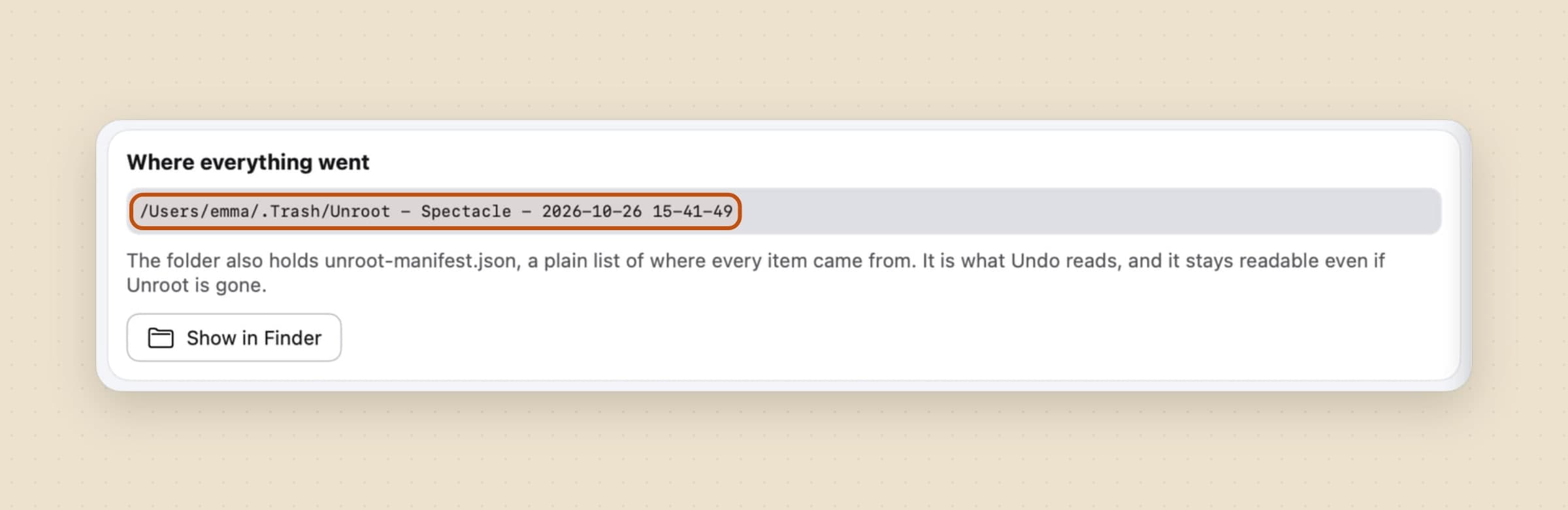
Removed items go into one dated folder inside your Trash - Unroot - Spectacle - 2026-08-21 11-01-33 - each in its own numbered slot, so com.vendor.app.plist
from ~/Library/Preferences cannot silently overwrite the one from
/Library/Preferences.
One folder rather than four hundred loose items is partly legibility and partly
capability: Finder's Put Back only restores the first item of a batch, and there
is no public API to restore programmatically, so an undo built on it would be a
promise the system cannot keep. Beside the files sits unroot-manifest.json, a
plain list of where every item came from. It is what Undo reads, and it stays
readable even if Unroot itself is gone.
One part of a removal genuinely is permanent, and the side panel counts it in red. A keychain entry is not a file, so it cannot be moved into a folder; deleting it signs the app out and takes any license it stored with it. The confirmation sheet names each one rather than counting them, because a number is not consent.
Undo that survives a crash
The manifest can only record what was observed to succeed, so it can only be written after the run - and a crash in between would leave moved files with no record of where they came from, which is precisely the promise it exists to keep. So before anything moves, a journal of every planned entry goes into the same folder, and a completed run deletes it. A journal with no manifest is therefore the signature of an interrupted removal, and the next launch rebuilds the manifest from it, keeping only the entries whose files are demonstrably sitting in their slots.
Undo is then a reverse replay. If something now occupies the original path -
you reinstalled the app - the restore diverts to a numbered sibling instead of
overwriting it, because undo must never destroy anything in order to succeed.
Launch jobs are re-bootstrapped rather than just re-filed, since putting a plist
back and leaving the daemon booted out would restore the files and quietly not
the behavior. Both directions pass a policy that assumes everything upstream
got it wrong: /System, the keychain directories, iCloud Drive and your
Documents, Desktop, Downloads, Pictures, Movies and Music can never be an
endpoint no matter what matched.
The one step undo does not put back is the permission reset, and the app says so on the row rather than in a footnote: privacy grants are reset, not restored. Each app asks again the next time it needs one.
None of that expires. Every removal Unroot has ever made stays on one screen with the space its folder is holding, so a removal from two months ago undoes exactly like the one from two minutes ago - and whether it still can be is settled by looking at the disk, not by a flag written at the time.
Keeping everything does mean a Trash full of quarantine folders. Emptying it is the normal answer; failing that, Removal history deletes one folder on request, or every one of them with Delete all… after a confirmation that says how many. That is the only place in the app that deletes anything, so it is fenced: three checks per folder that the path really is one of its own, and an automatic sweep that stays off unless you turn it on. A folder holding root-owned files, such as a removed launch daemon, asks for your administrator password once.
The permission entries nobody can clear by hand
Before you remove anything, Unroot reads the permissions database - read-only,
with the same Full Disk Access it needs to see ~/Library - and shows what the
app was holding. Accessibility, Full Disk Access, Screen Recording, Input
Monitoring, Automation and some thirty grant types in all are decoded by name.
Almost nothing else shows you this, and it is the best argument there is for why
the order of a removal matters.
The same list works for an app you are keeping. Right-click it on the Apps
screen and choose Permissions…: a sheet shows what it can reach - camera,
microphone, screen recording, Full Disk Access and the rest - with Revoke
beside each. That is tccutil for one service, so there is nothing to undo;
the app simply asks again the next time it needs it. A grant made for all users
needs your password, and one recorded by path rather than by bundle can only be
changed in System Settings, which the sheet says.
Because it does. The reset has to run while the bundle is still on disk, so the bundle moves last, after the launch jobs are booted out and the keychain entries are gone. Removing it first is the one-way mistake, and it is why so many uninstalled apps still haunt System Settings.
Afterwards the report re-reads the database rather than assuming the tools worked. macOS is known to refuse some Full Disk Access resets, so it either says the grants are verified clear or names the one that survived and tells you to clear it by hand.
Running apps are dealt with first of all. Each is asked to quit, and if it refuses you get a decision rather than a silent force-quit: force it, or skip that app and leave every one of its files untouched.
Apps you deleted years ago, and what they left running
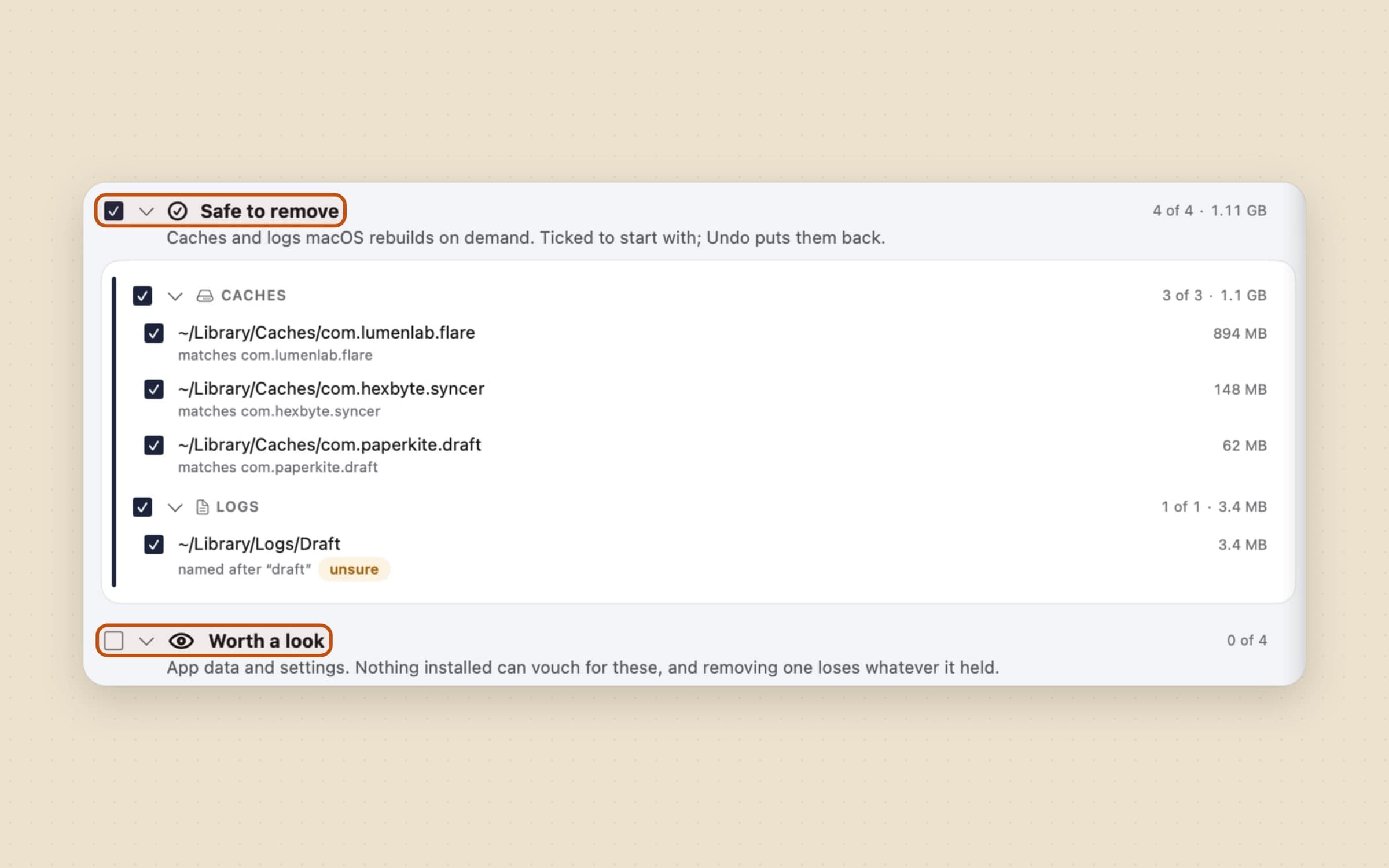
The other half of a narrow matcher is that leftovers belonging to apps which are already gone have nowhere to turn up. So they get their own sweep, and it is deliberately conservative. It lists only identifier-shaped things - a name with at least three dot-separated segments and no spaces - because a folder named after a company could belong to anything, and guessing is how an uninstaller deletes something it should not have.
Only caches and logs arrive ticked. App data and settings do not, and the screen says why: some of what is listed is cache written by a framework inside an app you still use, which looks identical from the outside. The list is a starting point, not a verdict.
A leftover file is inert. A leftover launch agent is not, and it is why an app
you removed years ago can still put a background item in System Settings that
System Settings gives you no way to remove. So the same idea is pointed at
launchd: one screen lists everything that starts without being asked - launch
agents, daemons, and the login jobs apps register through SMAppService - and
names the owner of each. It is called Starts at login.
Only the ones whose program is missing can be selected in bulk, and that
restraint is the design. A job like com.docker.vmnetd shares a vendor prefix
with an app you still have; grading it as related rather than orphaned exists
precisely to keep something live off a list headed "safe to remove". A job that
still has a program to run is never an orphan, however abandoned its name
looks.
What a live job gets instead is Turn off. It stops the job now and keeps it from starting after a restart, nothing moves, and Turn on brings it back. A job an app registered from inside its own bundle can only be switched in System Settings, and the row points there.
What it deliberately does not do
It needs Full Disk Access, switched on by hand, because macOS offers no way for an app to ask for it; without it a scan still runs but covers only the locations outside your home folder, and says so rather than letting a short list pass for a clean one. Removing anything outside your home folder asks for your administrator password once.
Some jobs it refuses outright - Apple's own software, itself, and system extensions, which get a section headed "Unroot cannot remove these" with the exact place to do it yourself.
It does not sit in your menu bar, and by default nothing watches for you to
drag an app to the Trash - Unroot scans when you open it and does nothing the
rest of the time. Turn on Catch apps dragged to the Trash in Settings ->
General and that changes: an app landing in the Trash brings a notification
with Clean Up, and the cleanup runs while the bundle is still there for
tccutil to find. To be around when it happens, Unroot then opens at login and
keeps running without a window. It needs Full Disk Access to see the Trash.
The other resident piece is a Finder extension, and it stays off until you
switch it on in System Settings -> Extensions -> Finder. After that,
right-clicking an app offers to uninstall it. Where that lands is worth knowing,
because macOS is not consistent about it: in ~/Applications it is a top-level
item naming the app, and everywhere else - /Applications included, which is
where most apps live - it sits in the Services submenu, under the plainer
"Uninstall with Unroot". It removes nothing by
itself. It hands the app your selection, like Uninstall an app… in the top
bar, and the same review screen opens.
It is not a disk cleaner either, though it does show what apps cost you. Apps opens on a storage card - what your apps weigh, split by when each was last opened - with Unused and Large filters beside it, and Installers lists the disk images and packages left in Downloads, ticking the ones whose app is already installed. It goes no further than apps and their installers, and never near another user's account.
And there is no Mac App Store version, because reading ~/Library, resetting
permission entries and moving root-owned files are all impossible from inside a
sandbox.
What it costs, and what else to look at
Unroot needs macOS 14 or later, runs on Apple Silicon and Intel, and takes about 10 MB. It is a one-time $3.99 purchase with a 30-day trial that needs no card and no email, and the license is permanent. The full specification is on the Unroot page.
If what you are chasing is disk space beyond apps and their installers, Sweep is the neighbor - it files the Downloads folder by rules you write and finds duplicates and stalled downloads in it, covered feature by feature in sorting files automatically on a Mac. There is a survey of the rest in Mac utility apps.