
What AppCleaner is actually good at
AppCleaner is a free Mac uninstaller from FreeMacSoft, and for more than a decade it has been the first answer to "how do I remove an app properly". You drop an app onto its small window, it lists the files that app left in your Library folder, and one click removes the lot. Turn on SmartDelete and it does the same thing on its own when you drag an app to the Trash. Separate tabs cover widgets, preference panes and plug-ins, a protected list keeps the apps you never want touched out of reach, and since version 3.6.4 it spots an app running from a disk image and offers to remove the image instead.
The current release is AppCleaner 3.7, published on 22 September 2026. It
needs macOS 15 or later, asks for Full Disk Access up front, searches
Application Scripts more thoroughly and adds support for macOS 27. Macs on
macOS 10.14 to 14 stay on 3.6.8. It is a universal app, so it runs natively
on Apple silicon, and it is distributed from
freemacsoft.net and through Homebrew
(brew install --cask appcleaner), not the Mac App Store. It costs nothing;
there is a donate link.
That combination - free, small, fast and trusted - is why it is still the
default recommendation. If you uninstall an app a few times a year and want the
obvious ~/Library folders gone with it, download AppCleaner and stop reading
here. Nothing below argues that you need more.
Why people go looking anyway
Complaints about AppCleaner are rare, and most people who mention it praise it. The reasons people search for an alternative are specific, and they come up again and again.
The three-year gap. AppCleaner 3.6.8 shipped in July 2023 and 3.7 in September 2026, with nothing in between. Through macOS Sequoia users were asking in forums whether it had been abandoned. Version 3.7 answered that, but it also moved the floor to macOS 15, so anyone still on Sonoma is on a 2023 build.
Files it did not find, or could not remove. Reports of leftovers from Microsoft apps, of files that "failed to clean" on Sequoia, of an app that "leaves a mess behind" are the complaint that comes up most on AlternativeTo and Mac forums. Some of that was the Full Disk Access problem that 3.7 now asks about on first launch. Some of it is the harder question every uninstaller faces: which of the files with a matching name really belong to the app.
A list you have to take on trust. AppCleaner shows you paths and a checkbox. It does not say why a file matched, or how sure it is, so the judgement about the one odd row is yours. And its documentation describes no undo and no history of past removals, so a wrong tick has to be noticed, and put right, by hand.
Everything that is not a file. Uninstalling well on a modern Mac also means the permission entries in Privacy & Security, the launch agents that keep running after the app is gone, and the leftovers of apps you deleted years ago by dragging them to the Trash. AppCleaner's tabs are built around the app you are removing today.
What macOS already does for free
Drag the app to the Trash. It removes the app bundle and nothing else. Preferences, caches, containers, saved state, launch agents, installer receipts and the app's entries in System Settings -> Privacy & Security all stay where they are.
Run the vendor's own uninstaller when there is one. Adobe, Microsoft and most VPN and security tools ship one, and it is the right answer for them, because the vendor knows where it put things.
brew uninstall --zap removes a Homebrew-installed app together with the
preferences and caches its cask lists. It is precise, free and limited to apps
you installed with Homebrew.
Clear permissions by hand with tccutil reset All <bundle id> in Terminal -
but only while the app is still on disk. tccutil looks the app up by its
bundle, so once the Trash is emptied it answers "No such bundle identifier"
and the grant stays in the database. That is why apps you removed last year can
still be listed under Accessibility.
Unroot: an uninstaller built so nothing is lost
Unroot starts from a different question than "what can we find?". It asks what it can prove belongs to the app, what it can put back, and what macOS will refuse to clean up later. Everything below is in the shipping version, which runs on macOS 14 or later, on Apple silicon and Intel.
Every row says why it matched
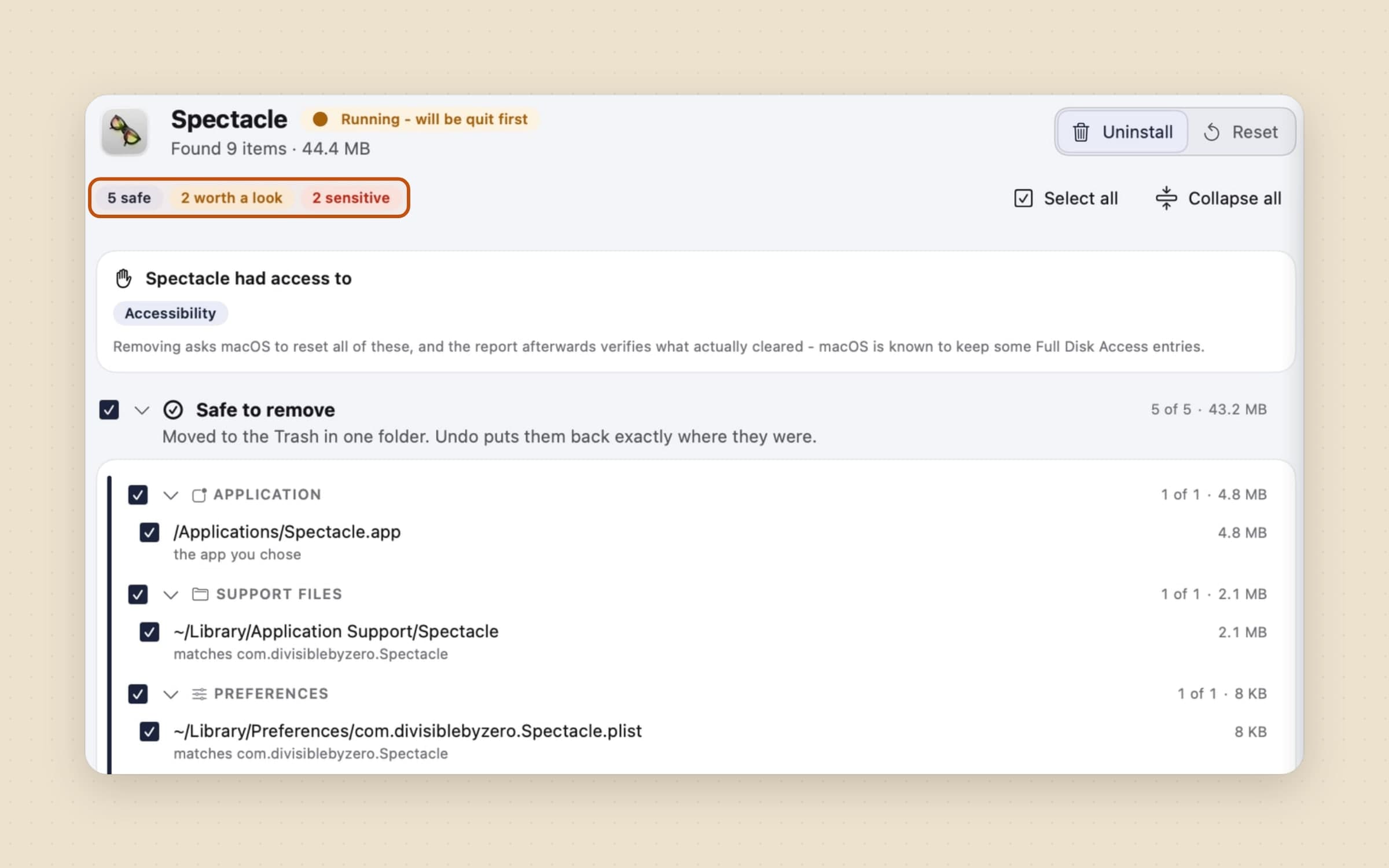
A scan reads 58 locations, from Application Support and Containers to
HTTPStorages, the per-user folders under /var/folders, audio plug-in roots,
/Library/LaunchDaemons and installer receipts. Every find is shown with the
reason it matched: an exact bundle identifier, an app group the app declared in
its own signature, a path an installer receipt proves it wrote, or only a name.
Then it is graded. Safe to remove is certain and inside your home folder. Worth a look matched by name only, or is shared with an app you still have, and starts unticked. Sensitive covers keychain entries, privileged helpers and anything outside your home folder. A file filed under another installed app's identifier always goes to that app, which is the rule that stops an uninstaller from taking a sibling product's data with it.
The honest limit: Unroot would rather miss a file than guess. A folder named after a vendor, with nothing else tying it to the app, is never proposed as certain.
Nothing is deleted, and every removal can be undone
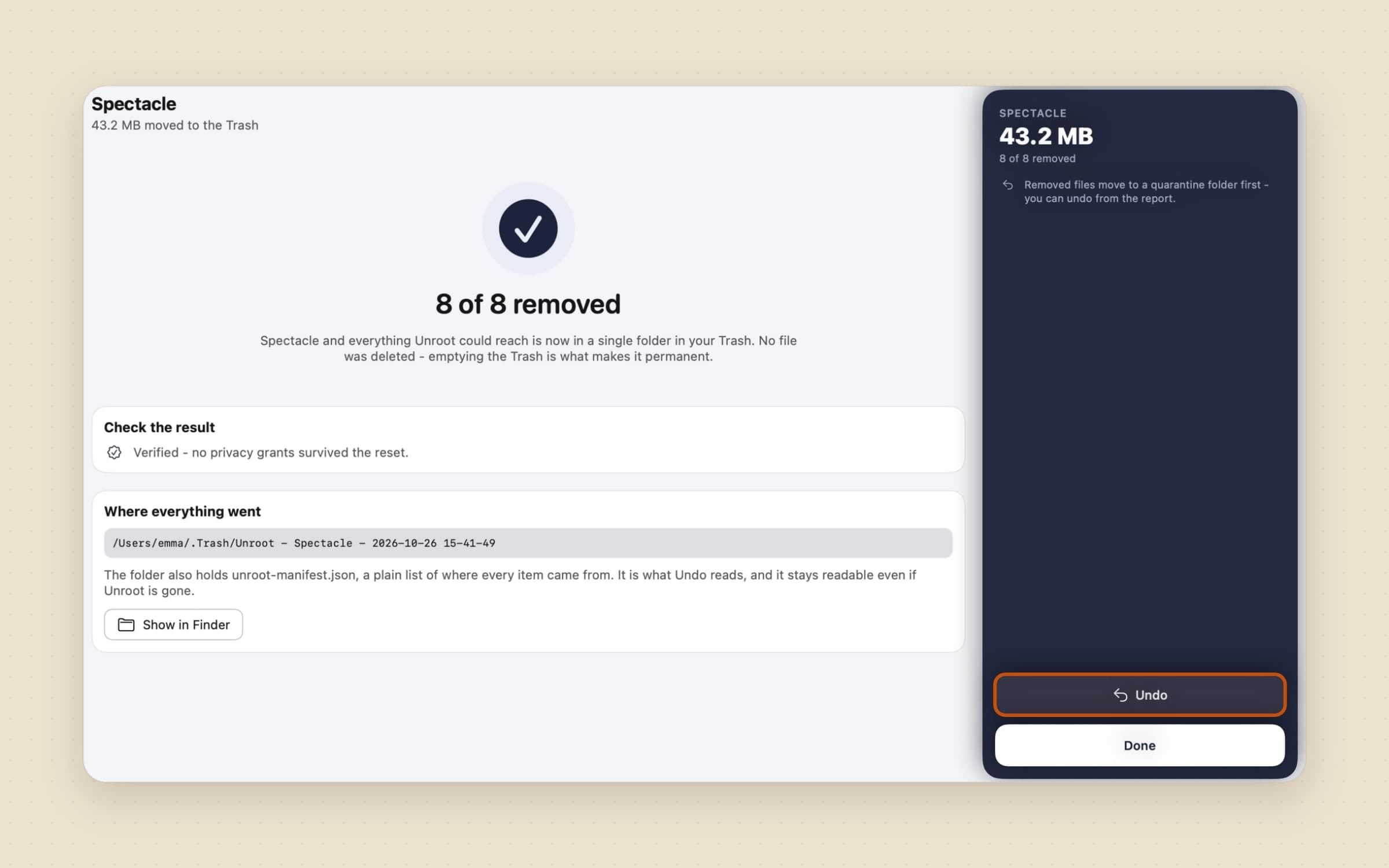
Unroot never deletes a file. Everything it removes goes into one dated folder in
your Trash, such as Unroot - Spectacle - 2026-10-26 15-41-49, each item in its
own slot so two files with the same name cannot overwrite each other. Beside
them sits unroot-manifest.json, a plain list of where every item came from,
readable even if Unroot itself is gone.
Undo puts everything back where it was. If you have reinstalled the app in the meantime, the restored file goes beside the new one instead of over it, and launch jobs are started again rather than just refiled. A journal written before the first move means even a crash halfway through a removal is recovered on the next launch.
It does not expire. Removal history lists every removal whose folder is still in the Trash, with the space each one holds, so undoing one from last month is the same click as undoing one from a minute ago. Emptying the Trash is what makes a removal permanent. The one part of a removal that cannot be put back is a keychain entry, because it is not a file; the side panel counts those in red and the confirmation names each one.
Permission entries are cleared before the app disappears
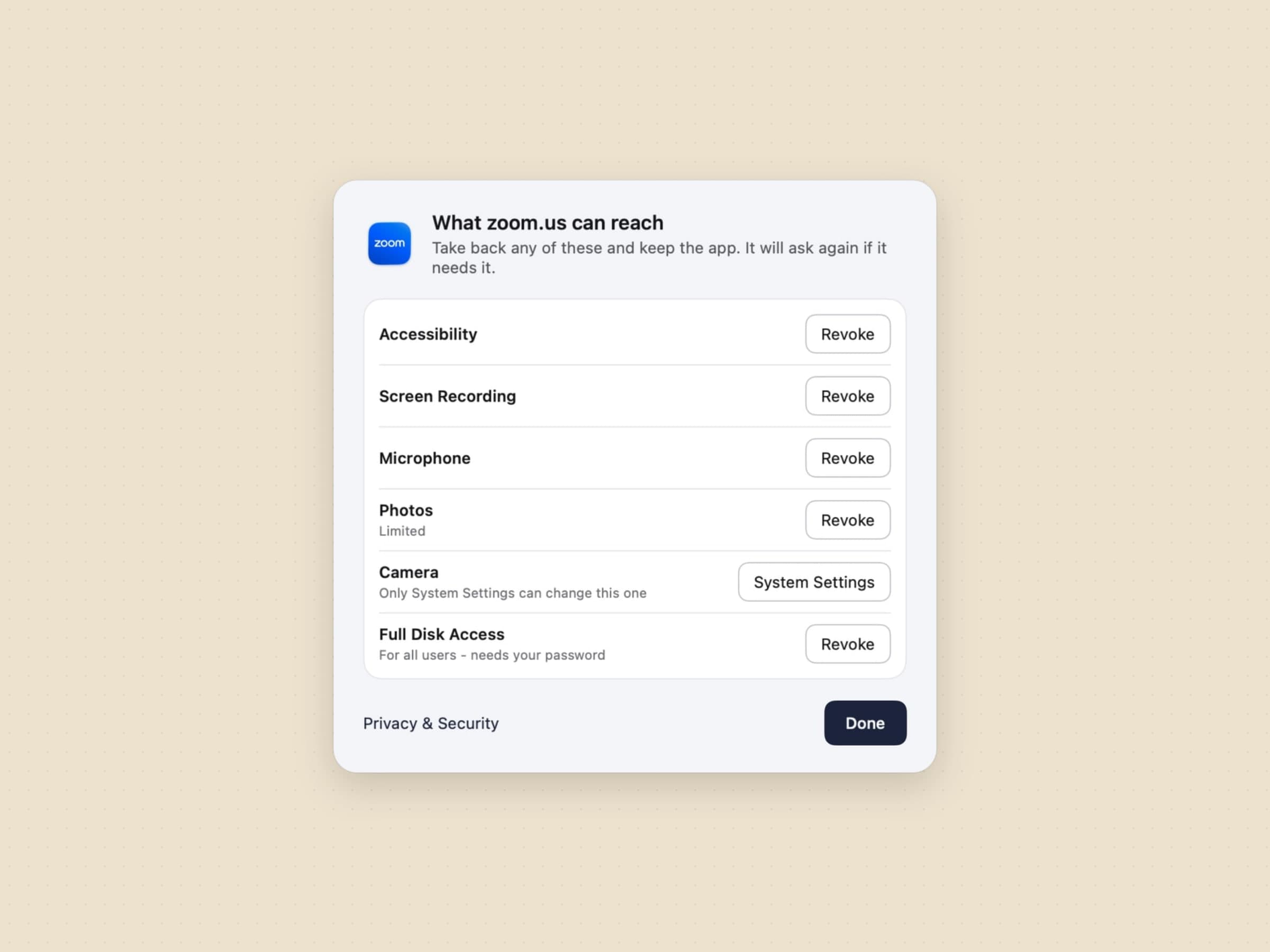
Before anything moves, Unroot reads the privacy permissions database and shows what the app was holding: Accessibility, Full Disk Access, Screen Recording, Input Monitoring, Automation and about thirty grant types in all. Then it removes in the order macOS needs. Permissions are reset while the app bundle is still on disk, launch jobs are stopped, and the bundle moves last. The report re-reads the database afterwards and either confirms that no grant survived or names the one macOS refused to clear.
The same sheet works for an app you are keeping. Right-click it in Apps, choose Permissions…, and revoke the microphone or screen recording without uninstalling anything; the app simply asks again next time. A grant macOS keeps to itself, such as the camera, is handed to System Settings instead.
With Catch apps dragged to the Trash turned on in Settings, Unroot does the SmartDelete job too: an app landing in the Trash brings a notification with Clean up, while the bundle is still there for its permissions to be reset.
The leftovers of apps you removed years ago
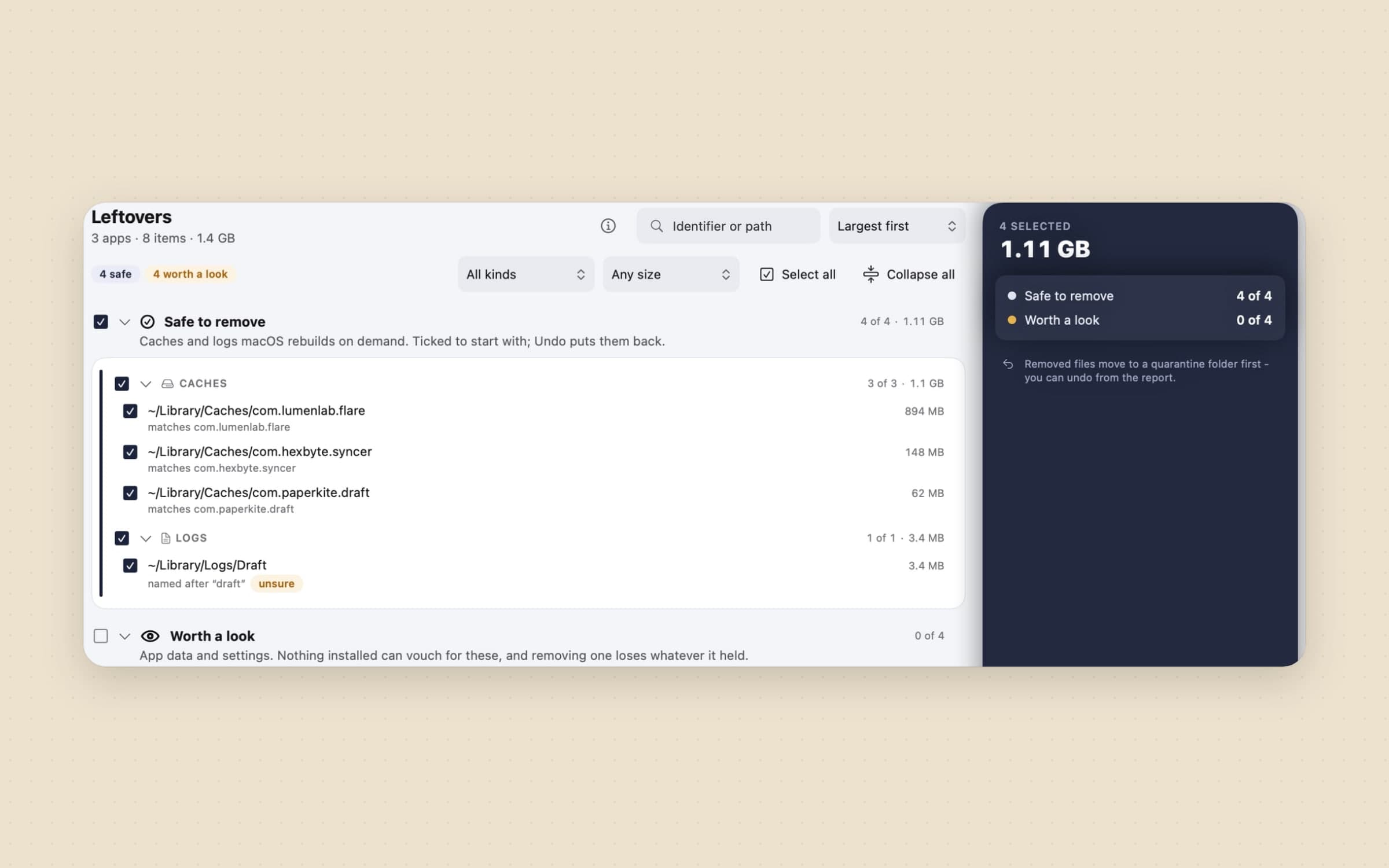
Most apps on most Macs were uninstalled by dragging them to the Trash, years before anyone installed an uninstaller. Leftovers finds what they left behind. It looks for identifier-shaped names, at least three dot-separated parts and no spaces, because a folder named after a company could belong to anything. A weaker match, such as a log folder named after one word of an identifier, is still shown, and tagged unsure. Caches and logs arrive ticked; app data and settings wait for you, and the screen says why.
The same idea is pointed at what still runs. Starts at login lists every launch agent and daemon with the app that owns it. Only the ones whose program is missing can be removed in bulk; anything else can be turned off and back on, which moves nothing. Items an app registered from inside its own bundle may not appear, and those can only be switched in System Settings.
What your apps cost you, before you uninstall anything
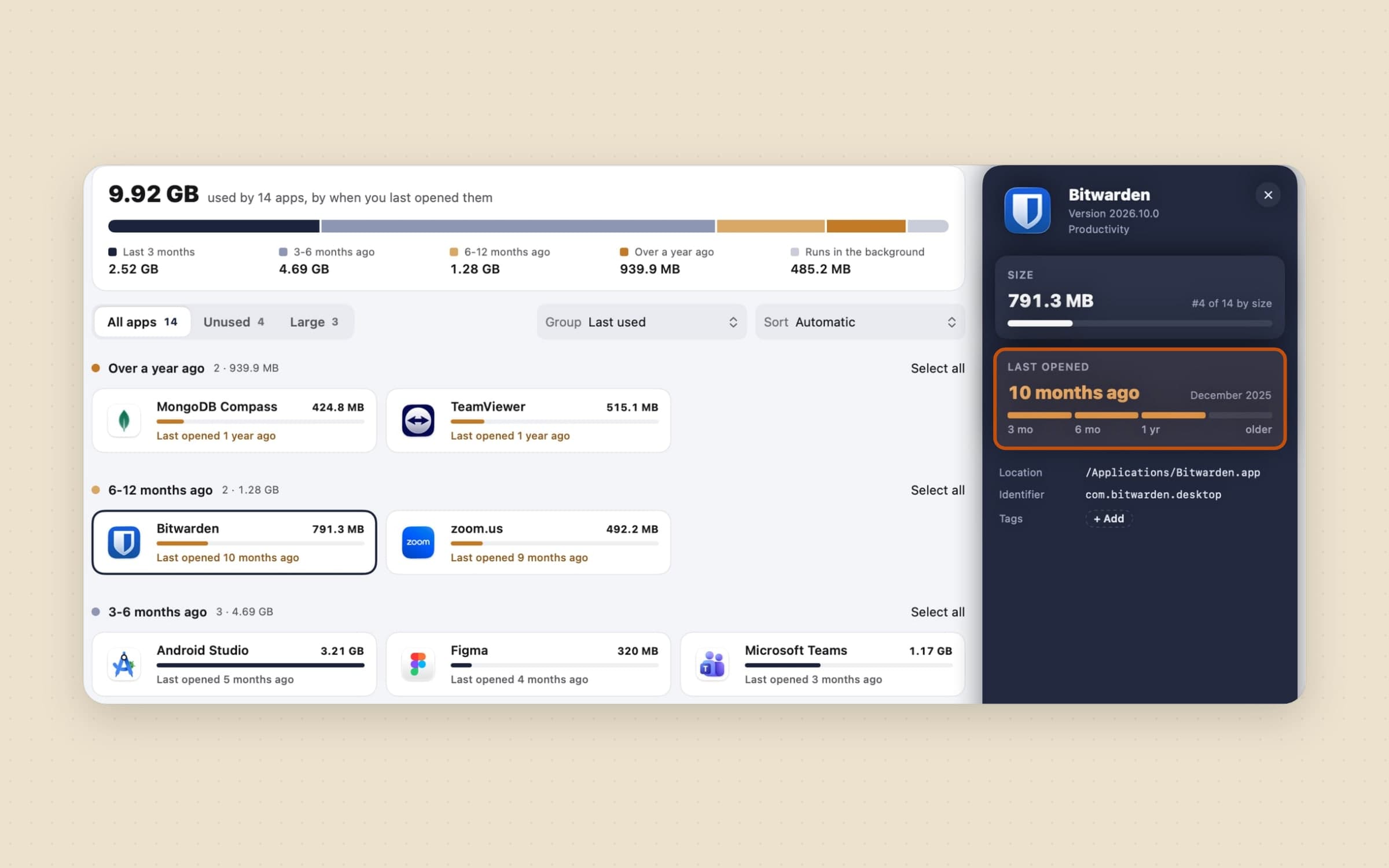
AppCleaner starts from the app you have already decided to remove. Unroot's Apps screen helps with the decision: what every app weighs, grouped by the last time you opened it, with Unused and Large filters beside them. Installers lists the disk images and packages left in Downloads and ticks the ones whose app is already installed.
The limits, so nothing surprises you after the trial. Unroot needs Full Disk
Access, switched on by hand, and asks for your administrator password once when
something outside your home folder moves. It refuses to remove Apple's own
apps and system extensions, and it is not a general disk cleaner. It is not on
the Mac App Store, because the sandbox forbids reading ~/Library and
resetting other apps' permissions. The full mechanism is in
how to uninstall apps on a Mac.
AppCleaner vs Unroot, feature by feature
| AppCleaner 3.7 | Unroot | |
|---|---|---|
| Price | Free, with a donate link | $13.99 once, 30-day trial |
| macOS | 15 or later (3.6.8 for older Macs) | 14 or later |
| Starting a removal | Drop an app on the window, or SmartDelete when you trash it | Uninstall an app…, drop it on the window, right-click in Finder, pick it from Apps, or catch it in the Trash |
| Why a file matched | Not shown | Shown on every row |
| Risk grading | None, every row is a checkbox | Safe, worth a look, sensitive; name-only matches start unticked |
| What a removal does | Removes the listed files | Moves them into one dated folder in the Trash with a manifest |
| Undo | Not described in its documentation | One click, for any removal still in the Trash |
| Privacy permission entries | Not described | Shown before removal, reset, then verified |
| Leftovers of apps already deleted | Not part of AppCleaner | A dedicated Leftovers sweep |
| Launch agents | Not part of AppCleaner | Starts at login: turn off, or remove the orphaned ones |
| Widgets, preference panes, plug-ins | Their own tabs | Found as part of the app they belong to |
| Protected apps | Yes | Yes |
| Size and last-opened overview | No | Apps screen, Unused and Large filters |
Two rows go to AppCleaner outright: the price, and the dedicated tabs for widgets and preference panes that have no app of their own.
Other alternatives worth knowing
Pearcleaner is free and source-available, needs macOS 13 or later, and brought two features AppCleaner does not list: a search for orphaned files and a Finder extension. Its developer put the project on hold at the end of 2025, so it is a good tool that may not keep up with the next macOS. Download it only from its GitHub page; a lookalike site at pearcleaner.com is not the project.
App Cleaner & Uninstaller from Nektony is the paid route with the widest scope: apps, startup items, background processes and extensions in one window. It is $34.95 once for one Mac, or $14.95 a year.
TrashMe 3 is $17.99 on the Mac App Store, a one-time purchase, and the only option here you can buy through Apple.
Hazel is not an uninstaller, but its App Sweep offers to remove an app's support files when you trash it. If you already own Hazel for its folder rules, at $42, that may be all the uninstaller you need - see Hazel alternatives for Mac for what else it does.
When AppCleaner is still the right choice
Stay with AppCleaner if what you want is the app plus its obvious Library folders, a few times a year, for free. It is quick, it is trusted, and 3.7 put it back on current macOS. It is also the better fit if you remove a lot of widgets, preference panes or plug-ins that do not belong to any app, since it lists them in their own tabs.
And if paying for an uninstaller feels wrong on principle, that is a fair position: the gap between AppCleaner and a paid tool is in safety and in the cleanup around the uninstall, not in whether the app goes away.
Switching from AppCleaner
- Turn off SmartDelete in AppCleaner's preferences first, so that two apps do not both offer to clean up when you drag something to the Trash.
- Note your protected apps. AppCleaner's list does not carry over; in Unroot, right-click each one in Apps and choose Protect from removal.
- Install Unroot and grant Full Disk Access in System Settings -> Privacy & Security. Without it a scan only sees the locations outside your home folder, and the app says so.
- Run Leftovers once. It picks up what earlier uninstalls, by AppCleaner or by the Trash, did not catch.
- Look at Starts at login for launch agents whose app is long gone.
- Turn on Catch apps dragged to the Trash in Settings -> General if dragging to the Trash is your habit.
- Remove AppCleaner itself with Unroot, and look at what it finds.
The whole switch takes about ten minutes, most of it reading the Leftovers list.
Side by side
| Tool | What it removes | Can you undo it | Cleans permission entries | Cost |
|---|---|---|---|---|
| Drag to the Trash | The app bundle only | Put Back, until you empty the Trash | No | Free |
| AppCleaner | The app and its matching files | Not described | Not described | Free |
| Pearcleaner | The app, its files, orphaned files | Not verified | Not verified | Free |
| App Cleaner & Uninstaller | Apps, startup items, extensions | Not verified | Not verified | $34.95 once or $14.95 a year |
| Unroot | The app, its files, permissions, launch jobs, orphaned leftovers | One click, from Removal history | Yes, and verified | $13.99 once |
Pick by what goes wrong. If the worry is cost, AppCleaner is free and good. If the worry is removing the wrong thing, or an app that is gone from Applications but still listed in Privacy & Security, the deciding question is whether you can see why each file matched and whether you can take the whole removal back. If disk space beyond apps is what you are really after, how to free up disk space on a Mac covers the rest, Mac utility apps surveys the neighbors, and Sweep keeps the Downloads folder from filling up again.
Prices and features checked on 29 October 2026.

