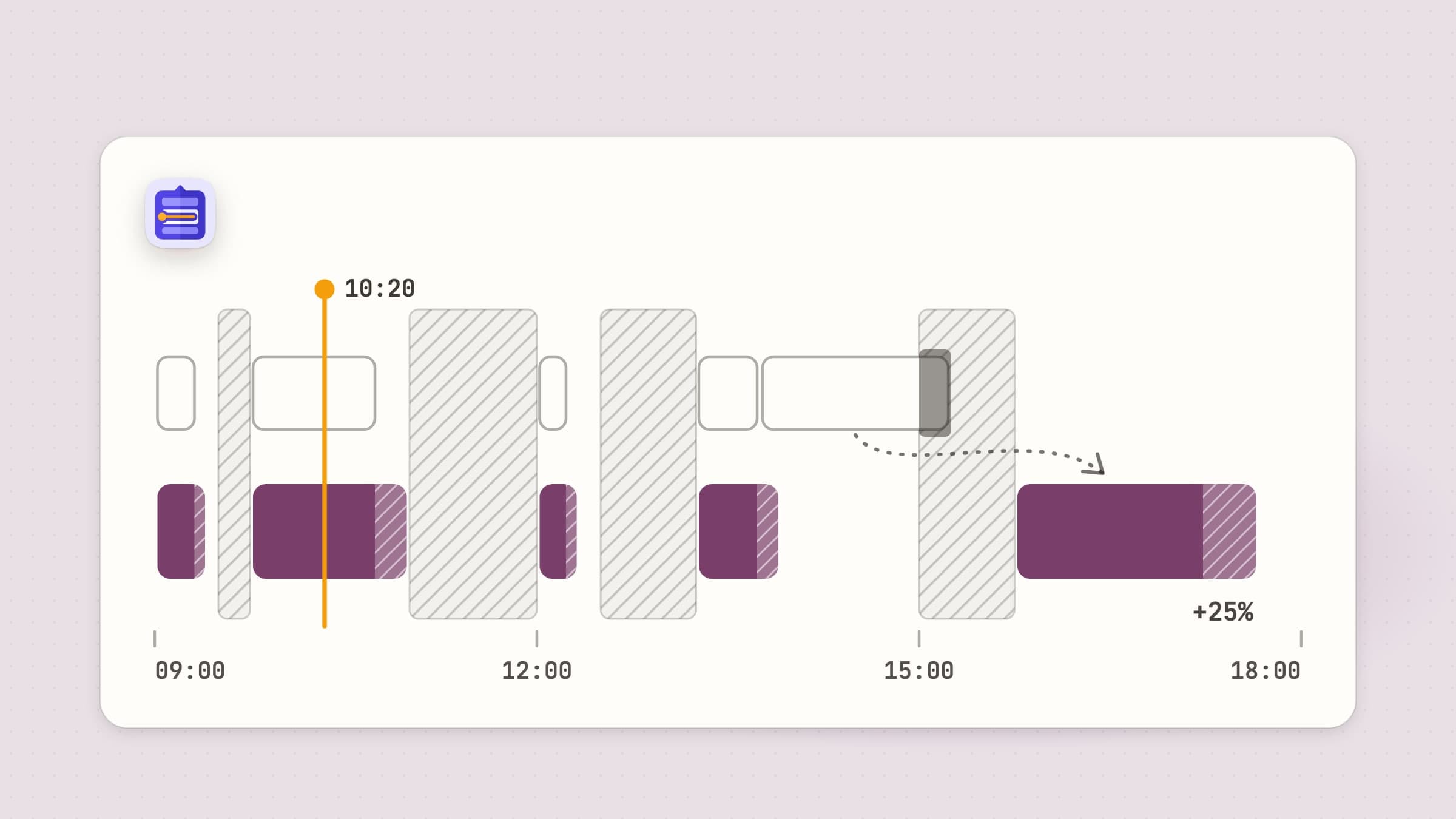
Time blocking, and why meetings make it hard
Time blocking means giving every task a slot on the calendar instead of a line on a list. "Write the report" becomes 15:45 to 17:40, and the list stops being a wish and starts being a plan you can check against the clock. It works because it forces the question a to-do list never asks: when, exactly, and does it fit?
On an empty day that is easy. The hard case is the ordinary one, a day already cut into pieces by meetings, where the free time comes in gaps of 30, 75 and 105 minutes and every task has to be matched to a gap it actually fits in. This guide does it with what a Mac already has, shows where that method starts to creak, and ends with what our app does differently.
A worked example: 09:00 to 18:00 with three meetings
Here is a real-looking Tuesday. Three meetings are already in the calendar: a stand-up at 09:30, a client call at 11:00 and a design review at 15:00. Lunch is blocked too, because if it is not, it will be eaten. Five tasks need doing, and the "blocked" column adds a 25% buffer to each guess, rounded to five minutes (the next sections explain why).
| Time | Block | Your guess | Blocked |
|---|---|---|---|
| 09:00-09:25 | Reply to email | 20 min | 25 min |
| 09:30-09:45 | Stand-up (meeting) | - | - |
| 09:45-11:00 | Budget sheet | 60 min | 75 min |
| 11:00-12:00 | Client call (meeting) | - | - |
| 12:00-12:20 | Call the bank | 15 min | 20 min |
| 12:30-13:15 | Lunch | - | - |
| 13:15-13:55 | Review the slides | 30 min | 40 min |
| 13:55-15:00 | Open | - | - |
| 15:00-15:45 | Design review (meeting) | - | - |
| 15:45-17:40 | Write the report | 90 min | 115 min |
| 17:40-18:00 | Open | - | - |
Two things stand out. First, a nine-hour day with two hours of meetings and a lunch has 6 h 15 min free, and five tasks guessed at 3 h 35 min already take 4 h 35 min of it once each has its buffer. Second, the report does not fit the longest gap before the review (105 minutes against 115), so it goes after it, and the 65 minutes left at 13:55 stay open for whatever the morning throws at you.
Setting it up in Calendar
Calendar on the Mac does the drawing well. A setup that holds up:
- A calendar of its own. Choose File, New Calendar, and call it "Focus blocks". Keeping blocks apart from meetings means you can hide them in one click, share your real calendar without them, and see at a glance which colour is a promise to someone else and which is a promise to yourself.
- A colour that reads as yours. Control-click the calendar in the sidebar and pick a colour that is quieter than your meetings.
- Drag to create. In Day or Week view, drag down the time grid to make a block of that length, drag its bottom edge to stretch it, and Option-drag to copy a block you repeat.
- Alerts. Give each block an alert, or set a default for the account in Calendar, Settings, Alerts. Five minutes before a meeting is enough to save your work and find the link.
Accounts from iCloud, Google and Exchange all show up in the same Calendar, so the blocks sit next to the meetings that people outside your control keep moving.
Reminders for tasks with a day but no time
Not every task deserves a slot. Calling the bank, sending an invoice, booking a table: these have a day but not an hour, and blocking each one turns the calendar into confetti. Reminders is better for them. Give a reminder a date and no time and it lands in the Today list; give it a time and it alerts you. On recent versions of macOS, reminders with a date can also show up in Calendar itself, next to your blocks.
A workable split is: anything 30 minutes or longer gets a block, anything shorter goes into Reminders and is picked off in the gaps, like the 30 minutes between the client call and lunch.
Focus modes guard the blocks
A block on the calendar does not stop a message from arriving in the middle of it. Focus does. In System Settings, Focus, you can make a Focus that silences everyone but the people and apps you allow, and give it a schedule so it turns itself on at set times. If you would rather switch it by hand, a Shortcut with the Set Focus action, pinned to the menu bar, is one click.
A schedule only works if the blocks are in the same place every day, though. Most weeks they are not, which is the first sign of the problem in the next section.
Where the manual method breaks
The plan above survives until about 09:40. Here is what usually happens next.
Estimates run long. The stand-up runs ten minutes over, so the budget sheet starts at 09:55. It also takes 90 minutes, not 60, so at 11:00 it is unfinished and the client call begins. The 25 minutes it still needs go to 12:00, which pushes the bank call past lunch, which pushes the slides to 13:35. That is four blocks to drag by hand, and the review has not even started.
A new or moved meeting moves everything after it. At 14:10 a colleague books a 45-minute call at 16:30. The report block now runs into it, so you split it in two by hand, and the second half ends at 18:25, past the end of the day.
The leftover pile. At 18:00 the report has 25 minutes left. In Calendar the block just sits in the past, looking done. In Reminders, an unfinished task stays on Today and turns red as overdue. Either way, moving it to tomorrow is a job you do by hand, at the end of the day, when you least want to plan.
None of this is a failing of Calendar. A calendar is built to hold fixed things, and tasks are not fixed: they run long, they wait, they slide. Every slide is a drag, and on a day with meetings there are a lot of slides.
Add a buffer: plan for 25% more
The fix for running long is not better guessing. People are reliably bad at it, and knowing that does not help much. Psychologists call it the planning fallacy: in a well known 1994 study, students guessed they would finish their thesis in about 34 days, and on average took about 55. Most of us guess short, even for jobs we have done many times.
So plan for it. Add a quarter to every estimate and round to five minutes:
| Your guess | With 25% |
|---|---|
| 15 min | 20 min |
| 30 min | 40 min |
| 45 min | 55 min |
| 60 min | 75 min |
| 90 min | 115 min |
On a good day the buffer turns into ten spare minutes before a meeting, which is when you actually get to read the agenda. On a bad day it absorbs the overrun, and the next block starts on time. It also tells you something uncomfortable early: in the example, the buffer is what reveals that the report does not fit before the review, at 09:00 rather than at 14:59.
What Tideline does with time blocking
Tideline is our day planner for the Mac menu bar, and it does the dragging for you. You do not put tasks on times. You put them in order, and they flow into the free gaps between the events in your calendar, inside your working hours, with the buffer already added.
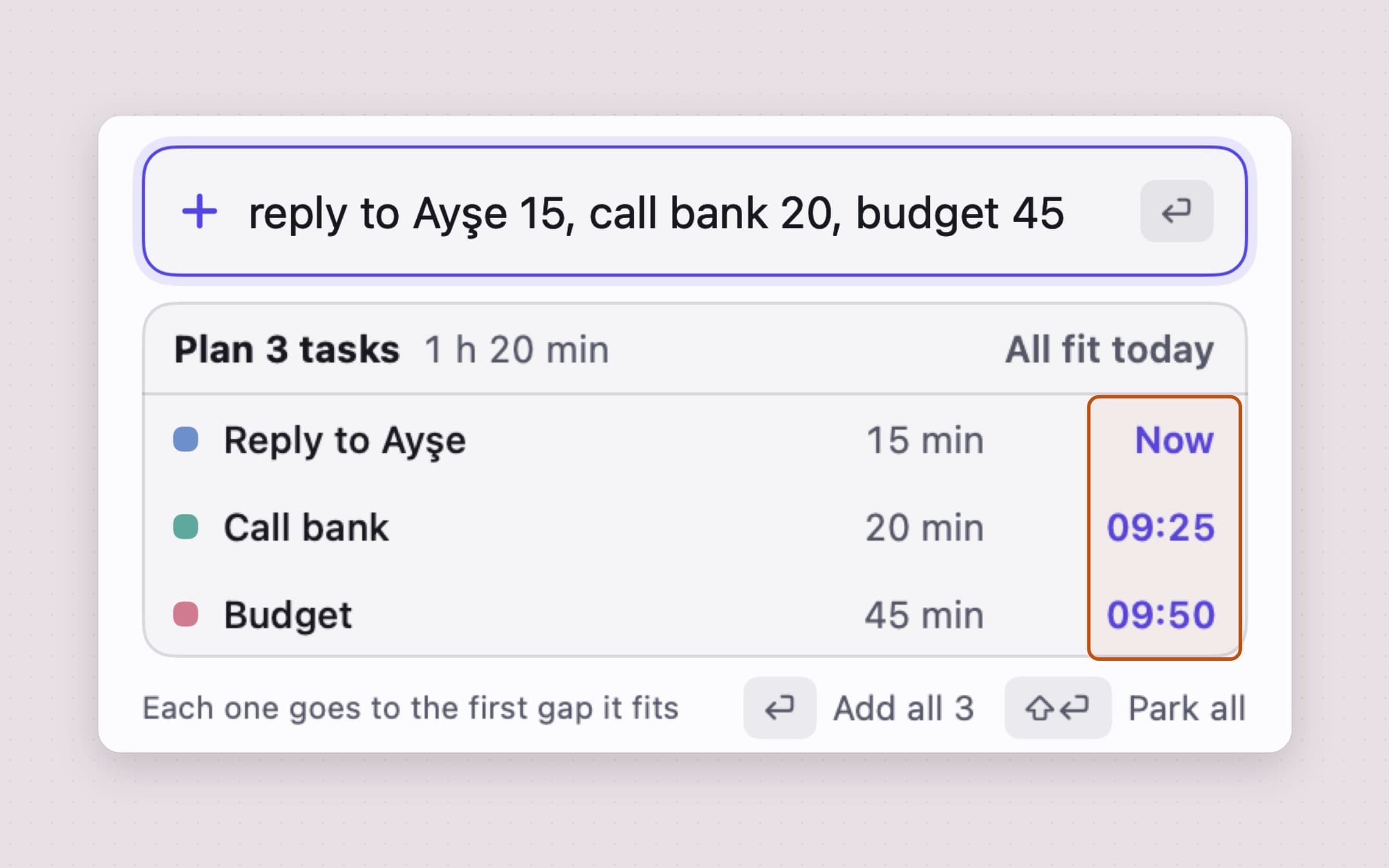
One line plans the day. Type "reply to Ayşe 15, call bank 20, budget 45" into the add field and a preview lists each task with its length and the time it will start, before you press Return: now, 09:25 and 09:50, each start already pushed back by the buffer of the task before it. "Standup at 9:30 for 15 min" pins a task to a time; "tomorrow at 3 dentist" sends it to tomorrow. It reads English, Turkish, German, Spanish and French. Control-Option-T opens the same field over any app.
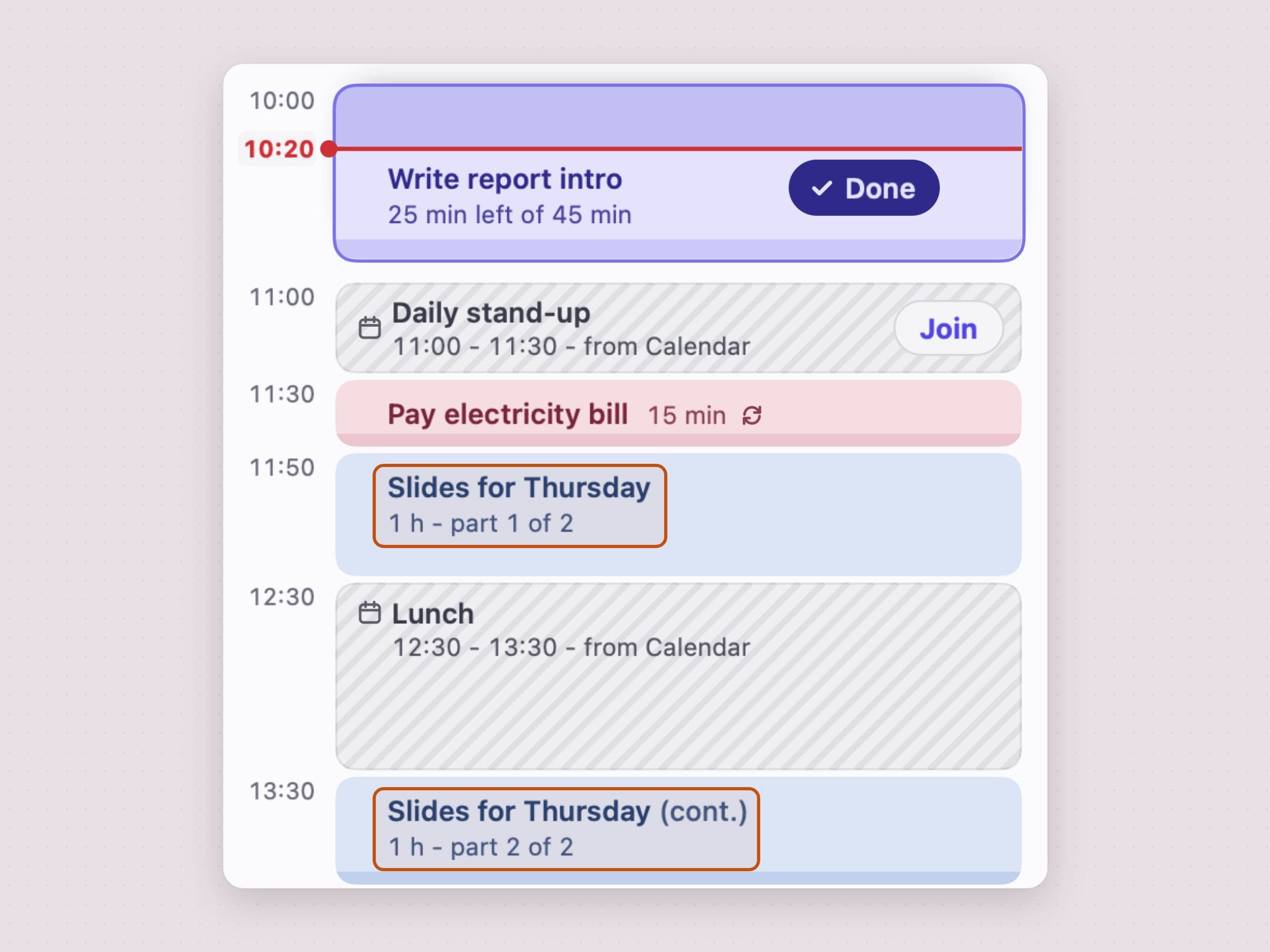
Blocks move when the day does. When the budget sheet runs long, everything after it slides on its own. When a meeting moves in your calendar, the tasks flow around its new time. A short task waits for a gap it fits in whole; a task of 45 minutes or more can be split around a meeting and marked as continuing after it. The 25% buffer is the default under Settings, General, Buffer on estimates, and can be changed or set to None.
The clock is always in view. The menu bar shows the task you are on and the minutes left as a pill that fills as time runs down, and it turns into "+7m" in orange when a task runs over. Five minutes before a meeting, a small card appears in the top right of the screen, with a Join button when the event has a Zoom, Google Meet, Microsoft Teams or Webex link. Another comes 15 minutes before the day ends.
Leftovers move to tomorrow. Whatever is not done at the end of the day moves to tomorrow by itself and waits in the morning as left over from yesterday, with Add to today and Park them. Nothing turns red, and nothing is ever overdue.
Where Tideline does not win: it is Mac-only, with no iPhone app and no sync between Macs, and it plans today rather than managing projects. It reads your calendar but never edits your events; it can add tasks to a calendar of its own if you turn that on. Tideline is $11.99 once, with a 30-day free trial, on macOS 14 or later.
Which way to go
- A few meetings a week and a steady routine: Calendar blocks with a Focus schedule work well and cost nothing.
- Short errands with a day but no hour: Reminders, picked off in the gaps.
- A day cut up by meetings that keep moving: let the blocks flow instead of dragging them, which is what Tideline is for.
- One task at a time, without a timeline: Anchored keeps a single task and its clock in the menu bar; the menu bar task timer guide shows how.
Whatever you use, keep the buffer. It is the part of time blocking that works on every tool.
Prices and features checked on 4 November 2026.

