Why the Downloads folder wins
Nobody decides to accumulate two thousand files in Downloads. It happens because filing something takes ten seconds and finding it later takes three, and that trade is correct every single time you make it. The folder is not a symptom of disorganisation; it is the rational outcome of a thousand individually correct decisions.
Which is why "just be tidier" does not work and automation does. Something has to make the filing decision at the moment the file lands, when the context is still obvious and the cost is zero.
Sweep is a menu bar app that does that on macOS. Everything below is in the shipping version.
Rules, without a rule language
A rule is a set of plain conditions and one action. Conditions are file type, name contains, size and age; actions are move or send to Trash. There is no expression syntax and no regular expressions to get wrong.
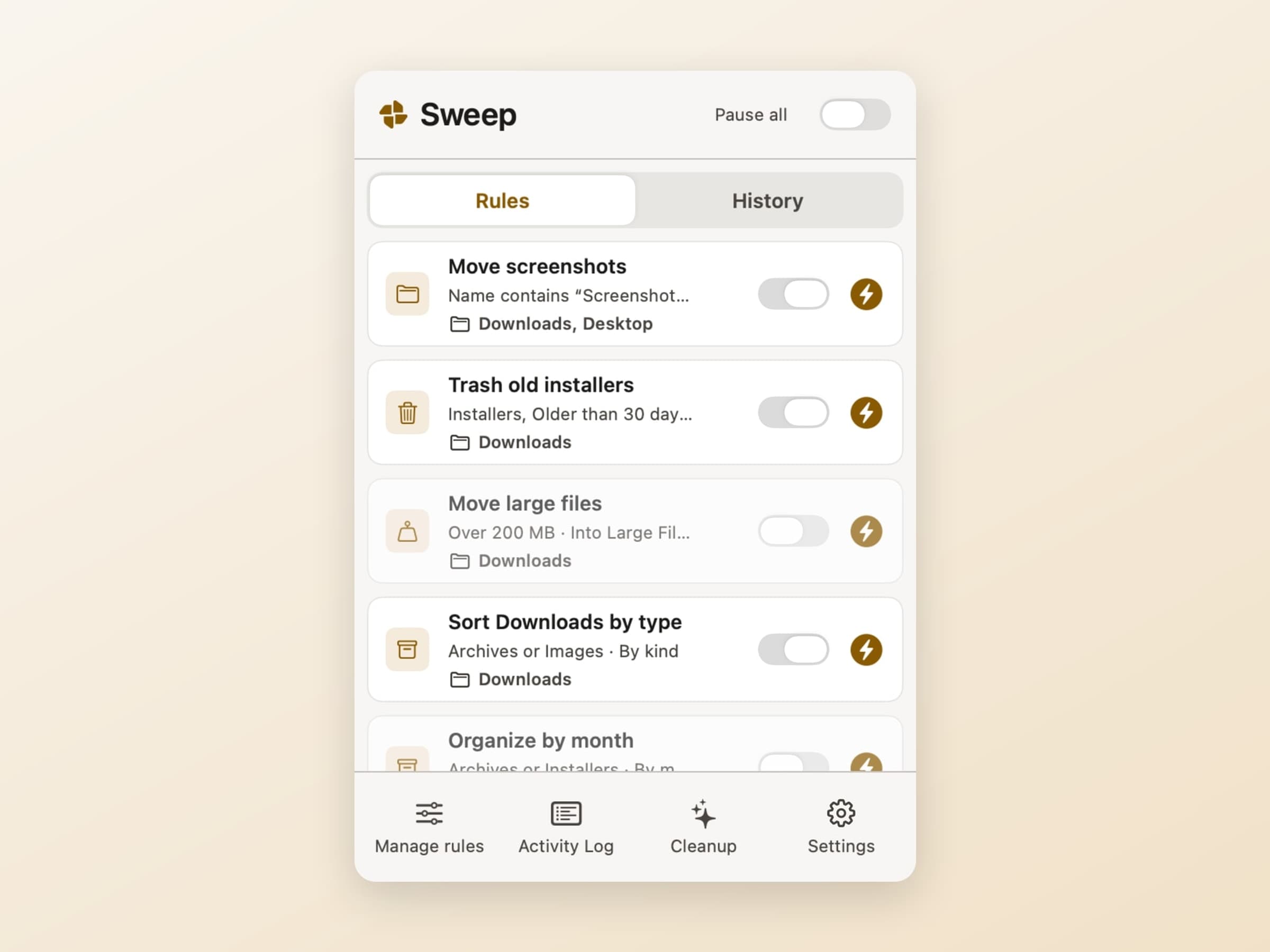
Five ship ready to switch on, and the useful thing is that each one is a worked example you can edit rather than a black box:
- Move screenshots - name contains "Screenshot" → a Screenshots folder
- Trash old installers - installers older than 30 days → Trash
- Move large files - anything over 200 MB → a Large Files folder
- Sort Downloads by type - the broad catch-all, filed by kind
- Organize by month - dated subfolders instead
Order matters, and Sweep is explicit about it: rules match top-down and the first match wins, which is why the specific ones sit above the catch-all. Without that, a screenshot would be filed as an image and never reach its own rule.
Each rule also carries a trigger. Auto rules run as files land in the watched folder. Manual rules wait until you press Run. The seeded Trash rule is manual on purpose - a rule that deletes should never fire behind your back.
Folders are yours to choose: Downloads, the Desktop, or anything you add.
The preview, which is the actual product
Every batch can be shown before it runs, and the preview is where the trust comes from.
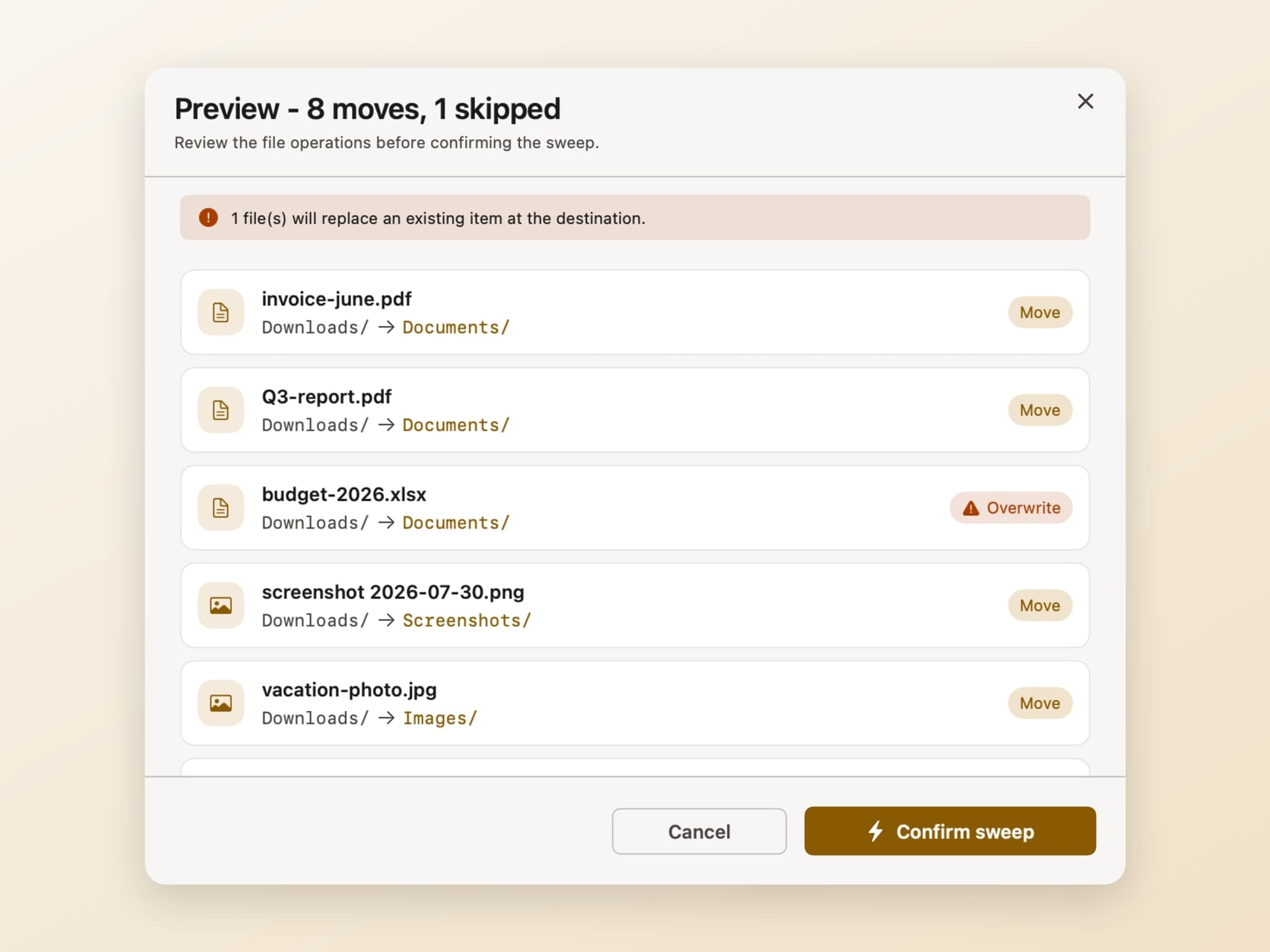
The header states the plan in one line - 8 moves, 1 skipped - and every row below it names the file, where it is now and where it would go. Rows that would replace something at the destination are flagged Overwrite with a warning above the list. Then Cancel or Confirm sweep.
Two guarantees sit underneath.
Nothing is ever deleted. The destructive action is "move to Trash", which is reversible with the Finder you already know.
Online-only cloud files are skipped, not half-moved. Sweep detects iCloud placeholders and the dataless files OneDrive and Dropbox leave behind, and leaves them alone rather than triggering a multi-gigabyte download or moving a stub away from the service that manages it. That is the 1 skipped in the header.
Where the files actually go
A move action has two halves: the destination folder you pick, and how files are distributed once they arrive. That second half is the part that decides whether you end up with one tidy folder or a second mess inside it.
Four options. Everything lands in the destination root. Everything is grouped
by type, into Images, Documents and the rest. Everything is grouped by
date, into dated subfolders like 2026-07/. Or everything goes into one
named subfolder, which is what the screenshots rule does with its Screenshots
folder.
A move can also rename as it files, which is useful for the downloads that arrive
as document(3).pdf and stay that way forever.
The important part is that all of this is still one rule with one preview and one undo entry. Routing changes where things land, not how reversible the batch is.
Undo, including after a relaunch
Every applied batch is recorded in the Activity Log and can be reversed with one click, and the log survives quitting the app.
That is the feature the rest of the design is arranged around. Automation that touches your files is only worth having if reversing it is as cheap as running it - otherwise the honest response to any rule you are not completely sure about is to not turn it on, and an organiser you are afraid of organises nothing.
From Finder, without opening the app
A Finder extension puts Sweep in the right-click menu of any folder.
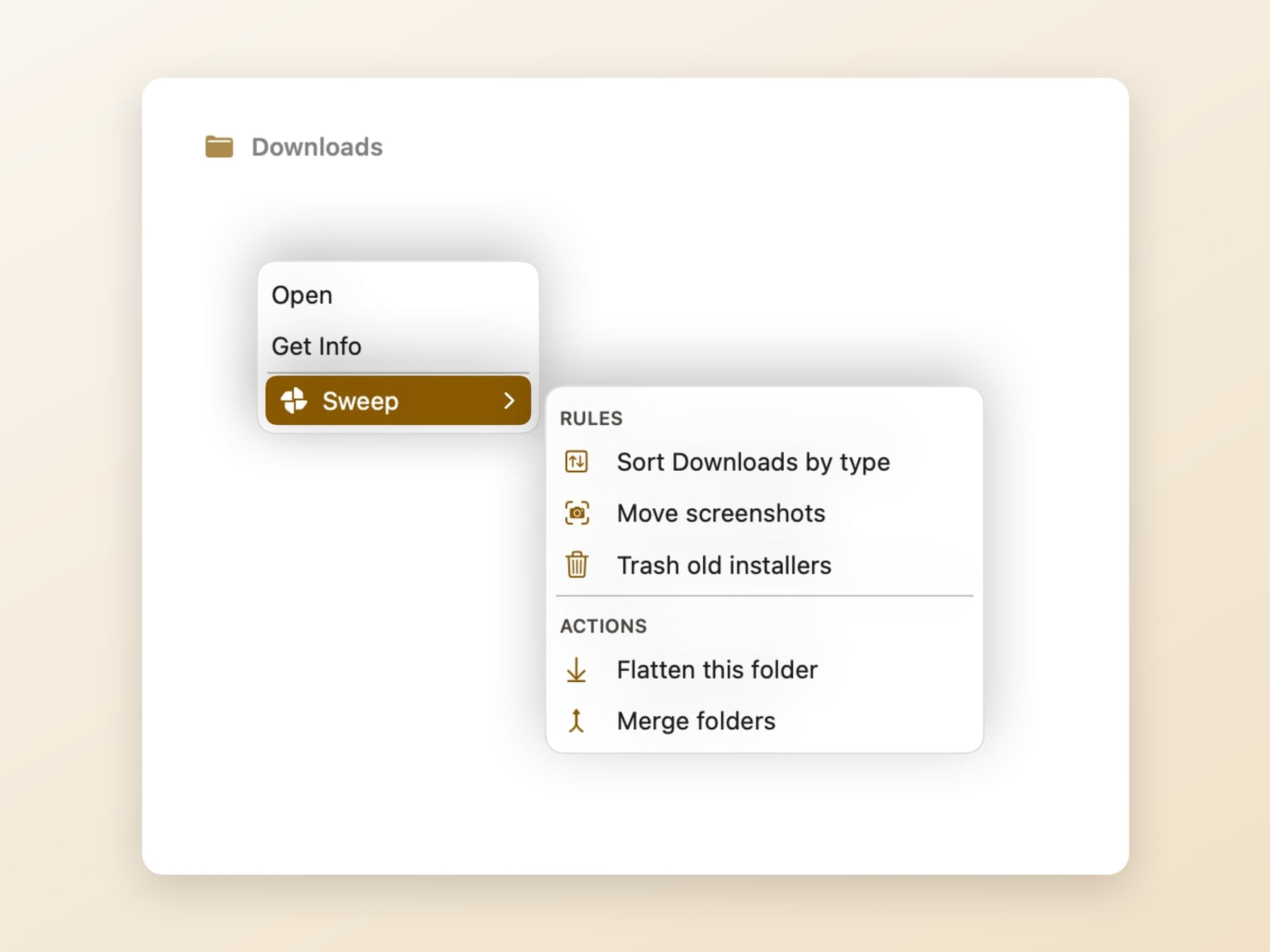
The submenu lists your active rules so you can run one against the folder you are looking at, plus two one-off actions: Flatten this folder, which pulls everything out of nested subfolders, and Merge folders, for the four directories that are all the same project under different names.
Under the hood the extension does no file work at all - it hands every action to the app, which owns the folder permissions and the undo log. That is a sandbox requirement, and it is also why a Finder-initiated batch is as undoable as any other.
What it deliberately does not do
There is no cleanup marketing. No "you can free 40 GB" scan, no duplicate finder, no system junk claims, no cache sweeper. Sweep files things; it does not try to convince you your Mac is dirty.
There is no cloud and no account. Rules and history are local, and the only network traffic is licence validation and update checks.
What it costs, and what else to look at
Sweep runs on macOS 14 or later, on Apple Silicon and Intel, and takes about 20 MB. It is a one-time $7 purchase rather than a subscription, with a 14-day trial that needs no card and no email. The full specification is on the Sweep page.
If you want more of the same shape - small native utilities that do one thing from the menu bar and keep their data on the machine - there is a survey in Mac utility apps worth installing, and Await is the other one in that category worth a look.